My iPhone photo library is cluttered with tons of duplicate and similar photos from years of backups, bursts, and Live Photos. It’s taking up a lot of storage and makes it hard to find the pictures I actually want. What’s the best and safest way to find and delete duplicate photos on an iPhone without accidentally losing important shots, and are there any built-in tools or trusted apps you’d recommend?
Short version first.
Use the built in Duplicates tool. Then clean bursts and Live Photos. Then offload old stuff. Then let an app do the rest.
Here is a step by step way that works well.
- Use Photos “Duplicates” on iOS 16+
• Open Photos.
• Tap Albums.
• Scroll down to Utilities.
• Tap Duplicates.
Photos groups exact and near exact copies.
Tap Merge next to each pair or group.
Or tap Select at top, select many, then Merge.
This keeps the highest quality version. It keeps edits and metadata. Storage frees up as iCloud and local copies shrink.
If you see no Duplicates folder, your iPhone is still indexing or you use an older iOS.
- Sort and bulk delete by date
If you know old backup years are a mess, sort by year.
• Go to Photos, then Library, then Years or Months.
• Tap Select.
• Drag your finger to select whole clusters you know you do not need.
• Delete, then go to Recently Deleted and remove them there so storage clears.
- Tame Live Photos
Live Photos double or triple space use compared to normal stills.
To batch turn them into stills:
• Go to Albums.
• Scroll to Media Types.
• Tap Live Photos.
• Tap Select, grab a chunk of older ones.
• Tap the three dots, tap Turn off Live.
That keeps the main frame and drops the short video part.
You can also disable Live for new shots in the Camera app. Top right Live icon, tap to Off.
- Clean up Bursts
Bursts clog storage fast.
• Albums → Media Types → Bursts.
• Open a burst.
• Tap Select at the bottom.
• Choose 1 or 2 keepers.
• Tap Done, then Keep Only 1 Favorite.
Delete the rest from Recently Deleted.
- Offload to a computer or cloud, then trim
If you want a long term archive but a slim phone:
• Plug your iPhone into a Mac. Use Photos or Image Capture. Import everything.
Or on Windows, import with Photos app or File Explorer.
• After a full backup, on iPhone go through recent years and delete aggressively.
• Always empty Recently Deleted after a big session.
You can also keep full res stuff only in iCloud Photos with Optimize iPhone Storage on. Settings → Photos → Optimize iPhone Storage.
- Use an app for faster bulk cleanup
Once you remove the obvious junk, a cleaner app helps.
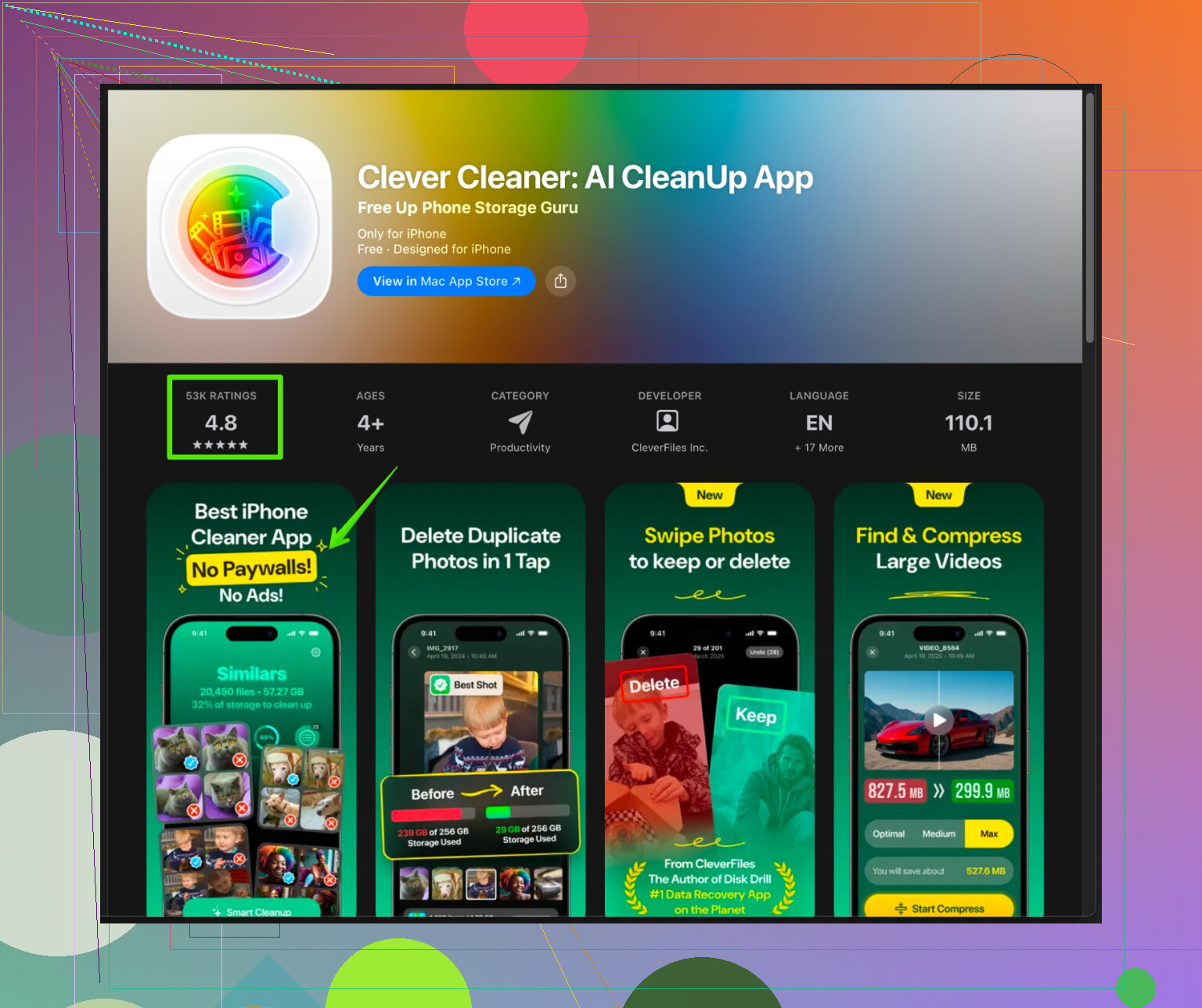
One option that works well for this is Clever Cleaner App for iPhone. It focuses on duplicate and similar photos, blurry shots, and random media that drags storage down.
You install it, let it scan, then it groups:
• Exact duplicate photos.
• Near duplicate selfies or burst spam.
• Screenshots and screen recordings you forgot.
• Blurry or low quality photos that are hard to see.
You still approve what to delete, so it does not remove everything without your input.
If you want to try it, here is the store link with more details and reviews:
clean up your iPhone photos with Clever Cleaner
- Make it routine so it does not get bad again
Once per month:
• Open Duplicates and merge.
• Open Live Photos and turn off Live on old sets.
• Run Clever Cleaner App and remove new clutter.
Ten minutes each month keeps things under control so you do not end up with thousands of dupes from years of backups again.
If you feel nervous before a big delete wave, do one thing.
Full iCloud backup or encrypted iTunes or Finder backup. Then purge.
I’m going to disagree slightly with @waldgeist on one thing: if you just start hacking away with Duplicates and random cleanup, you can absolutely delete stuff you’ll regret later, especially with years of messy backups involved. The trick is to set up some safety nets first, then clean fast.
Here’s what I’d actually do, in order, trying not to repeat their steps:
1. Lock in a “no-regrets” backup first
Before touching anything big:
- Make sure iCloud Photos is on, wait for “Updated Just Now”
- Or do an encrypted backup to a Mac/PC (so it keeps albums, faces, etc.)
- If you’re paranoid, also export the originals for a few key years (kids, trips, wedding, whatever)
This sounds boring, but once that’s done you can delete way more aggressively without second guessing.
2. Use search to wipe specific junk categories quickly
Instead of only relying on Duplicates:
- In Photos > Search, try:
- “Screenshot”
- “Whiteboard”
- “Receipt”
- “Document”
- “Text”
- Also search specific apps: “WhatsApp”, “Telegram”, “Messenger”, etc.
Those shared memes and forwards eat space and are usually low‑value.
Select → swipe-select a ton → delete → empty Recently Deleted.
This catches a lot of clutter that “Duplicates” will never touch.
3. Nuke unwanted auto-imports from other devices
If you’ve had multiple iPhones/iPads over the years, you probably have junk from old apps:
- In Albums > Media Types, look for:
- Screen Recordings
- Portrait (half of these are test shots)
- Slo-mo and Time-lapse you never edited
- Open each category, Select large ranges, and delete what’s obviously trash.
Again, clean out Recently Deleted afterward or nothing really frees up.
4. Fix the “years of backups” problem in big chunks
Instead of tapping on individual photos forever:
- In Library > Years, tap a year you know is full of old backups
- Use Months or Days view and think in “events”:
- Old work stuff from 2017? Gone.
- Random screenshots from an old job? Gone.
- Ten photos of the same plate of food from 2019? Keep 1, kill the rest.
It is faster to decide “this whole month is mostly junk” than to judge every single frame.
5. Use an app to kill “similar but not exact” stuff
Apple is good at exact / near duplicates, but not so great with:
- 14 almost identical selfies
- Slightly shifted versions of the same landscape
- Blurry, low-light fails
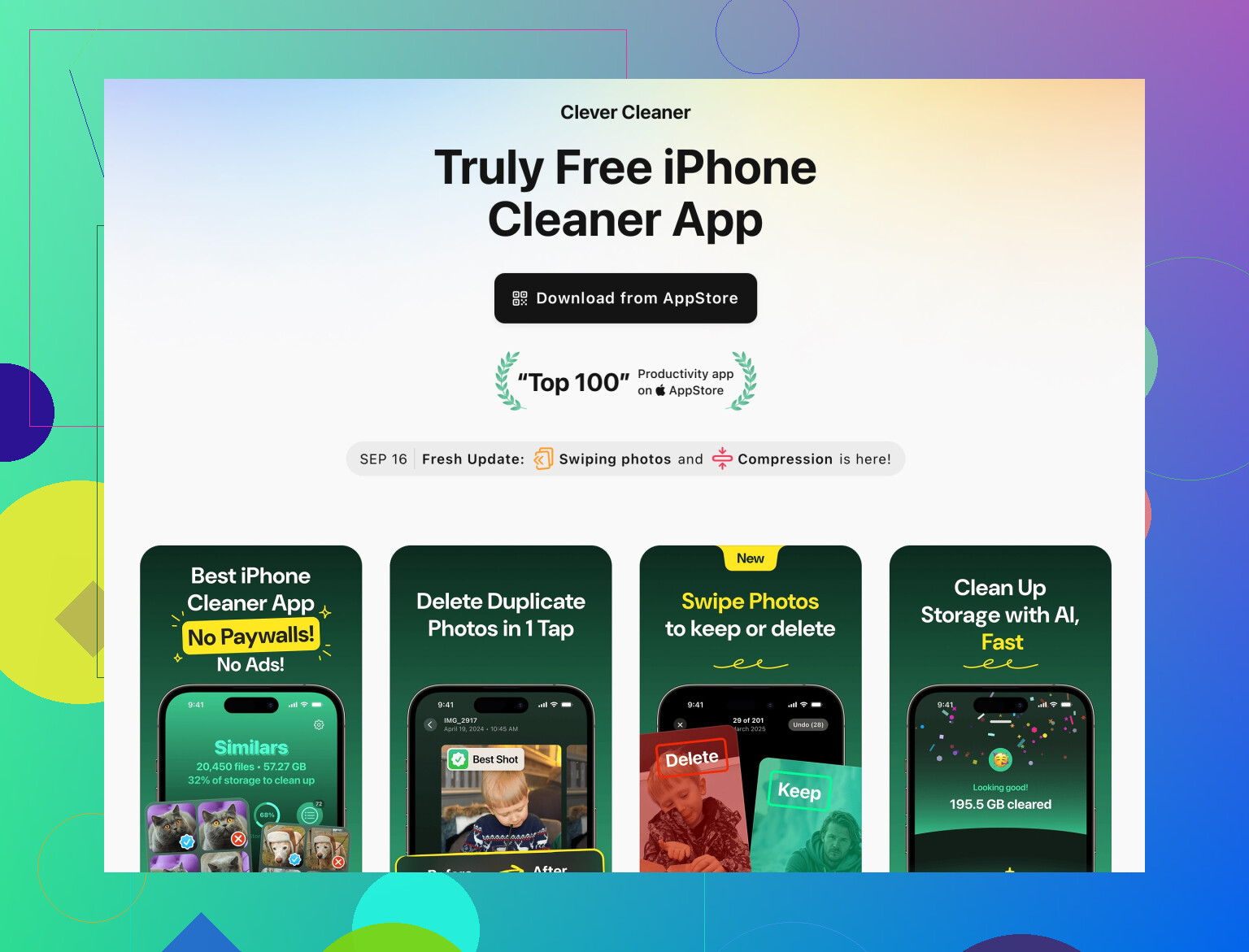
That’s where a cleaner app is actually worth it. Since you mentioned tons of similar photos, I’d definitely try something like the Clever Cleaner App, which is tuned specifically for:
- Duplicate & near-duplicate photos
- Blurry and low-quality images
- Random screenshots and old media that just sit there
- Burst and Live Photo noise
You still approve what gets deleted, but it clusters everything so you’re not manually hunting. For more details, this page is pretty solid:
cleaning up and organizing iPhone photos efficiently
I’d actually run that after using the built-in Duplicates tool, so it’s focusing on the annoying “almost the same” photos rather than obvious copies.
6. Protect the good stuff before you rage-delete
Couple of things that help you not lose the important memories:
- Make Albums like:
- “Top Favorites”, “Family Only”, “Trips I Care About”
- As you scroll and delete, quickly add keepers to those albums
- Mark absolute must-keep photos as Favorites (heart icon)
Even if you get overzealous and later think “oops,” your best stuff is easier to re-find in backups or in iCloud.
7. Change habits so this doesn’t happen again
Otherwise you’ll be back here in 2 years:
- Turn Live Photos to “Off” by default, only enable when you really want motion
- Don’t hold the shutter down like you’re playing a game
- Periodically clear out WhatsApp/other messaging media from Photos
- Once a month:
- Run Duplicates
- Check Screenshots & Screen Recordings
- Run Clever Cleaner App for a quick scan
TL;DR:
Backup first, use search to wipe whole junk categories, clean by year/event instead of photo by photo, then let an app like Clever Cleaner App sweep up the similar and blurry stuff that iOS misses. Duplicates alone is nice, but it won’t save you from years of “slightly different” nonsense.
21 Likes