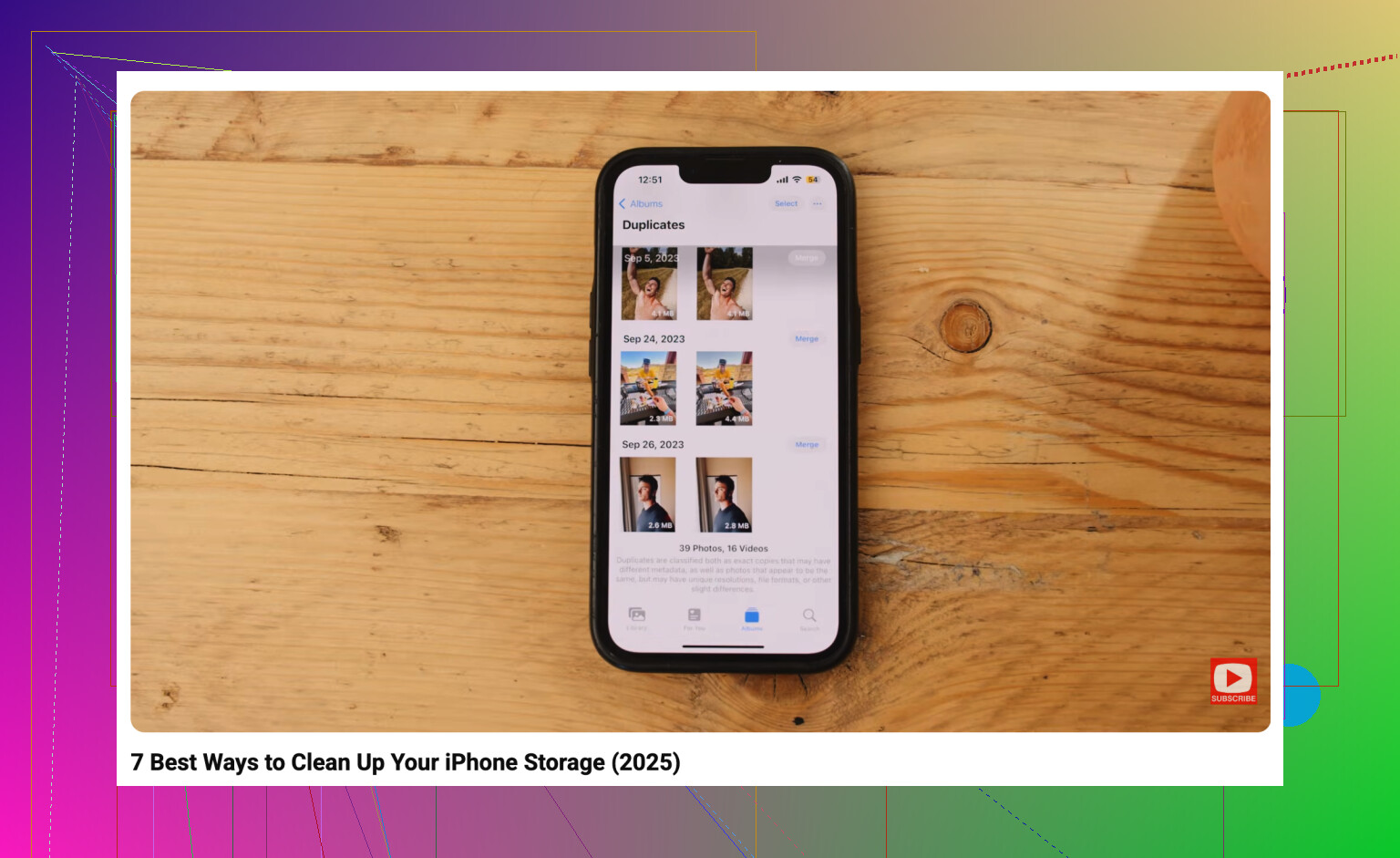
My iPhone storage is almost full, and I have thousands of old pictures I need to remove. I’m trying to figure out the fastest way to bulk delete photos using the iPhone Photos app without tapping each one individually.
If you’re staring at tens of thousands of photos, don’t try to clean it up one tap at a time. That gets old fast, especially when half the mess is screenshots, burst shots, random screen recordings, or five copies of the same picture.
The best method depends on whether you want to carefully review things or just clear space as quickly as possible.
Select a bunch at once in Photos
For basic manual cleanup, use the built-in multi-select tools in the Photos app.
Open Photos, go to your library, and tap Select in the top-right corner. From there, you can tap photos individually, but dragging your finger across rows is much faster. It lets you mark a lot of images in one motion instead of picking them one by one.
If you’re working through old stuff, zoom out first. Pinch the library view so you can browse by Months or Years, then jump to the time period you want. That makes it easier to wipe out a whole vacation, project, event, or random old batch without endless scrolling.
Use Select All where Apple actually offers it
Some of the built-in albums are much easier to clean because they include a real Select All option.
Go to the Collections tab, then look for Media Types. Albums like Screenshots, Bursts, and Screen Recordings are good places to start. Open one, tap Select, then tap Select All if you want to remove the whole category. This is usually way faster than digging through your main library trying to spot them mixed in with normal photos.
Use Clever Cleaner if the library is a mess
If you’ve got years of duplicates, similar shots, Live Photos, and screenshots, doing it manually can be a slog. A cleaner app may be worth it, and Clever Cleaner is one option for that.
It’s free, and the main appeal is that it doesn’t push ads or subscriptions the way a lot of photo cleaner apps do. Its Similars tool groups photos that look nearly the same, picks what it thinks is the Best Shot, and still lets you review the set before you delete anything.
It can also help with things like:
- finding similar photos,
- deleting screenshots in bulk,
- turning Live Photos into regular still images to save space,
- and spotting the biggest videos in the Heavies section, which can free up more storage than deleting a ton of small photos.
For a big one-time cleanup, that’s probably the fastest route while still giving you a chance to check what’s being removed.
Use a computer for really large deletions
If you’re deleting thousands of items, an iPhone screen is not the best place to do it.
If iCloud Photos is turned on, sign in to iCloud.com on a computer. With a mouse and the Shift key, you can select large ranges of photos much more easily than you can by dragging around on your phone. Anything you delete from iCloud Photos should sync back to the iPhone, so you don’t have to repeat the work there.
Erase the iPhone only if you truly want everything gone
If you do not care about keeping any of the photos and just want a completely clean phone, a factory reset is the fastest option.
Be careful with this one, though. It removes the photos, but also everything else on the device, including videos, messages, downloads, app data, and local files. If you’re sure there’s nothing you’ll want later, go to Settings > General > Transfer or Reset iPhone > Erase All Content and Settings.
That’s the nuclear option, but it will clear the photo library along with the rest of the phone.
9 Likes
Don’t delete a huge batch and assume the space is back right away. Photos you delete usually sit in Recently Deleted first, so after you bulk select and tap the trash, go to Albums, scroll to Recently Deleted, and empty it there too. That is the step people miss when their storage still looks full afterward. I’d be careful with the iCloud.com method mentioned above if iCloud Photos is on, because deleting there deletes from every synced device, not just the iPhone. For fastest cleanup inside the Photos app, I’d start with videos and screenshots before normal photos, since a few long videos can free more space than hundreds of pictures.

Do not empty Recently Deleted until you are sure you did not accidentally include anything important, because that second delete is the point of no return.
For the fastest method inside Photos, use the drag-and-hold trick. Open Photos, go to Library or an album, tap Select, drag across the first row of photos you want, then keep your finger pressed near the bottom edge of the screen. The view should start auto-scrolling while continuing to select photos. It is a little clumsy, but it is much faster than tapping thousands of thumbnails one at a time.
A small thing people miss: if iCloud Photos with “Optimize iPhone Storage” is turned on, deleting regular photos may not free as much local space as expected, because some originals may already be offloaded. For real storage relief, check Videos, Screen Recordings, Cinematic videos, and Recently Deleted first. If the goal is just to clear the phone fast, I would delete the biggest media types before spending an hour selecting tiny old pictures.