I’m trying to access my Google Drive files directly from Windows File Explorer, but I can’t figure out how to set it up. I want to manage my documents easily without always opening a browser. Can anyone explain the steps or suggest the best way to do this?
Turning Google Drive Into a Windows File Explorer Power-Up
Ever had one of those long workdays where you wish Google Drive just felt like part of your PC, no extra clicking, no awkward browser tabs? I finally got tired of hunting for files in Chrome tabs and figured out a way to make Google Drive show up in File Explorer—it’s way easier than I thought.
Install Google Drive for Desktop (Honestly, Just Do It)
Before you get ahead of yourself, you need Google’s actual desktop software. This isn’t some sketchy workaround or experimental chrome extension; it’s the legit thing made by Google. Here’s how I got rolling:
- Head to Google Drive for Desktop.
- Download and let the installer do its thing—mostly just clicking “Next” a few times, as usual.
- Pop in your Google login.
What’s cool: As soon as you’re done, you’ll see a new Google Drive folder on your PC. It’s like magic, except it’s just clever software.
Decide How You Want Stuff to Sync (A Little Bit of Control)
When it asks how you want your files to appear, pause for a second. This part matters. You get two options, and each has its own pros and cons:
-
Stream files: Basically, this means your files stay in the cloud, and your computer only grabs what you ask for. Great if you, like me, are hoarding memes and running out of space.
-
Mirror files: Want everything on hand even when your WiFi dies? This clones your Google Drive onto your PC so you can work offline. You’ll need a lot more disk space, though.
Pick what works for you and let the installer finish up.
Google Drive Now Lives in Your File Explorer
Open up File Explorer. Check under ‘Quick Access’ or the sidebar, and you’ll see “Google Drive” chilling with your folders. You literally just drag and drop files, move folders, and double-click docs as if they were on your hard drive. Kind of feels like cheating. If only making coffee was this easy.
Next Level: Multiple Cloud Drives, One Window
Look, the built-in Drive thing is great—for basics. But if you’re the person always juggling Dropbox, Drive, a work OneDrive, and maybe a random FTP somewhere (yep, that’s me), there’s a smarter way to keep everything under one digital roof. I tried something called CloudMounter, and here’s what I found:
- Lock Down Your Files: CloudMounter lets you encrypt cloud files, so if someone breaks into your laptop, your cloud-stored files are basically gibberish to them.
- All Accounts, One Place: Instead of flipping between three apps, just manage them all from your desktop’s file explorer.
- Keep Storage in Check: Only download what you need—no more “low disk space” pop-ups right before a Zoom call.
Set up is simple:
- Fire up CloudMounter after installing.
- Pick the Google Drive icon.
- Follow the prompts and hit “Mount”.
- Now your Google Drive appears in Finder like a regular folder. (Yes, I know, it’s a Mac screenshot—Windows folks, process is similar.)
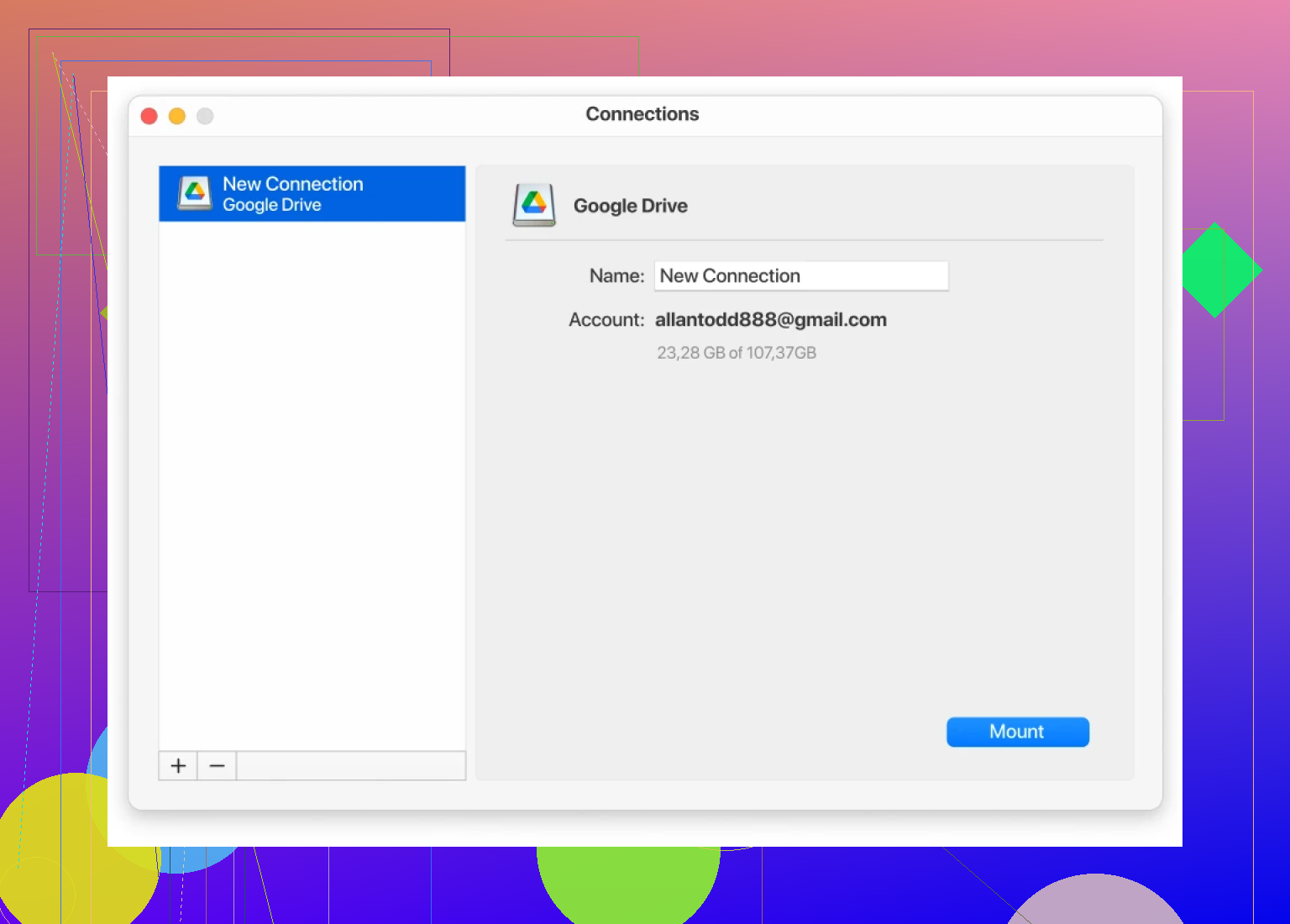
Set your preferences:
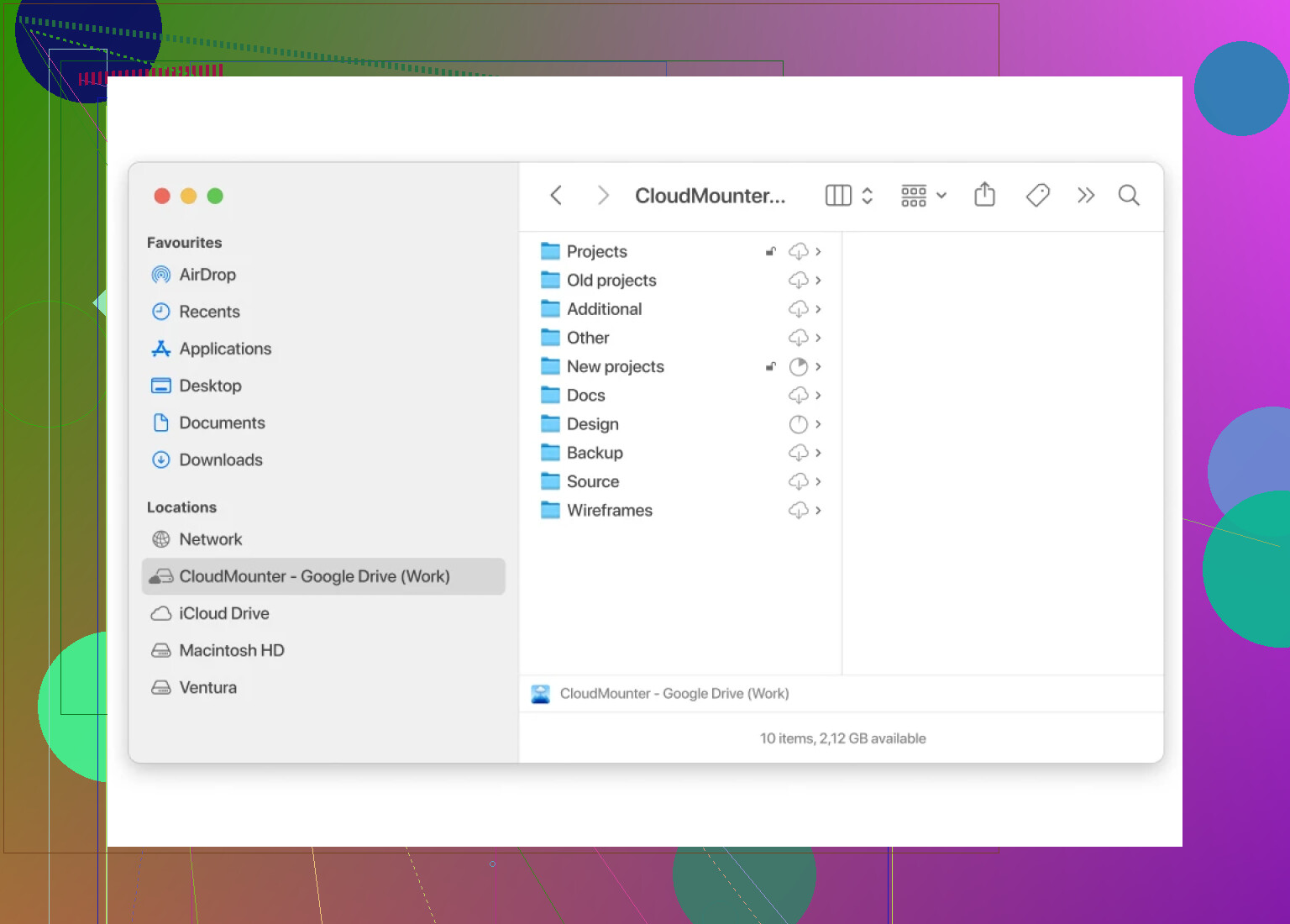
Results in your Drive being visible and manageable with the rest of your stuff:

TL;DR?
- Download Google Drive for Desktop, log in, and set sync style.
- Your files are right there in File Explorer.
- If you’re managing a bunch of cloud accounts (or want encryption), check out CloudMounter.
Saved me a huge amount of time, made switching devices less messy, and I rarely—if ever—lose files now. Recommended if you’re tired of playing hide-and-seek with your docs.
Honestly, the official Google Drive for Desktop is the easiest and most “legit” way to hook your Drive into Windows File Explorer, just like @mikeappsreviewer detailed. But if we’re being real, there are a couple other options that work almost as well (or annoyingly, sometimes better, if you run into sync bugs—which, yes, occasionally still happen in Google’s own app).
If installing background software makes you nervous or you’re on a locked-down work PC, you could try RaiDrive or Mountain Duck. Both do a decent job at mounting cloud storage as a network drive. RaiDrive is free for personal use and lets you mount Google Drive as a network drive (but no full “mirror” option—files aren’t truly offline unless you manually move them). Mountain Duck is paid but is pretty robust and works with WebDAV too, which is great for, umm, those of us with “creative” backup setups.
One place I totally gotta disagree with @mikeappsreviewer though—CloudMounter isn’t just a “next-level” thing for power-users. It’s honestly clutch if you hate fiddling with multiple sync clients or have a bunch of cloud stuff. Drives just show up in Explorer and you don’t sacrifice storage. Bonus, you get encryption, which Google Drive Desktop never bothered with.
TL;DR: Drive for Desktop is easiest; try RaiDrive, Mountain Duck, or CloudMounter if you want more flexibility, less bloat, or you juggle clouds like a circus act. And just between us: don’t expect perfection—sync apps have moods. If stuff randomly “goes missing,” check the trash folder online before panicking.
24 Likes