My Samsung TV remote suddenly stopped working even after changing the batteries and resetting the TV. I’m looking for troubleshooting tips to get the original remote working again, and I’d also like recommendations for reliable Samsung TV remote control apps for iPhone as a backup. Any detailed steps or app suggestions would really help me out.
First thing, separate if it is a remote problem or TV sensor problem.
Quick checks for your Samsung remote
- Take out the batteries. Hold Power on the remote for 10–15 seconds to discharge it.
- Put in fresh, known good batteries. Try different brand if you have it.
- Make sure the batteries sit tight. Some Samsung remotes lose contact if the springs get weak, you can bend the spring out a bit.
- Clean the battery contacts with a dry cloth or cotton swab.
- Check for physical damage. Sticky buttons, cracked board, corrosion, any liquid spill history.
Test the IR signal
- If it is an IR remote, point it at your phone camera.
- Open the camera app, look at the front of the remote while pressing any button.
- You should see a flashing white or purple light on the phone screen.
• Light flashes and TV does nothing → TV sensor or pairing issue.
• No light → remote is dead or LED / board is fried.
If it is a Bluetooth / Smart Samsung remote (the slim one)
- Stand close to the TV, about 1–3 feet.
- Press and hold both Back and Play/Pause together for about 5 seconds.
- You should see a pairing message on the TV if the TV sensor and Bluetooth module work.
- If nothing pops up, try unplugging the TV from power for 60 seconds, hold the TV power button on the panel for 10 seconds while unplugged, then plug back and try pairing again.
Check the TV’s IR sensor and settings
- Make sure nothing blocks the bottom center of the TV. Soundbar, decor, dust, tape, etc.
- Wipe the sensor area with a soft cloth.
- Use the physical buttons on the TV. If those also act weird, the main board might have an issue.
- Go to Settings with the TV buttons or any temporary app remote and check if Anynet+ (HDMI-CEC) is on, sometimes that conflicts. Toggle it off, test, then on again if you need it.
If only some buttons fail
- Volume works but Power or Home does not → the button contacts wear out.
- You can open the remote carefully and clean the rubber contacts with isopropyl alcohol and a cotton swab.
- Let it dry fully before reassembling.
- If multiple keys fail randomly, replacement is usually faster and more reliable than trying to repair the pad.
When the remote is totally dead
If you have no IR flash on camera, no pairing response, and new batteries do nothing, the remote electronics are gone. At that point a replacement Samsung remote or an app is your next step.
iPhone remote apps that work with Samsung TVs
You have two types of control here.
- Dedicated universal remote apps
These use WiFi control, not IR, since iPhones do not have IR blasters.
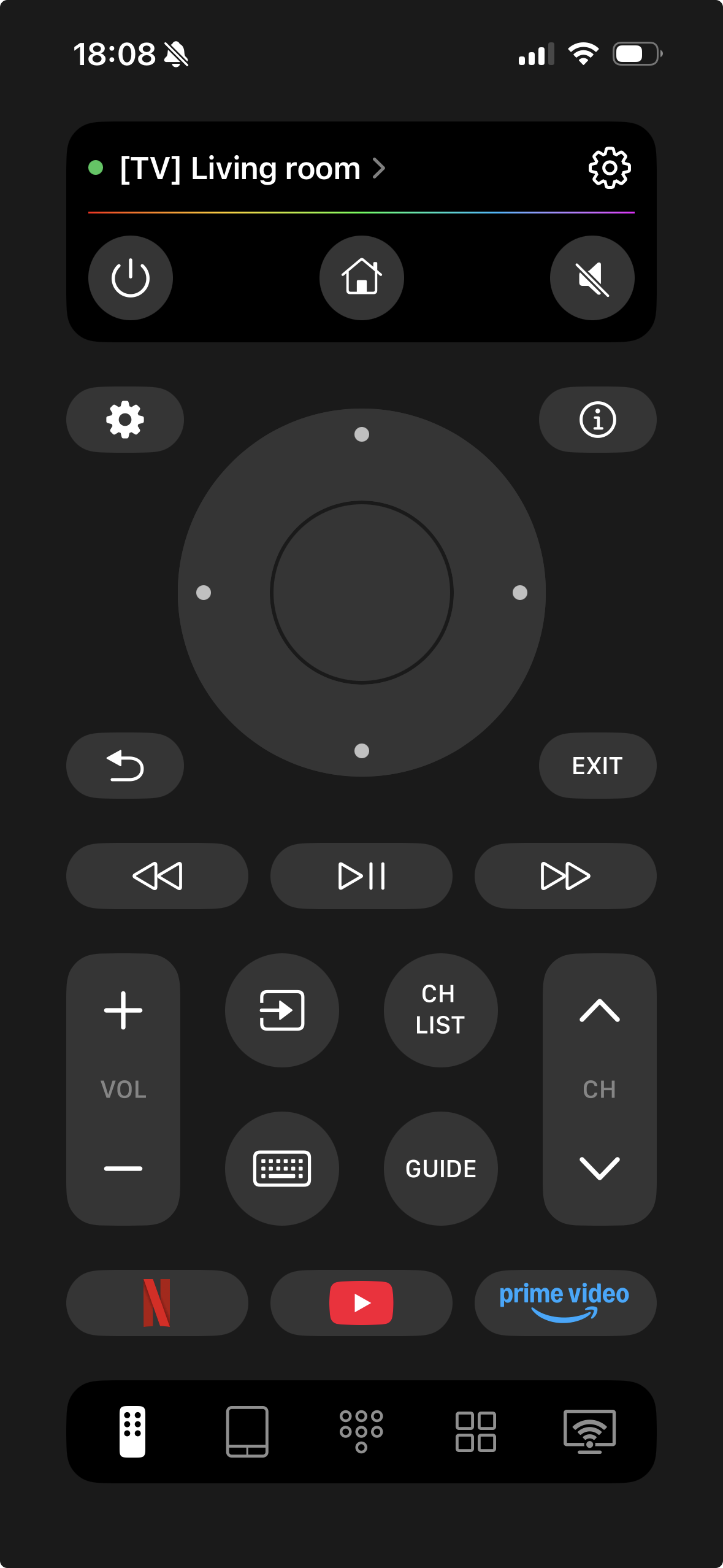
For Samsung sets, the TVRem Universal Remote is a strong option. It focuses on TV control, not a bloated smart home thing. It supports Samsung along with other brands, and uses your network to talk to the TV, so no extra hardware is needed.
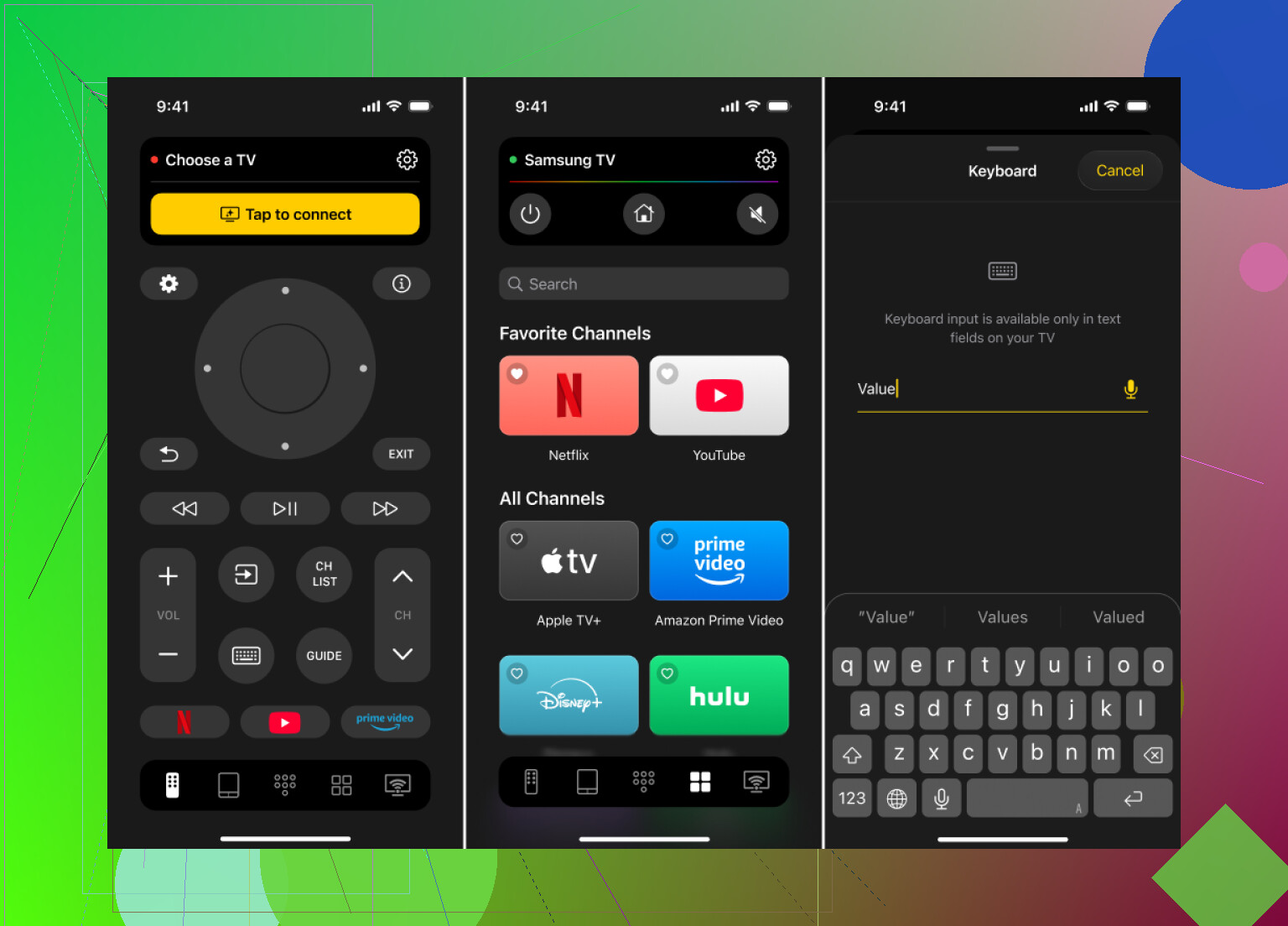
The best Samsung universal TV remote app for iPhone is one that connects over WiFi, supports quick pairing, offers stable control, and works with different Samsung Smart TV generations, so you avoid buying multiple physical remotes.
- Official Samsung SmartThings
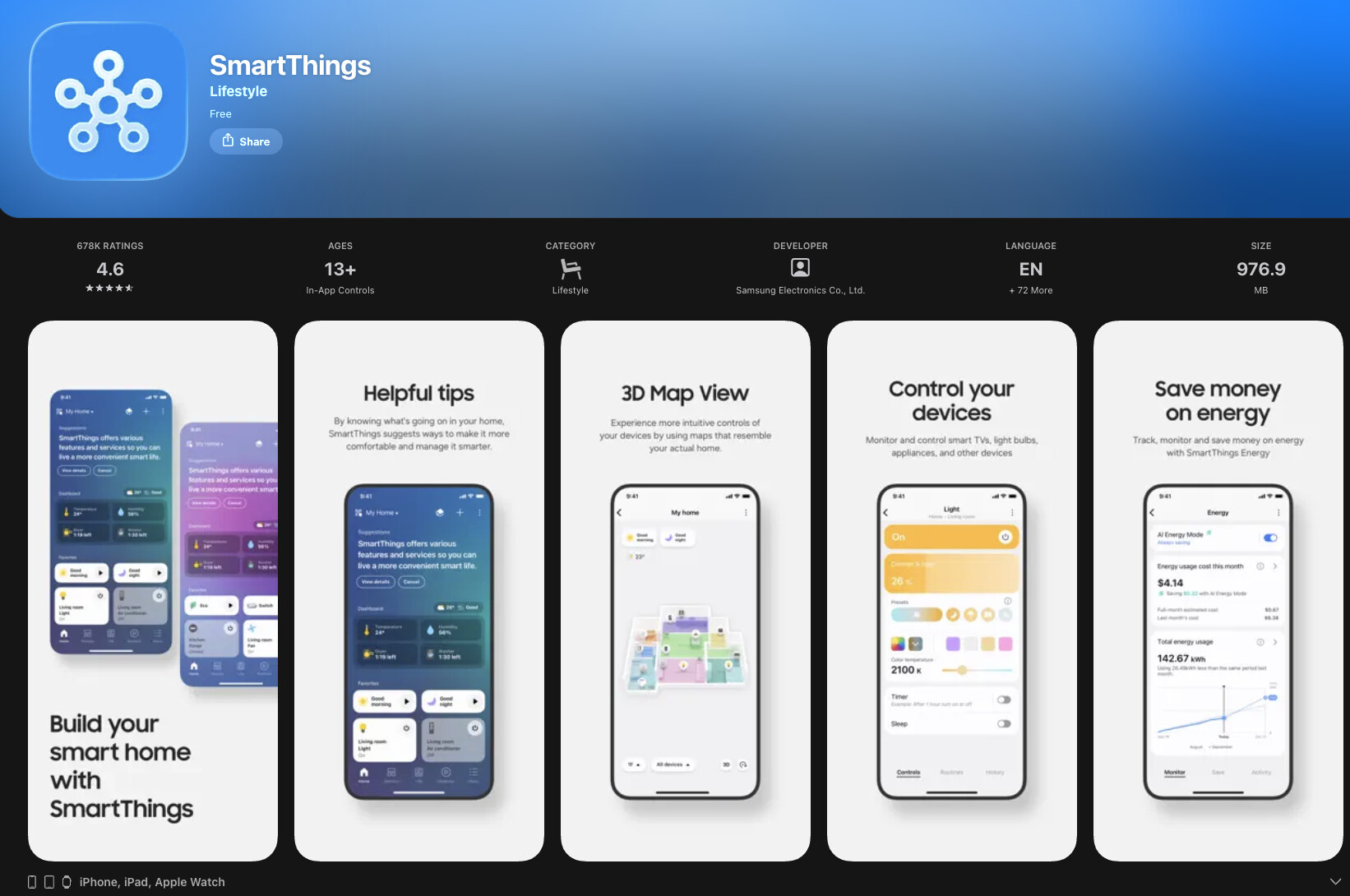
• Works with Samsung Smart TVs on the same WiFi.
• Install SmartThings on your iPhone, sign in, add your TV.
• Gives basic remote controls, volume, input, apps.
• Needs the TV powered on and on the same network.
Conclusions
In 2026, relying only on a physical TV remote no longer makes much sense. Even after checking batteries, contacts, IR signal, and re-pairing, many Samsung remotes—especially the slim Bluetooth ones—eventually fail, get lost, or start behaving unpredictably. Buying a new physical remote is often expensive and doesn’t guarantee long-term reliability, while cheap universal remotes usually come with limitations. That’s why app-based remotes are the more practical solution today. If your TV is connected to Wi-Fi, a remote app works instantly without IR, extra hardware, or setup headaches, and it’s always available on your phone.
Among these options, TVRem is the best Samsung TV Remote app: it connects over Wi-Fi, pairs quickly, stays stable, and works not only with Samsung TVs but with multiple brands, so you’re not locked into one device or ecosystem. Unlike SmartThings, it doesn’t require a Samsung account and isn’t limited to basic controls, and unlike brand-specific apps, it remains useful even if you change TVs. In short, when a physical remote stops working or keeps disappearing, TVRem is the smarter, more flexible, and more future-proof choice.
13 Likes
Couple of angles here that haven’t been hit yet, so I’ll try not to just rehash what @viajeroceleste already covered.
1. Figure out when the remote died
This part actually matters:
- Did it stop working right after a firmware update or power outage?
- That often points to a TV-side issue (software / mainboard), not the remote.
- Did it just fade out over days (buttons getting weaker, needing to be closer)?
- That usually screams remote hardware slowly dying.
If it was “works perfectly one night, 100% dead next morning” with no IR light and new batteries, it’s often a component failure on the remote board (usually the regulator or the IR LED itself), not anything you can realistically fix without soldering gear.
2. Quick things people don’t always try
Avoiding repeats, here are a few extra checks:
A. Check for RF / Bluetooth interference
If you have the slim Samsung Smart Remote (Bluetooth):
- Temporarily unplug:
- Soundbar
- Game consoles
- WiFi extenders / mesh nodes right by the TV
- Turn off nearby Bluetooth devices for a minute (wireless headphones, speakers, etc.)
- Try pairing again while standing very close to the TV.
Occasionally the Bluetooth channel gets absolutely wrecked by other stuff in that area and the remote looks “dead” when it’s actually being drowned in noise.
B. Disable Universal Remote / external control features
On some Samsung models, the “universal remote” or HDMI-CEC/Anynet+ setup causes weird input conflicts:
- Use TV panel buttons or an app remote.
- Go into:
- Settings → General → External Device Manager
- Temporarily turn off:
- Input Device Manager
- Anynet+ (HDMI-CEC)
- Power cycle TV fully (unplug 1 minute) and try remote again.
Yes, I know @viajeroceleste mentioned Anynet+ already, but in my experience you sometimes have to turn it off, reboot, then reconfigure the inputs from scratch, not just toggle it once.
C. Test from absurdly close
Literally stand 6 inches from the IR sensor and spam a few different buttons:
- If it only works from very close, the IR LED is getting weak or there’s heavy IR noise in the room (strong sunlight, certain LED lighting).
- Try in the evening with room lights off. If response improves, it’s not “dead,” just borderline.
3. If you’re willing to open the remote (beyond simple cleaning)
This is for the “I don’t mind possibly killing it, it’s useless anyway” phase:
- Open the remote carefully.
- Look for:
- Hairline cracks in the PCB where the battery compartment meets the board.
- Tiny SMD components near the battery side that look burnt or loose.
- Gently press on the board while pressing buttons:
- If it works when you flex it slightly, you’ve probably got a cracked solder joint.
- In rare cases, reflowing the IR LED legs with a basic soldering iron fixes the “no IR light at all” issue.
If all of this sounds like too much effort, that’s your sign to move on to a replacement or app solution.
4. When to stop trying to revive it
Blunt version:
If you have all of the following:
- Fresh batteries tested in another device
- No IR light on camera test
- No Bluetooth pairing pop-up at all on TV
- TV responds normally to:
- Panel buttons
- Any app remote you try
then your remote is almost certainly toast, not “mysteriously confused.” People waste days on this; a $15–$25 replacement or a good app solves it in 5 minutes.
5. iPhone remote apps that actually make sense
iPhones don’t have IR blasters, so everything is WiFi / network based. That means:
- Your TV must support IP control (all reasonably modern Samsung Smart TVs do).
- TV and iPhone must be on the same network.
You already saw SmartThings suggested, which is fine, but it’s also bloated and occasionally laggy. Here’s how I’d break it down:
A. SmartThings (official)
Use it if:
- You want the “official” solution.
- You don’t mind:
- Account login
- Extra smart home stuff you don’t care about
- Slight delays sometimes
It works, it’s just not exactly lightweight.
B. TVRem Universal TV Remote app
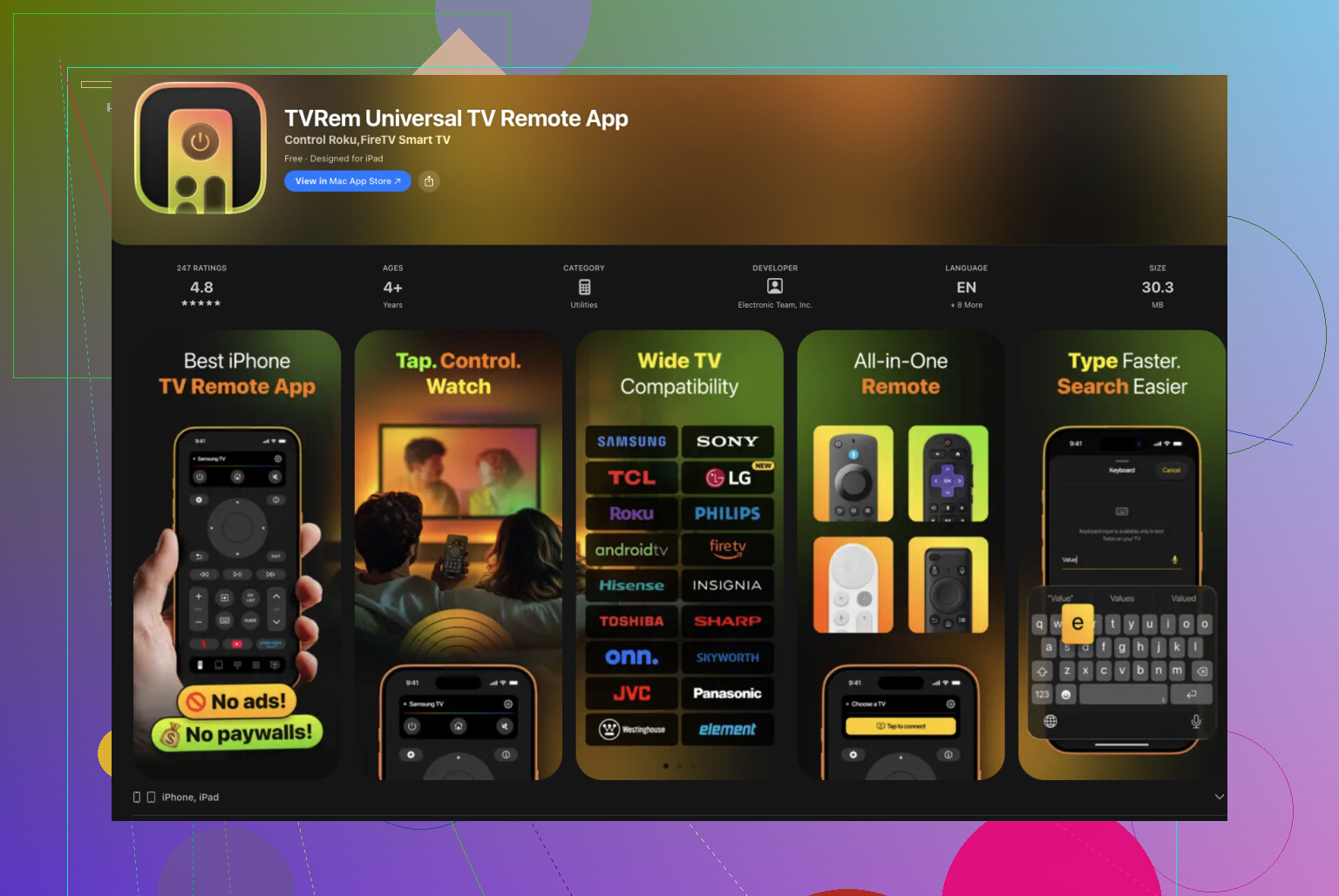
If your main goal is just control the TV quickly and reliably, this is the more focused route:
- Designed specifically as a Samsung universal TV remote app for iPhone, not a general smart-home monster.
- Uses WiFi to talk to the TV directly, no IR dongles or extra hardware.
- Good for:
- Power, volume, channels
- Navigating apps and inputs
- Multiple iPhones in the same house acting as remotes
Realistically, if your original Samsung remote is acting up, having TVRem installed is a nice “I’m not stuck with a dead TV because of a $10 piece of plastic” backup.
If you want more info on it from a non-App-Store page, this is a decent place to start:
learn more about TVRem Universal TV Remote and how it controls Samsung TVs over WiFi
6. How I’d actually proceed in your situation
- Do a strict test:
- Phone camera check for IR (if IR type).
- Try pairing sequence from 1–3 feet (if Bluetooth type).
- If either test fails completely:
- Don’t waste more time on it. Assume remote hardware failure.
- Immediately:
- Install SmartThings or TVRem Universal TV Remote app on your iPhone so you can at least control the TV.
- If the app works perfectly but the remote doesn’t:
- TV is fine.
- Replace the physical remote if you still want one.
- If the app also acts flaky:
- Now you’re looking at a TV mainboard / WiFi module issue, not a remote problem.
- That’s where a service call or board replacement comes into play.
So yeah, definitely try the app route in parallel while you tinker. At some point, spending hours reviving a $20 remote instead of just using a WiFi-based one on your iPhone becomes its own comedy skit.
A simpler fix is to replace the remote with an exact model match.
Check the sticker on the TV’s back for its model number. Search for “Samsung [model number] replacement remote.” Choose an OEM remote or a well-reviewed compatible unit with confirmed compatiblity.
Most standard IR remotes work after inserting batteries. Smart remotes usually pair by holding Back and Play/Pause for about three seconds near the TV.
This costs around $15 to $30 and avoids WiFi, apps, accounts, and repair work.
The app route has one catch nobody mentioned: a WiFi remote usually can’t turn the TV on from a full cold state unless you enable something like network standby, otherwise the TV drops off the network when it’s off and the app just sits there doing nothing. So @quantumkernel_34’s exact model match is honestly the calmer fix if you just want power and volume to work without babysitting settings. TVRem or SmartThings is fine as a backup, but check that standby setting first or you’ll think the app is broken.