I’ve noticed my iPhone photo library is getting bloated, and I’m pretty sure a lot of the images are duplicates from backups, bursts, and sharing between devices. I’m trying to figure out if iPhone can automatically detect and flag duplicate photos on its own, or if I need a specific setting, iCloud feature, or third-party app to do this safely without losing important pictures. What’s the best way to clean up duplicates and free up storage while avoiding accidental deletions
Short version. iPhone does some auto duplicate detection now, but it is limited. You still need to do a lot by hand or use a cleanup app.
Here is how it works and what you can do.
-
Built in “Duplicates” folder
• You need iOS 16 or newer.
• Open Photos app.
• Go to Albums tab.
• Scroll down to “Utilities”.
• Tap “Duplicates”.There you see detected duplicates and “near duplicates”.
You can tap “Merge” on each pair or use “Select” and merge many at once.
When you merge, Photos keeps the highest quality version and moves the others to Recently Deleted. -
What it finds and what it misses
It detects exact same photos and close ones with same subject and size.
It often misses:
• Screenshots vs photos of the same screen.
• Photos with tiny edits like a small crop or markup.
• Many burst photos. You still pick “Keep only 1 favorite” inside the Burst stack. -
Clean up bursts
• Open Photos.
• Search “Burst” in the search bar.
• Open a burst, tap “Select…”.
• Pick 1 or 2 shots, then tap “Done” and choose “Keep only 1 favorite”.
This trims a lot of junk if you shoot sports, kids, pets, etc. -
Clean up Live Photos
Live Photos are heavier.
If you do not need the motion:
• Open a Live Photo.
• Tap the “Live” button at the top.
• Change it to “Off”.
Now it becomes a normal still photo and saves space, though it is not a duplicate removal. -
Avoid future duplicates between devices
• Use iCloud Photos on all Apple devices with the same Apple ID.
• Do not import the same old backup twice with Finder or iTunes.
• If you AirDrop from your own other device, you end up with another copy unless both devices share the same library. -
Third party apps if you want it more automatic
If you want smarter scanning, look at cleaners that handle similar photos, videos, screenshots and bursts.
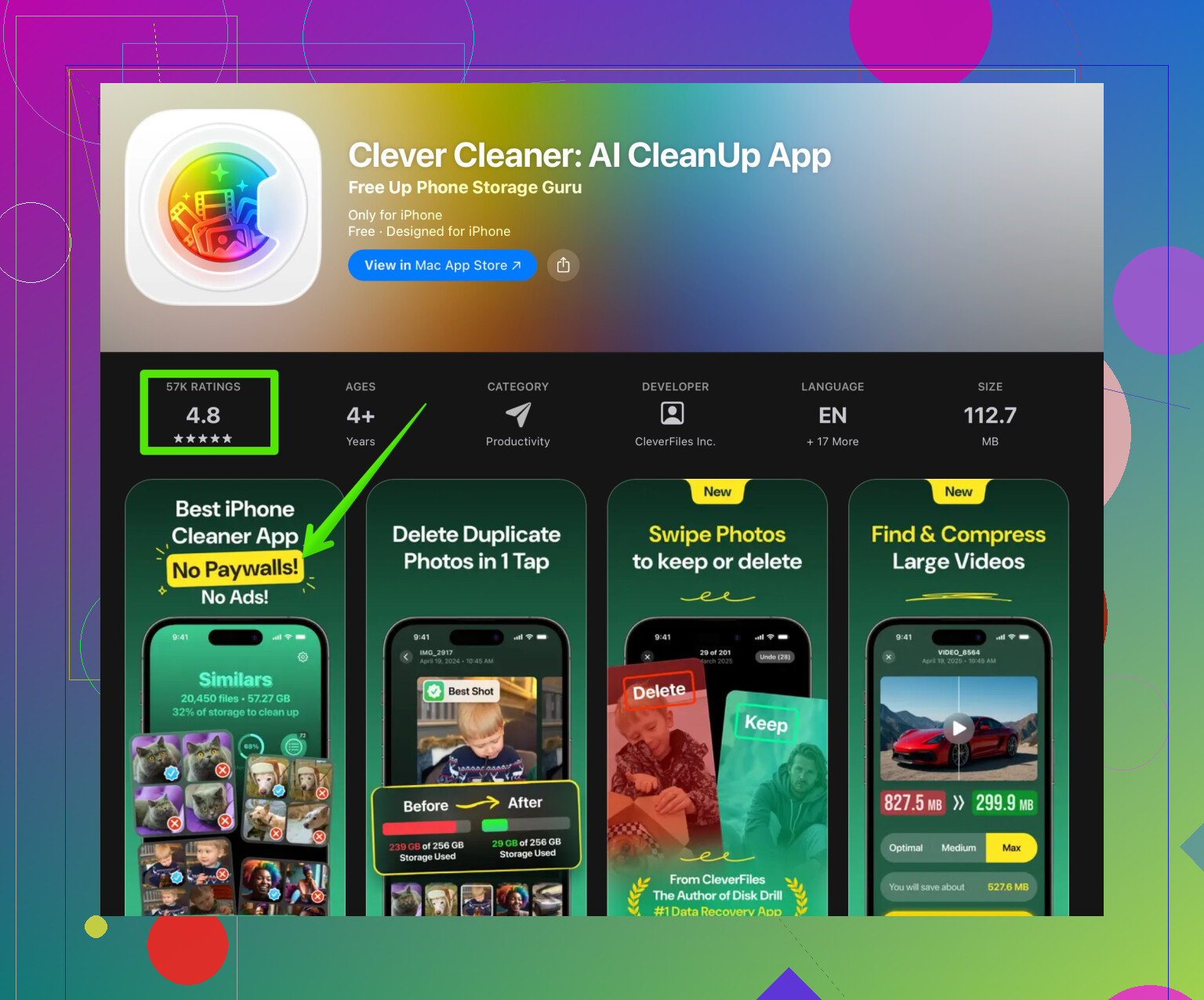
One option is Clever Cleaner App. It uses AI to group similar images, junk screenshots and blurry shots so you remove them faster. You can check it out here:
Clean up duplicate and similar photos on your iPhone -
Simple manual routine that works
Once a week or month:
• Open Photos, tap “Duplicates”, merge everything you agree with.
• Search “Burst”, clean those.
• Search “Screenshots”, delete old ones you do not need.
• Empty “Recently Deleted” to free storage.
If your library is huge and old, the first cleanup might be slow and a bit boring, but after you do the first big pass, keeping it clean is much easier.
iOS does try to detect duplicates, but it is far from a complete auto‑pilot solution, especially if your bloat is from years of backups and device shuffling.
@voyageurdubois already covered the obvious stuff like the Duplicates album and basic merging, so I’ll skip the tap-here-tap-there walkthrough and focus on what actually happens behind the scenes and what gaps you’re running into.
1. How “automatic” the iPhone really is about duplicates
Apple quietly runs a background indexing process on your Photos library. That process:
- Groups “exact” duplicates and some “near” duplicates into that Duplicates view
- Uses metadata a lot: time, resolution, file hash, sometimes content similarity
- Only works while your phone is plugged in, on Wi‑Fi, and not under heavy load
So if your library is massive or newly imported, it can take days before everything shows up. A lot of people think it “isn’t working” when really Spotlight / Photos indexing is still chugging along in the background.
Where I slightly disagree with @voyageurdubois is on how reliable it is with “near duplicates.” In my experience, it is pretty conservative. Apple would rather miss a bunch of dupes than risk auto-suggesting a merge of two different moments that look similar.
2. Why your backups and device shuffling are a special mess
You mentioned bloat from:
- Old backups
- Sharing between devices
- Bursts
That combo tends to create duplicates that don’t look like classic dupes to iOS:
- Imported-from-backup photos often get slightly different metadata, even if the pixels are the same
- Copies from messages, social apps, or AirDrop might get recompressed
- Some cloud services re-encode the image, change EXIF, or resize it
To iOS, those are often “different files” that just look the same to you, so they never show under Duplicates.
This is where Apple’s approach really falls short. It’s image-library hygiene by lawyers: very safe, not very aggressive.
3. Where iOS genuinely helps (beyond the obvious Duplicates album)
Some things that do reduce duplicates or duplicate-like clutter, even if Apple never calls them that:
-
Shared Library setup
If you use iCloud Shared Library with your family instead of everyone saving and re-saving each others’ photos, you avoid a ton of cross-device duplicates going forward. It won’t fix the past, but it stops the bleeding. -
Import behavior
If you plug your iPhone into a Mac and import via Photos, macOS will avoid re-importing what it thinks you already have in that Mac library. That indirectly keeps your iPhone cleaner if you use iCloud Photos across devices. -
Hidden stacks
For some “burst-y” behavior, like Live Photos, the phone collapses versions into a single entry unless you explicitly duplicate or edit. It is not dedupe in the classic sense, but it keeps the feed from exploding.
Still, none of this truly attacks your legacy duplicates from years of backups.
4. When you actually need a smarter cleaner
If your library is huge, mixed from old devices, and full of nearly identical shots, built-in tools are too timid. That is where a dedicated cleanup tool earns its keep.
You want something that:
- Finds visually similar photos, not just file-based duplicates
- Groups sequences, bursts, and slight edits
- Lets you quickly preview and bulk-select “keep best, trash the rest”
A solid option on iPhone is Clever Cleaner App, which is designed exactly for this headache. It uses AI-based similarity, so it will:
- Catch pics that look the same even if they came from different backups or were re-saved
- Surface blurry, low-quality, or redundant shots next to the sharper one
- Deal with screenshots, memes, and random junk you forgot existed
If you want to deep clean your library faster, something like
smartly decluttering your iPhone photo collection
is honestly more efficient than tapping through Apple’s cautious Duplicates list for hours.
5. Realistic strategy that actually works long term
For a bloated, years-old library, I’d treat it like this:
- Let iOS finish indexing (leave phone plugged in, Wi‑Fi, overnight a few days).
- Use the Duplicates view as a first pass to kill the obvious stuff.
- Run a smarter cleaner like Clever Cleaner App to catch similar shots from backups and mis-matched metadata.
- Going forward, use:
- iCloud Photos and/or Shared Library
- Less manual importing from random old backups
- Occasional cleanup of bursts and screenshots
So yes, iPhone can automatically detect some duplicate photos, but with a library full of old backups and device-sharing artifacts, the built-in system is more like “nice starter tool” than “full solution.” You’ll still need some manual decisions and probably a dedicated cleaner to really get things under control.
And yeah, it’s boring. But once you do the big cleanup once, keeping it tidy is way less painful.
66 Likes
Apple’s duplicate handling is more “cautious librarian” than “aggressive janitor,” which is why your backup mess survives.
Where I differ a bit from @voyageurdubois: I wouldn’t rely on the Duplicates album and iOS indexing as your main solution if your clutter is from years of restores and cross‑device copies. For big, mixed libraries, the built‑in logic is simply too metadata‑dependent and not visual enough.
A few points that fill in the gaps:
-
Apple never truly auto‑deletes
iPhone does not silently remove duplicates. Everything is suggestion‑based. Even “Merge” keeps the highest quality file and rolls the others into it, but it still depends heavily on matching timestamps, device IDs and file hashes. Once backups have munged that, you’re mostly invisible to the Duplicates engine. -
iCloud itself can preserve duplicates
If you reintroduced photos from older Macs, Google Photos exports, WhatsApp saves, etc., iCloud tends to treat those as distinct assets. Sync just mirrors the mess; it does not consolidate it. -
Bursts and Live Photos confuse things
Bursts, Live Photos and similar sequences are partially stacked but not aggressively deduped. So your “near identical” series from trips and events will usually survive untouched, especially when edited versions exist.
Where a third‑party tool is actually useful:
Instead of repeating the built‑in steps, this is where something like the Clever Cleaner App slots in as the “visual brain” on top of Apple’s conservative layer.
Pros of Clever Cleaner App:
- Visual similarity detection that ignores many metadata differences from backups and exports
- Groups series and near duplicates so you can pick one best shot and clear the rest quickly
- Can target low‑quality, blurry or heavily compressed copies
- Useful if you want to attack years of legacy clutter in a few focused sessions
Cons of Clever Cleaner App:
- Requires you to trust a third‑party with full Photos access, which some people are understandably wary about
- “AI similarity” is not perfect; you still need to review groups so it does not remove subtle but important variations
- Extra app to manage, and if you are already storage‑tight, installing anything new can feel counterintuitive
- Power users might prefer desktop tools for finer control on Mac or PC
Where I’d push back a bit on the “just add a smarter cleaner” idea: if your library is also your archive, I would avoid doing a single massive one‑time purge on the phone alone. A safer strategy:
- First, get a full archive copy on a computer or external drive (via Photos on Mac or a file copy).
- Let iOS do its Duplicates pass, but treat it as light pruning rather than the main cleanup.
- Then use Clever Cleaner App in several shorter sessions, always scanning the “to delete” list before confirming.
That way you combine Apple’s conservative approach with a more visual, AI‑driven pass, but you do not put your only master copy at the mercy of any single dedupe engine, however smart it claims to be.
Your take is solid, cautious, visual first. Alternative, simpler fix.
Use the Imports album to wipe whole duplicate waves from old restores.
Steps:
- Photos, Albums, Imports.
- Scroll to months when restores occured or exports were added.
- Select, Select All for those batches.
- Deselect clear keepers like RAW or ProRes if present.
- Delete, then clear Recently Deleted.
- Stop future clutter, disable Save to Photos in WhatsApp and Messages.
Impact example, 20,000 shots at 3 MB each, about 60 GB freed in minutes. This hits the worst bloat fast.