I’ve heard you can link an external editor to Cyberduck so you don’t have to download/re-upload files. Does this actually work smoothly, or is it buggy in practice?
I’ve been using Cyberduck on and off whenever I need to move files between servers, cloud storage, and my local machine. The easiest way to describe it is a libre server and cloud storage browser. It started as a traditional FTP client, but over time it turned into more of a universal connector for remote storage.
Instead of juggling multiple dashboards or web interfaces, you can open a connection and browse remote storage almost like a regular folder. Whether I’m connecting to a Linux server through SFTP or checking files in Amazon S3, the general workflow stays the same.
That consistency is really the core idea behind the tool. Once you understand how one connection works, the rest feel familiar.
 Protocol Support and Practical Features
One of the reasons Cyberduck stays installed on my system is the range of protocols it supports. Besides the usual FTP connections, it also handles services like SFTP, WebDAV, and cloud platforms including Amazon S3, Google Drive, and Dropbox.
In practice this means I can use the same client to:
- Upload site updates through SFTP
- Move build assets into cloud storage
- Download server backups
That might sound like a small thing, but it saves switching between several different tools.
Another feature that ends up being useful is external editor integration. You can open a file from the server in a local editor, make a change, and when you save it the file gets uploaded back automatically.
Pro-tip: This is especially convenient for quick edits to config files or small scripts where you don’t want to manually download and upload every time.
Cyberduck also handles bookmarks well. Once a server or storage connection is configured, you can save it and reconnect instantly later. If you manage a handful of servers or environments, this ends up being a real time saver.
 Interface and Everyday Use
The interface is one of the more appealing parts of Cyberduck. It’s simple and avoids the kind of clutter you see in some older FTP clients.
You mostly interact with:
- A connection/bookmark list
- A file browser for the remote system
- A transfer queue
For quick transfers, this layout works well. I can open a connection, drag a file over, and watch it go through the queue without digging through menus or settings.
The design clearly favors simplicity over feature density. That keeps the learning curve low, but it also means Cyberduck behaves more like a remote browser than a full file management environment.
That distinction becomes noticeable depending on the kind of work you’re doing.
 Where Cyberduck Works Well
There are a few areas where Cyberduck fits naturally into a workflow.
The pay-what-you-want model is one of them. The application is free to use, and donations are optional. There’s no subscription model or locked features, which makes it easy to keep installed even if you only need it occasionally.
The cloud integration is another practical strength. For example, when I’m uploading a group of assets to an S3 bucket, I don’t have to log into a web dashboard and navigate through a bunch of menus. I can just connect through Cyberduck and drop the files directly into the bucket.
The bookmark system also becomes surprisingly useful once you have multiple environments. Switching between staging, production, and storage endpoints becomes quick and predictable.
Cyberduck tends to work best when:
- You need a simple transfer client
- You want server and cloud access in one tool
For straightforward uploads and downloads, it stays out of the way and gets the job done.
 Where the Workflow Slows Down
The dual-pane limitation
The main thing that slows me down with Cyberduck is the lack of a dual-pane interface.
Cyberduck only shows the remote server. Your local files remain in Finder or Windows Explorer. So when you’re transferring files, you’re constantly moving between windows.
If you’re just uploading a couple of files, it’s fine. But when you’re doing something like reorganizing a project directory on a server, the extra steps start to add up.
For example, when restructuring a website deployment I might need to:
- Compare folders between local and server copies
- Move several directories at once
Without a side-by-side view, this involves a lot of switching back and forth between windows. Traditional FTP clients solved this a long time ago with dual-pane layouts, and you definitely notice the difference when it isn’t there.
Cyberduck still works - it just feels slower for file management tasks.
Older version transfer issues
Another thing worth mentioning is something that shows up mostly in older discussions about Cyberduck.
Users running older versions have reported issues with ASCII vs binary file transfers, which in some cases caused files to become corrupted during upload or download.
To clarify:
- This mostly affected outdated builds
- Modern versions rarely show this issue
Still, if you’re working in an environment where older software versions are still in use, it’s something to keep in mind.
Personal note: When dealing with important assets, it’s always worth double-checking file integrity after transfers if the client is outdated.
 An Alternative for Heavier File Management
If the single-pane workflow becomes frustrating, another option worth looking at for Mac usersis Commander One.
Commander One takes a different approach. Instead of being purely a transfer client, it’s a Mac-focused file manager with built-in FTP support.
The biggest difference is the dual-pane interface. Local files appear on one side while server directories appear on the other, making drag-and-drop transfers feel more natural.
That setup is particularly useful when you need to:
- Compare local and remote folders
- Move files in bulk
Another useful feature is customizable hotkeys. Being able to assign shortcuts for common operations speeds up repetitive tasks, especially if you’re managing files across several directories.
Commander One also includes additional file-management tools beyond FTP, which can be helpful if you prefer handling everything inside one application.
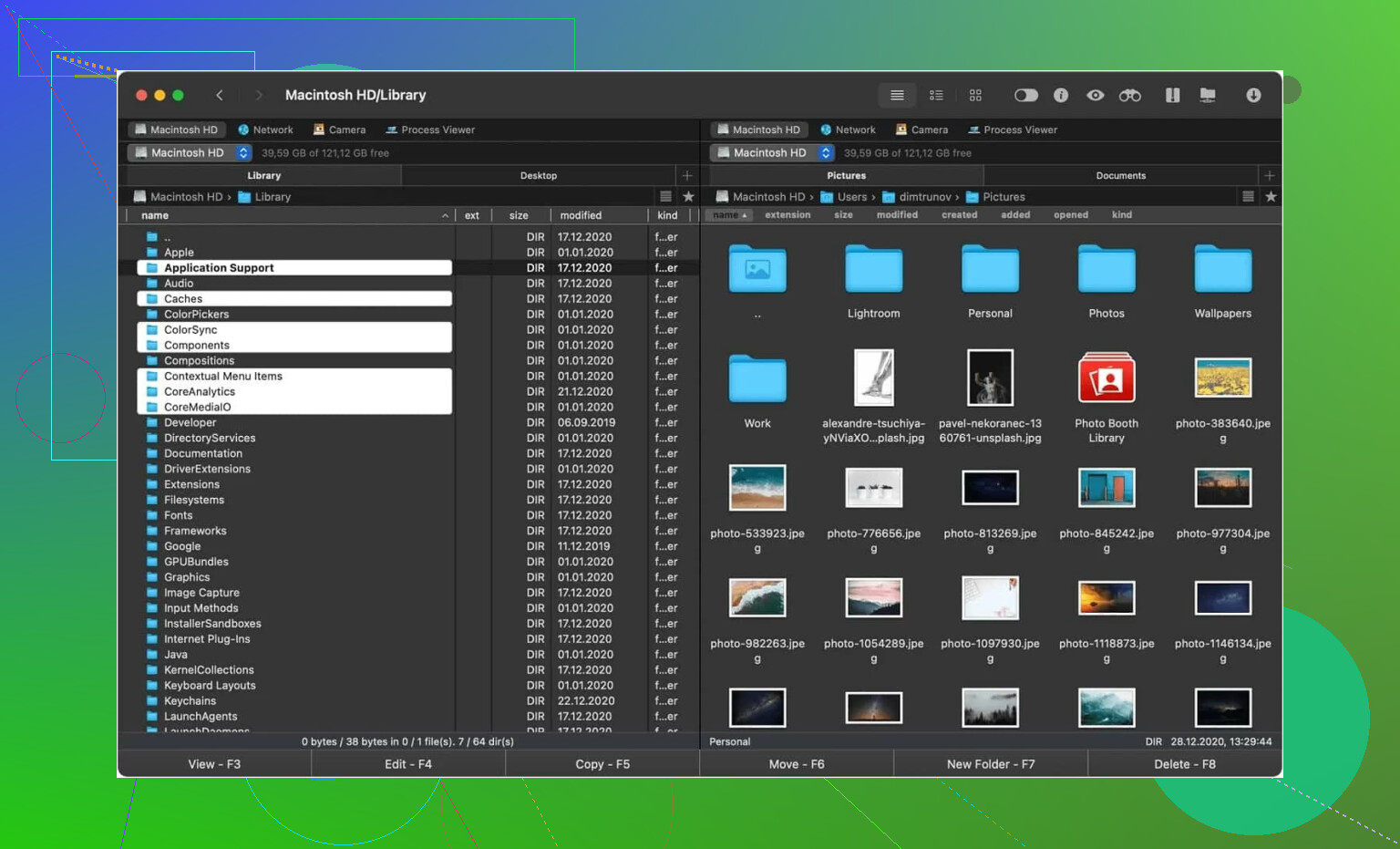
I wouldn’t call it a direct replacement for Cyberduck. It’s more like a different philosophy: Cyberduck focuses on connections and transfers, while Commander One focuses on file management first.
 Final Thoughts
After using Cyberduck for real work, I think of it as a simple, reliable transfer utility. It connects to a lot of different services, the interface is easy to understand, and it doesn’t overwhelm you with unnecessary options.
Where it shines is quick access to servers or cloud storage. Where it struggles a bit is in workflows that involve heavy file organization or directory comparisons.
So I usually reach for Cyberduck when I need quick transfers or remote access. When the job involves managing lots of files across local and remote systems, I tend to use tools that provide a side-by-side workspace instead.
3 Likes
Cyberduck is reliable for a lot of people, but your symptoms are not ‘normal’ in the sense of something you should ignore. Failed transfers and random disconnects usually point to one of four things.
-
Protocol choice.
If you use FTP, stop. Use SFTP or WebDAV. Plain FTP breaks more often on modern networks and firewalls. SFTP is usually the most stable option for server work. -
Server limits.
Shared hosting often kills long connections, limits parallel transfers, or times out large uploads. If small files work and big ones fail, this is where I’d look first. -
Cyberduck settings.
Turn off multiple simultaneous transfers. Set it to 1 or 2. Lowering concurrency fixes a lot of weird drop issues. Also check timeout settings and disable any feature tied to syncing file info if your server is slow. -
Network path.
VPNs, flaky Wi-Fi, and aggressive antivirus all mess with transfer apps. Test once on wired internet, no VPN, no background sync apps. You’ll find out fast if the app is the problem or your setup is.
I slightly disagree with @mikeappsreviewer on one point. Cyberduck is fine as a simple transfer tool, but if you manage files often, the single-pane layout gets old fast and makes troubleshooting slower too. You spend more time checking Finder or Explorer and less time seeing what failed.
My rule is simple:
If you need occasional uploads, Cyberduck is fine.
If you need repeated server work, folder compares, bulk moves, and fewer mistakes, use Commander One instead. The dual-pane setup is easier to work with and easier to audit when files go missng or uploads half-fail.
Quick test:
Upload 100 small files and 1 large file over SFTP.
If both fail, check network or server logs.
If only the large file fails, check timeout and server limits.
If transfers crawl, lower parallel jobs first.
So no, Cyberduck is not bad. But if it keeps dropping on your setup, I would not keep fighting it forever. At some point the tool is costing you time.
Cyberduck is usually reliable, but I’m gonna disagree a bit with the idea that it’s mostly just a settings/server issue every time. Sometimes the app is simply not the best fit for the workflow. It’s solid for basic transfers, but once you start doing lots of uploads, re-checking folders, replacing batches of files, or managing server content regularly, its single-window approach gets annoying fast.
What I’d look at that hasn’t been said yet:
- Check if the slowdown happens with lots of tiny files. That’s a very different problem than one huge file. Tiny file uploads often feel “slow” because of filesystem overhead, not raw bandwidth.
- Watch whether disconnects happen during idle moments. If yes, that can be keepalive-related on the server side.
- Compare Cyberduck with another client using the same protocol and same network. If both choke, it’s not Cyberduck. If only Cyberduck chokes, then yeah, maybe it just doesn’t like your setup.
I agree with @chasseurdetoiles that these issues are not “normal enough to ignore.” And @mikeappsreviewer is right that Cyberduck is handy across cloud + server stuff. But for server-heavy work, I’d honestly switch to Commander One. Dual-pane file management makes it easier to catch mistakes, compare folders, and see what the heck actually transfered. Less pretty maybe, more practical for real work.
Not totally normal, but not proof Cyberduck is bad either.
Where I slightly disagree with @chasseurdetoiles and @kakeru is this: if transfers only fail in real-world use and not in short tests, workflow friction matters as much as raw reliability. Cyberduck can be stable, but its queue feedback is not always the clearest when you are juggling lots of folders.
What I’d test next:
- transfer the same file set from another machine to the same server
- check server disk space and inode exhaustion
- look for host-side logs around disconnect times
- test file name/path issues, especially very long paths or odd characters
I do agree with @mikeappsreviewer that Cyberduck is handy across different storage types. But if you manage files constantly, Commander One is easier to work in day to day.
Commander One pros:
- dual-pane view
- better for bulk moves and visual comparison
- cleaner for repetitive file admin
Commander One cons:
- can feel heavier than Cyberduck
- overkill for quick one-off uploads
- some features matter only if you transfer often
So: Cyberduck is reliable enough in general. If your setup keeps breaking, diagnose the server first. If the app is slowing down your work even when it “works,” switch tools.