I deleted photos, apps, messages, downloads, and cleared Safari data on my iPhone, but the Documents and Data storage still is not going down. I need help figuring out what is still taking up space and how to actually reduce iPhone storage without resetting the whole device.
I hit this same wall a while ago. My iPhone kept showing “Documents and Data” eating a stupid amount of space, and no matter what I deleted, the number barely moved. It felt broken.
What helped first was understanding what Apple is lumping into that label. It’s not one folder you open and clean out. It’s the leftover pile each app builds over time. Cached images, streamed videos, saved login bits, cookies, browser junk, downloaded files, message attachments, old temp stuff. Apps like Facebook, Instagram, and TikTok are bad for this. You scroll for ten minutes, and they keep a pile of media on the phone so the app feels faster later. Nice in theory. Bad once your storage gets tight.
If Facebook is one of the offenders, start inside the app. In Facebook settings, there’s a Browser Settings section where you can clear cookies and cache from its built-in browser. I did it. It freed a little space, not much. Good cleanup step, not a real fix.
The bigger fix is uglier. Delete the app, then install it again. Offload App is not the same thing. Offloading removes the app itself but leaves its documents and data sitting there. If you want the junk gone, go into iPhone Storage and pick Delete App. Full delete. After reinstalling, the app comes back lean, and the bloated storage number usually drops hard.
Photos is the other trap people miss. You delete a bunch of pictures, then storage stays the same, and you think iOS is lying. Sort of is, sort of isn’t. The files go into Recently Deleted and sit there for about 40 days. If you need space today, open Photos, go to Albums, scroll down to Recently Deleted, and empty it yourself. I’ve seen people remove thousands of photos and get zero space back because they stopped one step too early.
Once my phone got down near the last 1 to 2 GB free, it started falling apart. Lag everywhere. Apps closed on their own. Camera took forever to open. Typing felt delayed. From what I saw, low storage makes an iPhone feel older than it is. The system wants working room, and when it loses it, stuff starts choking.
I spent weeks doing cleanup by hand and still kept missing things. Old video clips. Huge attachments buried in Messages. Random screen recordings I forgot existed. I ended up trying a few cleanup apps. The one I stuck with was Clever Cleaner.
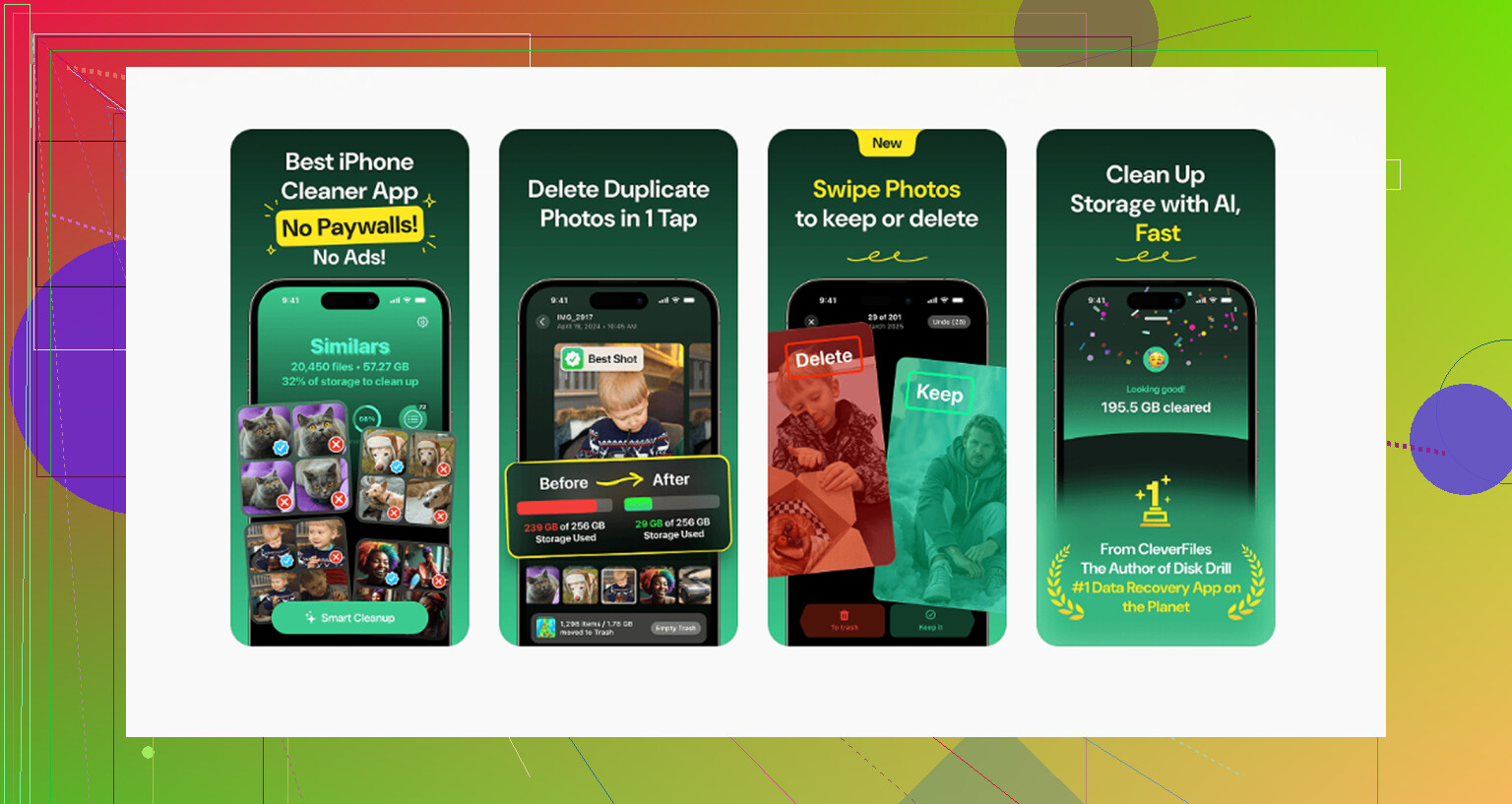
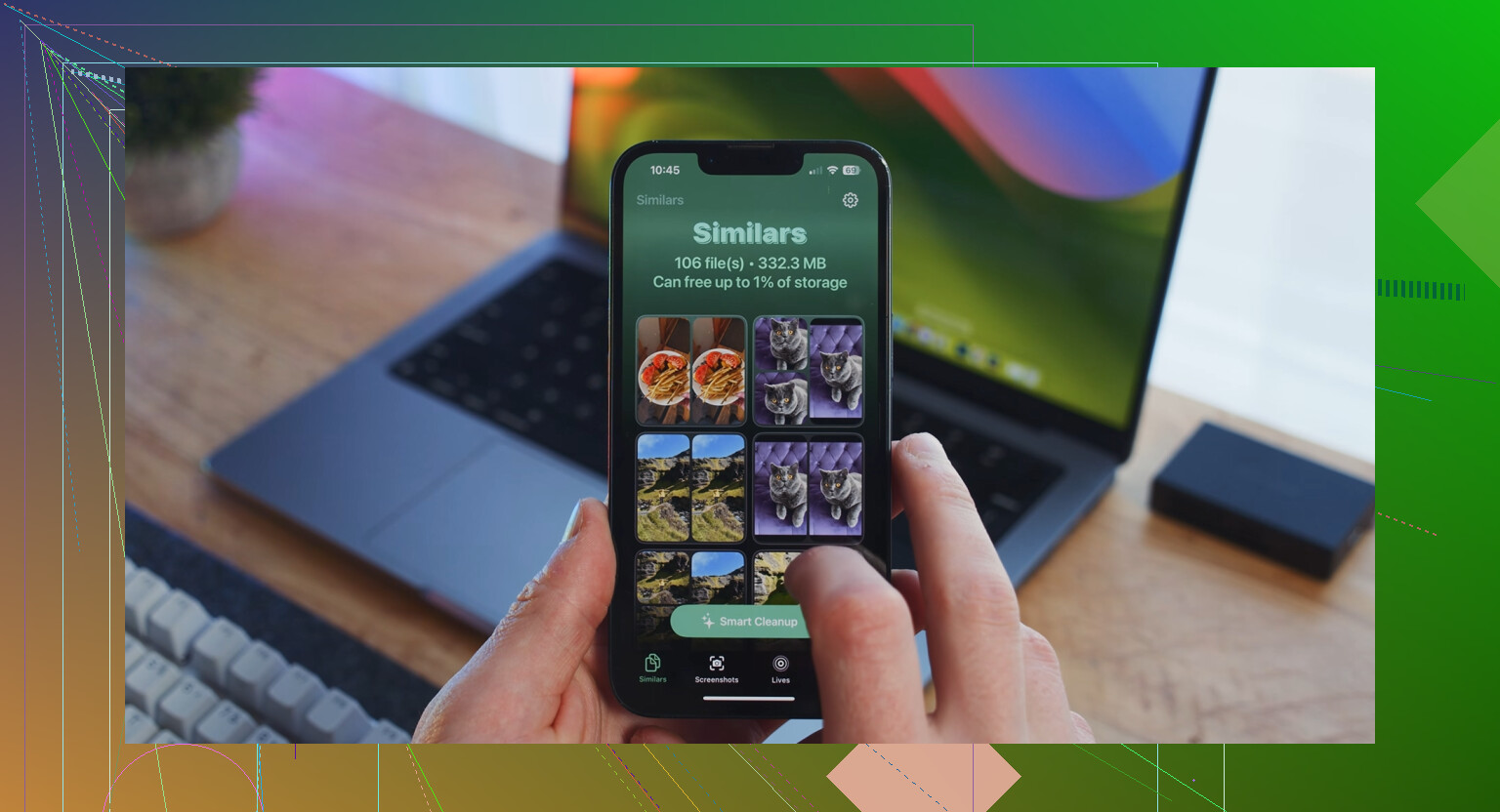
I’m usually wary of this category, since a lot of them are loaded with nags, ads, or fake scans. This one felt simple. The “Heavies” section was the part I used most. It sorted media by file size, so I could see the real storage hogs fast. There’s also a “Similars” section for near-duplicate photos, which helped because I always take three to eight shots of the same thing and keep all of them by accident. One detail I liked, it does the processing on the device. My photos weren’t being shipped off somewhere. It also shows file sizes before deletion, which made cleanup less blind.
After clearing around 8 GB, my phone stopped acting half-dead. If your storage number still looks wrong after a cleanup, restart the phone. I had to do that once before iOS updated the free space properly. Checking for an iOS update is worth a shot too.
If you want the short version, here’s the order I’d do it in:
- Check iPhone Storage and find the biggest apps.
- Clear cache inside the app if the app offers it.
- Delete and reinstall apps with huge “Documents and Data” numbers.
- Empty Recently Deleted in Photos.
- Look through large videos, screenshots, and message attachments.
- Restart the phone after cleanup if storage still looks stuck.
The hidden junk is usually the real problem, not the apps you think are big. That’s what got me.
2 Likes
“Documents and Data” sticks when iOS is counting stuff outside the obvious places. Deleting photos and apps is only part of it.
One thing I’d add to what @mikeappsreviewer said, the problem is often system data getting bloated, not only app cache. iPhone logs, failed updates, temporary indexing files, Siri voices, offline maps, podcast downloads, Voice Memos, Files app content, and iCloud Drive local copies all sit in storage totals. Those do not always shrink right away.
What I’d check next:
-
Files app.
Open Files, then On My iPhone, iCloud Drive, Downloads, and Recently Deleted. People forget this one a lot. -
Messages storage screen.
Settings > General > iPhone Storage > Messages.
Look at Photos, Videos, GIFs, Stickers, Top Conversations. Deleting a chat in Messages does not always hit the largest attachments first. -
Mail app.
Mail caches attachments hard. If Apple Mail is huge, remove the mail account, restart, add it back. Annoying, yes. Works more often then peope think. -
Podcasts, Music, TV.
Offline media hides there. Same for Spotify, YouTube, Netflix, Prime Video. -
Voice Memos and GarageBand.
I’ve seen GarageBand sit on 2 GB of sound library junk by itself. -
iOS update files.
Settings > General > iPhone Storage.
Look for an old iOS update download and delete it.
I slightly disagree on one point people repeat a lot. Restarting helps refresh the number, but if the size is stuck for days, it’s not a display bug. Something is still there.
If none of this moves the needle, do the clean reset route:
Back up iPhone, erase all content and settings, restore from backup. If the backup restores the bloat too, set up as new. That’s the nuclear fix, but it clears corrupted storage indexes.
If you want a faster way to spot giant videos, duplicates, and hidden media, Clever Cleaner is worth a look. Their review page explains it well here, see how Clever Cleaner helps free up iPhone storage without ads or paywalls.
Short version, check Files, Mail, Messages attachments, offline media, and old update files. Those are the usual last 5 to 20 GB nobody sees.
What finally fixed this for me was realizing that ‘Documents and Data’ is sometimes just iOS being messy with storage accounting, not only hidden junk. I mostly agree with @mikeappsreviewer and @cacadordeestrelas, but I slightly disagree on the idea that it always means there’s still a giant pile left to delete. Sometimes Spotlight indexing, Photos library repair, or iCloud resync keeps space ‘reserved’ for a while.
A few things I’d check that they didn’t really hit:
- Settings > Apple ID > iCloud > iCloud Drive. Turn off big apps that are keeping local copies.
- Notes app. Scanned PDFs and attachments can get weirdly huge.
- Books app. Downloaded PDFs/audiobooks hide there.
- WhatsApp/Telegram storage inside the app itself. Those apps hoard media like crazy.
- Shared albums. Deleting from main library does not always mean you cleared every copy.
Also, if you use Optimize iPhone Storage for Photos, space can look wrong until the phone sits on Wi-Fi and power for a bit. iOS kind of recalculates in the background. Annoying, but real.
One thing I would do before a full erase: force a storage recalc. Change the date forward one day, restart, then change it back. Sounds dumb, but I’ve seen it shake loose stale storage reporting once or twice. Not a magic fix, just a trick.
If you want to find the actual hogs fast, Clever Cleaner is useful for surfacing giant videos, duplicate pics, and similar shots that Apple’s own storage view makes way too hard to spot. Also this Clever Cleaner iPhone storage cleanup video review gives a decent walkthrough.
If the number still refuses to move after all that, the ugly truth is backup, erase, set up as new. Restoring from backup can bring the bloaat right back.
I’d check one thing nobody has really stressed enough: app reinstall is not always enough because some apps keep data in iCloud containers and bring the mess right back. That’s why people delete an app, reinstall, and see “Documents and Data” bounce back almost immediately.
So instead of only hunting files, test whether the space is tied to syncing:
- Turn Airplane Mode on
- Restart
- Check iPhone Storage again
- Then reconnect Wi-Fi and wait
If storage jumps after reconnect, the culprit is often synced app data, not local junk you missed.
I also slightly disagree with the “erase as new” advice as the next big step. Before going nuclear, look at these:
- Settings > Accessibility > Siri > Voices or downloaded accessibility voices
- Settings > General > Dictionary
- Third-party cloud apps like Dropbox, Google Drive, OneDrive with offline files
- Notes Recently Deleted
- Files app tags and provider locations, not just On My iPhone
Also worth knowing: storage bars can lag badly when the phone is hot, low on battery, or still indexing after mass deletion. Leave it charging overnight on Wi-Fi before trusting the numbers.
On the app side, @mikeappsreviewer, @ombrasilente, and @cacadordeestrelas are all right that hidden media is usually the real hog. If you want a faster visual scan, Clever Cleaner is decent for spotting giant videos and duplicate photos.
Pros:
- fast size-based sorting
- easy duplicate review
- simpler than digging through iPhone menus
Cons:
- mostly helps with photos/videos, not true system bloat
- won’t fix corrupted storage accounting
- still requires manual judgment before deleting
If nothing changes after an overnight charge plus restart, that usually means either corrupted indexing or synced app data rehydrating in the background.