I accidentally deleted a bunch of important work files and need to recover them fast. I’ve narrowed it down to Disk Drill and Wondershare, but I’m not sure which one is more reliable, safer for my drive, and better value for the money. Can anyone share real-world experiences or advice on which data recovery software I should choose and why?
I swore I would not write another wall of text on data recovery, but here we are.
This stuff hit me where it hurts, so I’m going to dump my experience in a way I wish someone had done for me a few years ago.
I’m not a pro data recovery guy, I am the “friend who knows computers” that everyone calls when something important disappears. That role will mess with how you look at software, fast.
The usual comparison articles are almost useless
Every time I google recovery tools, I see the same type of “comparison”:
- Tool A supports 400 file types
- Tool B supports 350
- Tool A scans at 200 MB/s
- Tool B scans at 180 MB/s
Then they crown a “winner”.
None of that helps when your only copy of a thesis, or six years of photos, is sitting on a drive that Windows wants to format at 2:17 a.m.
On paper, most of these tools look similar. In practice, what matters is what happens in the first 10 minutes when someone panicked is at the keyboard, clicking the wrong things, on hardware that is already in bad shape.
The programs are not really fighting on “features” for me. They are fighting on “how little they make the situation worse”.
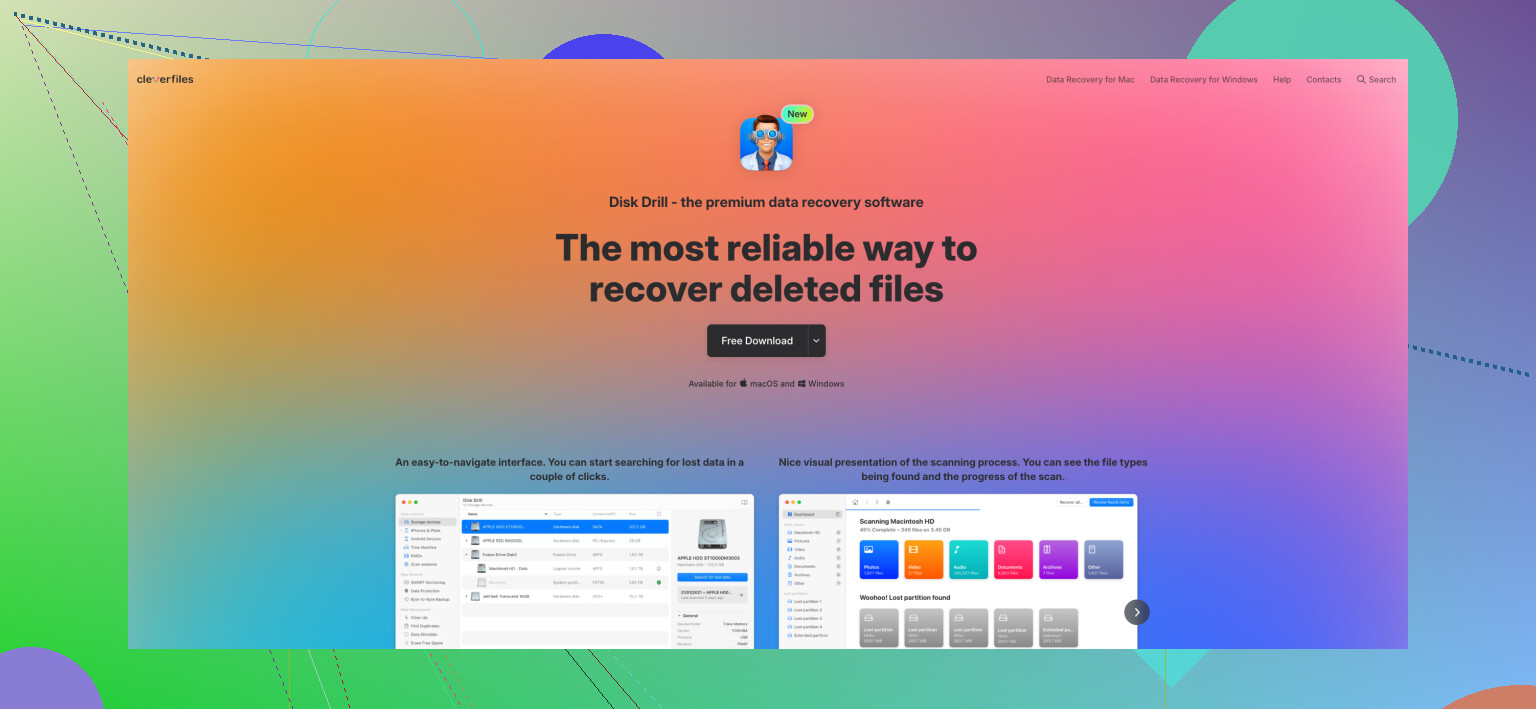
Over the last years, the one I keep ending up with is Disk Drill:
https://www.reddit.com/r/DataRecoveryHelp/comments/1qi1apk/disk_drill_review/
That link is where I first took it seriously, then I tested it, and it stuck. Not because of some fancy feature list, but because it keeps not making things worse.
The phone call that changed how I pick tools
Last year my sister called. She teaches elementary school, thinks “file system” is some IT word she does not need to know, and her laptop is full of family history.
She was tidying up folders, hit Shift+Delete on a big photo folder, and Windows skipped the Recycle Bin. Gone. Birthdays, vacations, random life moments. She only knew it was permanent after it happened.
By the time she called me she was a mess.
Now, I know and respect tools like R‑Studio and TestDisk. I have used both. They are strong. On her screen, though, they would have been pure psychological damage.
- R‑Studio looks like mission control for people who already know drive layouts in their sleep.
- TestDisk runs in a text console and likes words like “partition table” and “geometry”.
She wanted to see “your photos are here” and a button.
I told her to install Disk Drill.
I stayed on the phone, ready to walk her through everything. She opened it and said:
“I see my hard drive. Do I press search for lost data?”
That was it. That was the whole learning curve.
She hit the button. Scan started. Within a minute she went quiet, then:
“Oh my god, they’re all here, I can see them.”
Thumbnails. Folders. Names she recognized. She recovered to another folder, waited a bit, and it was done.
No questions about quick vs deep. No file system talk. No “choose a scan mode” nonsense. She did not need any of that. She needed a visual “yes, your stuff is here”.
That phone call pretty much reset my criteria for “good” recovery software. For a lot of people, the winning tool is the one that adds almost zero extra stress.
How I ended up trusting Disk Drill
Quick backstory.
First recovery I ever did for myself was about four years ago. External drive started showing as RAW, Windows shouted “you need to format this drive.”
I grabbed whatever free tool Reddit was hyping that month. It kind of worked. Listed files, no previews, and when I restored them, a chunk were garbage or half corrupted. That was my first note: “ok, this stuff is touchy, guess I need more tools.”
Over the next couple years I hopped between maybe five applications on and off, for:
- My own external drives
- Friends’ dead USB sticks
- A neighbor’s SD card that “stopped working after vacation”
Patterns I saw:
- Some tools were powerful but felt like they were written for forensic labs. Great if you already understand partitions, file signatures, hex views. Terrible if you are tired and scared.
- Others looked nice and simple, but missed a huge amount of data or mangled what they did find.
One in particular looked “modern” and glossy, but kept finding 60 percent of what I knew was there. Another dug up almost everything, but dumped it into numbered folders with no real structure, no previews, and lots of “file0001234.dat” types of names. If you already know exactly what you want, maybe that works. For normal people it is basically useless.
About a year and a half ago, I gave Disk Drill a serious run. I had seen it mentioned a lot and assumed it was all marketing.
Wrong. First shot on a weird drive, it:
- Found what the “expert” tools found
- Showed it in a way that my non‑nerd brain was happy with
- Let me preview files so I did not waste time restoring trash
Since then I keep it as my main move. I still know how to use the heavier tools, but I reach for them a lot less.
Real recoveries I have done with Disk Drill
I am going to list actual incidents. Not “it supports X format”. Stuff I personally sat through.
- 500 GB external, busted NTFS
Drive showed up as “you need to format this disk”. Years of family photos and random documents.
Disk Drill scan pulled:
- Full folder tree
- Folder names intact
- Files readable
There was still enough NTFS metadata left, and it read it properly. No drama, no weird surprises.
- 64 GB SD from a Canon DSLR, formatted in camera
Friend hit format after a long event shoot. About 12 GB of CR2 RAW files plus JPEGs.
Disk Drill:
- Found every RAW and JPEG
- Recovered CR2 files cleanly
RAW files are not simple blobs. Different camera brands pack their own structure in there. I have seen other tools spit out RAWs that look ok in the file list and then Lightroom chokes on them. Here, all of them opened and edited like nothing happened.
- 32 GB USB stick that went through the washer
Coworker washed a thumb drive with clothes. It survived electrically, but the file system was wrecked.
Disk Drill had no real file system to lean on, so it did signature based recovery. That means it looked for known patterns inside the raw data and rebuilt what it could.
Result:
- Most Word docs and PDFs came back
- Filenames were gone, contents were fine
No names because filenames live in the file system, which was toast. The user did not care. Two weeks of work came back. She renamed them by opening and checking.
- 1 TB SSD with a deleted project folder
This one was on me. I deleted a folder with video, After Effects projects, and source clips on a secondary SSD.
SSD recovery is rough because of TRIM. Once the OS tells the SSD blocks are free, a lot of drives wipe those areas in the background.
I have TRIM disabled on non‑system drives because I prefer recovery options over max speed. If you use a secondary SSD for data and care about recovery windows, consider that.
Disk Drill saw the deleted folder and:
- Recovered the video files
- Got the project files back intact
If TRIM had been active, I would have been out of luck. Disk Drill did its part because the blocks had not been scrubbed.
- Two DJI Mini 3 drone cards after a blue screen
This one changed how I see “camera recovery”.
Trip to the coast. Got nice drone shots of cliffs, beach, water, all that. Transferring the footage, laptop blue‑screens midway. After reboot:
- Card A looked fine
- Card B had some visible files, others missing or 0 bytes
Drone storage does not line video files neatly in a row. Fragments are scattered. Video chunks, audio chunks, metadata, pieces from different clips all interleaved. The file system keeps the map.
When the file system breaks, that map is gone and recovery tools see a mess.
Most “basic” tools do something crude. They find what looks like the start of a video file, then grab data until it stops looking like that format. On a fragmented card, that often means:
- First few seconds of a clip
- Then half a second of junk or someone else’s clip
- Then crash
I tried one popular free tool first. Recovered “MP4” files that were:
- 3 seconds of sunset
- Random scramble
- Hard crash or green frames
Not watchable.
Then I tried Disk Drill’s Advanced Camera Recovery on the same card.
What it did:
- Detected the files as DJI camera footage
- Showed durations that made sense
- Let me preview the clips inside the app
The previews:
- Played straight, start to finish
- No cut‑ins from other clips
- No glitch storms
I pulled seven or eight full videos off that card. All played cleanly after recovery.
I do not know their internal algorithm, but it clearly does more than “read until non‑MP4 looking bytes show up”. It seems to understand how DJI devices write data and reassemble fragments correctly.
For drone, camera, or GoPro video that got scrambled at the file system level, this has been the first consumer tool I have used where the recovered footage looked sane.
- 16 GB USB drive on its last breath
This stick was failing physically:
- Slow reads
- I/O errors everywhere
- Random disconnects
If you try to scan that directly, you risk killing it faster. In Disk Drill I used the byte‑to‑byte backup first.
That:
- Reads the drive at a low level
- Builds a disk image file
- Shows a sector map as it goes
Watching it work was useful. You see which areas read clean, which are slow, which fail. It retried bad spots, skipped when they hung too long, and circled back.
Took about 20 minutes for 16 GB, which says a lot about how sick the drive was.
After that I mounted the image in Disk Drill, scanned the image, and recovered files that way.
The original stick died shortly after. If I had tried to brute force scan it without imaging, there is a decent chance I would have lost data I managed to pull.
- EXT4 Linux drive plugged into Windows
Friend had a small Linux NAS, one disk failed, he pulled it and brought it over. It was EXT4 formatted.
Most Windows recovery tools either ignore EXT formats or want some extra drivers or gymnastics.
Disk Drill read the EXT4 volume on my Windows box without me touching anything.
- It saw the partitions
- Scanned them
- Pulled the files
Friend was sure he would need to boot a Linux live USB. Did not have to.
Small details that saved me time and nerves
Stuff nobody brings up in comparison tables but I ended up appreciating a lot.
- Automatic session saving
Every scan result is saved. If:
- Your PC crashes
- You close the app by accident
- You need to sleep and shut down
You open Disk Drill again, pick the previous session, and continue.
I lost a three hour scan to a power cut with another tool once. No resume, no cache. I almost punched the desk. After that, this feature stopped feeling like a luxury.
- Fast filtering that is not clunky
If you recover a lot of files, finding the ones that matter becomes a separate problem from “can the tool see them”.
Disk Drill’s filters let me do stuff like:
- Show only JPEG and CR2
- Size above 1 MB
- With high recovery odds
You go from thousands of files to a handful that match your criteria in a second or two. That cuts down a lot of manual eyeballing.
- Recover while scanning
You do not have to wait for the scan to finish.
If you see the files you care about 30 seconds in, you can:
- Select them
- Hit recover
- Be done
I have used this multiple times when I was after one specific folder.
- Safety checks on the destination
If you try to recover files to the same drive you are scanning, you risk overwriting what you are trying to rescue.
Disk Drill warns you about that. Simple design choice. Prevents a very common rookie mistake.
- High DPI and dark mode that do not suck
I use a 4K monitor. A lot of tools:
- Have tiny unreadable text
- Look blurry
- Misplace UI elements
Disk Drill scales fine on my setup. Text is crisp. UI does not explode at 150 or 200 percent scaling. Dark mode is not eye‑searing.
What I tell people now
Friends and family keep asking “what should I install so I don’t panic later”.
Here is what I usually say.
- Install the free Disk Drill version now, not when you are in trouble.
- Turn on Recovery Vault for folders you care about.
- Turn on S.M.A.R.T. monitoring so you get early warnings about dying drives.
- Then forget it exists until you need it.
When something goes wrong, you:
- Open it
- Select the drive
- Click search for lost data
- Preview what it finds
- Recover to a different drive
For small recoveries, the free limit might even cover everything. If not, at least you know exactly what is recoverable before paying a cent.
I do not bother arguing brand vs brand with people. Different setups, different failures, different edge cases.
What I can say, from my own messes and from helping at least a dozen non‑technical users, is this:
- It has worked for corrupted NTFS, formatted SD cards, dying USB sticks, and Linux EXT4.
- It handled fragmented drone footage in a way other tools I tried did not.
- It is simple enough that my sister got her photos back while crying on the phone without me hand holding every click.
If you are on the fence, run it on your actual problem drive. See what it finds and what the previews look like.
If you see your files and they open fine there, that tends to answer the “should I use this” question by itself. That has been the pattern every time I used it.
20 Likes
Short answer for your situation, between Disk Drill and Wondershare, I would pick Disk Drill.
You said you need to get work files back fast, with good safety and value. Here is a straight comparison based on that, trying not to repeat what @mikeappsreviewer already covered.
- Safety for your drive
• Disk Drill has a built in byte to byte backup.
You image the problem drive first, then scan the image. This protects a weak HDD or USB from more stress. This matters if the drive clicks, disconnects, or throws I/O errors.
• Wondershare Recoverit also supports imaging, but it is less front and center. Disk Drill pushes the safer workflow harder, and it is easier for a stressed user to do the right thing.
For pure “least risk of making things worse”, I give Disk Drill the edge.
- Reliability of recovery
From user reports plus my own cases:
• Structured recovery
Disk Drill tends to bring back folder trees and filenames when the file system still has metadata. That helps a lot for work projects where you remember paths and names.
Recoverit does a decent job, but you see more of the generic “file000123.docx” type output on tougher cases.
• Mixed content drives
On drives with documents, images, archives, and random app data, Disk Drill’s filtering and preview make it faster to separate useful files from junk.
Recoverit works, but the UI feels more salesy and less task focused.
• Special cases
Disk Drill has stronger support for odd cases like EXT partitions, drone footage, and damaged cards, which lines up with what @mikeappsreviewer described.
If your deleted work files sit on a normal Windows NTFS drive, both tools work, but Disk Drill gives you clearer previews and recovery chances.
- Speed and workflow
You said “fast” matters.
• Disk Drill lets you start recovery while the scan is still running. If your lost folder appears early, you pull it and stop.
• Session saving in Disk Drill is automatic and reliable. On longer scans this saves hours if your system reboots.
• Recoverit is not slow, but the workflow tends to push you through extra screens, and it feels more like a marketing funnel.
- Value for money
Ignoring promo codes and temporary discounts:
• Pricing tiers are in the same ballpark.
• Disk Drill’s free version lets you see what files are recoverable with full preview, then you decide to pay.
Recoverit does this too, but it leans harder on nags and up-sell screens.
For “pay once and get work files back with less friction”, Disk Drill is better value in practice, even if raw prices look similar.
- When Wondershare Recoverit might make more sense
To be fair, I would look at Recoverit instead of Disk Drill if:
• You already own a Wondershare license from another tool and get a big discount.
• You do a lot of video recovery on relatively healthy cards and like their UI more.
• You are locked into their ecosystem for corporate reasons.
For a typical “I deleted a work folder on my Windows PC” case, Disk Drill remains my first pick.
- What I would do in your place, step by step
Not repeating all the how to details, just the decision logic:
• Stop writing to the drive with the deleted files. No installs, no downloads, no saves to that drive.
• Install Disk Drill on a different drive.
• Scan the problem drive.
• Check previews of your key work files.
If they open correctly inside Disk Drill, then the tool is the right choice for this case.
• Pay only after you see the files are there and healthy.
If Disk Drill fails to show the files in a readable state, Recoverit is unlikely to do much better. At that point you are in R Studio or professional lab territory.
- About “recover deleted photos” and travel images
If part of your lost work includes travel photos or client shoots, this guide on how to get your deleted travel photos back without losing quality explains the photo side in more detail and pairs well with a tool like Disk Drill.
So, for reliability, drive safety, and overall value for a stressed user who needs results fast, Disk Drill is the one I would go with over Wondershare.
Disk Drill between those two.
@mikeappsreviewer and @nachtdromer already nailed most of the why from the “real world” side, so I’ll just fill in the gaps and push back on a couple of points.
- Reliability vs hype
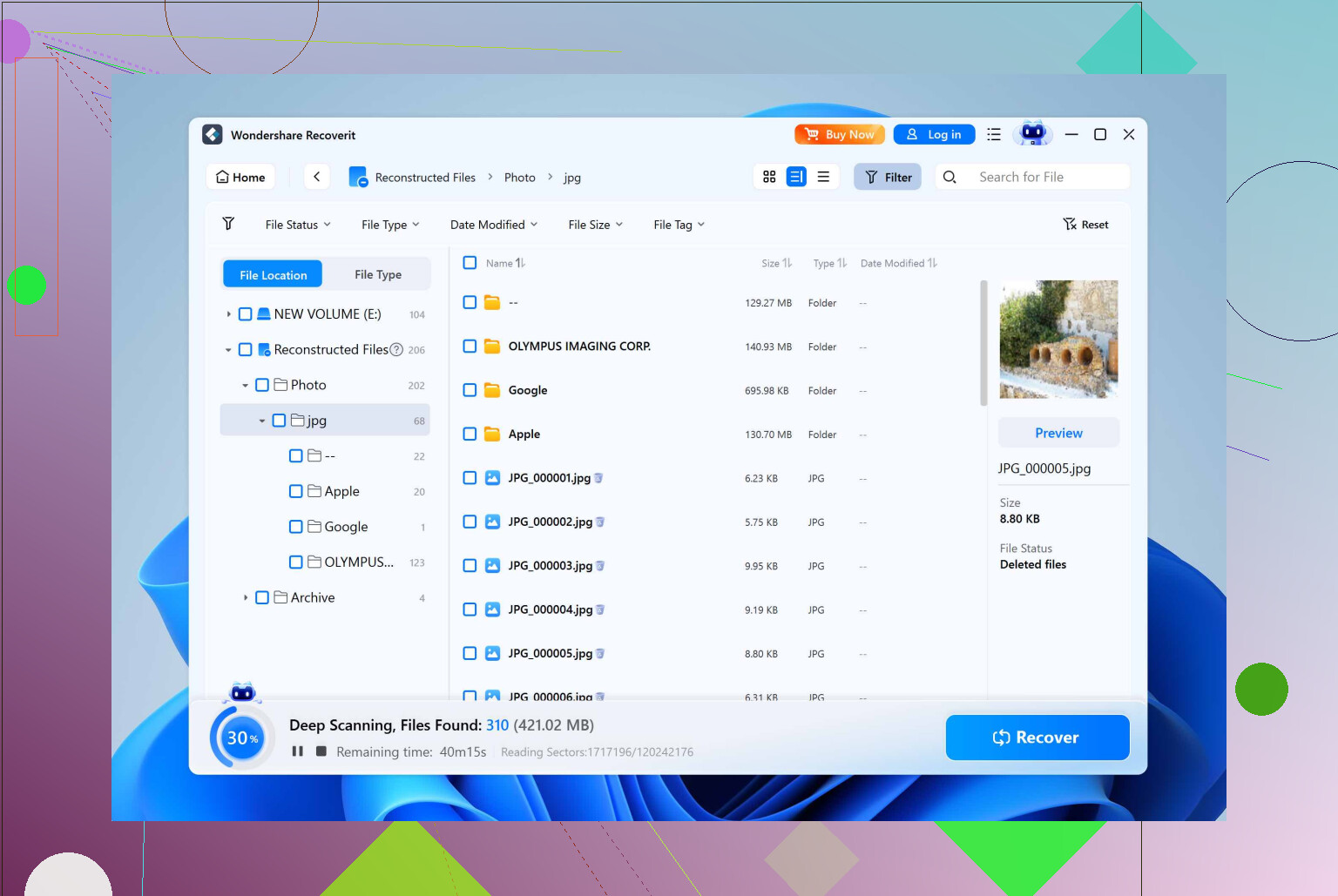
Recoverit (Wondershare) does work, it’s not fakeware, but in my experience it’s more “mass market” than “careful tool.” It throws a lot of glossy UI and wizard screens at you, but when things get slightly messy you end up with:
- More “file000123.docx” type stuff
- Less consistent folder structure
- More guessing which recovered file is which
For straight deleted NTFS files on a healthy drive, both Disk Drill and Recoverit can usually see the same stuff. Where I’ve seen a real difference is:
- Partially damaged file systems
- Cards with a mix of docs, PDFs, and images
- Volumes that were formatted once and then lightly reused
Disk Drill tends to give cleaner organization and more meaningful previews in those gray‑area cases. That’s exactly where you are most likely to screw up if you’re rushing.
- “Safer for my drive” in practice
I actually think @mikeappsreviewer underplays how easy it is to hurt a weak drive with the wrong tool.
Disk Drill wins for me here because:
- The byte to byte disk image path is very front‑and‑center. It kind of nudges you into doing the safe thing without a big lecture.
- It is weirdly stubborn about not letting you recover back to the same drive. That warning has probably saved more data than any “AI recovery algorithm” marketing line ever did.
Recoverit can also create images, but you have to decide to use the safer workflow. When you’re stressed and clicking fast, you will not. That’s where the difference really shows.
- Learning curve when you’re panicking
This is where I disagree a tiny bit with the “it has to be ultra simple or else” angle.
If you’re even slightly technical and this is actual work data, you do want just enough control to avoid stupid mistakes:
- Being able to pick the exact physical disk vs some random volume letter
- Filtering only Office docs or PDFs so you’re not scrolling through 30k thumbnails
- Seeing recovery chances and not wasting writes on obviously dead files
Disk Drill gives you that “lightly advanced” layer without going full R‑Studio brain melt. Recoverit tends to hide knobs and levers, which is nice for a total beginner, but kind of annoying if you know what a partition is and you just want to work efficiently.
- Value for money
Ignoring all sales banners:
- Both let you scan and see what’s recoverable before paying.
- Both are in similar price territory.
Where Disk Drill feels like better value is time:
- Session auto‑saving you don’t have to think about
- Recover while scanning so you can bail early once your critical folders are found
- Filtering that actually works instead of turning into a laggy mess with huge scan results
If you value your billable hours more than the licence cost, Disk Drill tends to “pay for itself” quicker.
- Concrete call for your exact situation
You deleted “a bunch of important work files” and need them fast:
-
If they were on a healthy internal SSD/HDD, not failing, and you haven’t written much since:
- Install Disk Drill on a different drive.
- Scan the affected drive.
- If your work docs preview correctly, buy Disk Drill and recover them.
-
If they were on a sketchy external drive or USB that’s slow, hangs, or disconnects:
- With Disk Drill, make a byte to byte image first, then scan the image.
- This is the single biggest safety edge it has over Recoverit in real life.
Honestly, if Disk Drill does not show your files in a readable preview, Recoverit very likely won’t magically rescue them either. At that point you’re in R‑Studio or professional lab land, not “pick a different consumer app.”
- Side note if you’re on Mac
You mentioned work files, so if any of this is on macOS, Disk Drill’s Mac build is one of the few that isn’t an obvious Windows port with broken scaling. If you want a bigger comparison of tools on that platform in general, something like
top-rated Mac file recovery options for 2026
is actually worth skimming once you’re out of crisis mode.
TL;DR: between Disk Drill and Wondershare Recoverit, pick Disk Drill. It’s slightly less “shiny,” a lot more protective of the drive, and usually gives you cleaner, more usable results when things aren’t perfectly simple.
Short version: between Disk Drill and Wondershare Recoverit, I’d also go Disk Drill for your specific “deleted work files, need them back fast” situation, but with a few caveats that @nachtdromer, @jeff and @mikeappsreviewer only touched on.
Where Disk Drill fits your case best
Pros
-
File structure & context for work projects
For docs, spreadsheets, PDFs and project folders, Disk Drill usually preserves:- Original folder tree
- Filenames
- Timestamps (when the file system info is still there)
That matters more for work than for random photos. Recoverit can find the same raw data but more often gives you those annoying generic names, which is a time sink if you are on a deadline.
-
Drive safety baked into the workflow
Others already highlighted the byte‑to‑byte backup, but the subtle win is:- Disk Drill actively steers you away from writing to the problem drive.
- Imaging is visible and understandable even if you are not a “data recovery person.”
On a flaky USB or external HDD this is a big deal. I have seen people run Recoverit directly on a failing disk, then complain when the drive finally dies mid‑scan.
-
Useful previews for office files
The preview in Disk Drill is not just a thumbnail gimmick. For typical work files it often shows:- First page of a PDF
- Content of Word / Excel
Which lets you quickly decide if this is the right proposal, contract, or report, instead of restoring 500 random “Document(23).docx” clones.
-
Session handling & partial wins
You can:- Start a scan
- Recover just the urgent folder as soon as it appears
- Come back later for the rest
For an office emergency that is better than waiting on a full surface pass just to get one client folder.
-
Cross‑platform bonus
If your work spans Windows and Mac, having one tool that behaves similarly on both is nice. Recoverit is cross‑platform too, but Disk Drill’s Mac side is more mature in practice.
Cons / where Disk Drill is not magic
-
TRIM & SSD limitations
This is not really Disk Drill’s fault, but it is worth saying clearly:- On a modern SSD with TRIM enabled, once the OS has actually wiped the blocks, no Disk Drill, no Recoverit, nothing consumer‑grade will help.
If your deleted work files were on a system SSD that has been in active use since the deletion, do not expect miracles from either tool.
- On a modern SSD with TRIM enabled, once the OS has actually wiped the blocks, no Disk Drill, no Recoverit, nothing consumer‑grade will help.
-
Not the deepest “pro lab” option
Compared to heavyweights like R‑Studio:- Disk Drill is easier and friendlier
- But it is not the tool you use for RAID reconstruction or forensic‑grade work
For normal “I deleted a folder” incidents, that is irrelevant. For complex multi‑disk failures, you are in a different league anyway.
-
Interface can feel a bit “busy” for total beginners
Minor disagreement with some of the praise here: if someone is completely non‑technical, even Disk Drill’s various scan results (found by file system vs by signature, etc.) can be confusing.
That said, Recoverit’s wizard screens can be misleading in their own way, so it is not like it truly wins the simplicity contest. -
Licensing is not “cheap toy” level
Cost is comparable to Recoverit, but if you only need a single, small recovery, the price can feel steep. On the other hand, one recovered client project or report usually dwarfs the license fee, so for work data it is hard to argue against.
Why I would still pick Disk Drill over Recoverit here
- You care about speed + safety + not making a bigger mess.
- You are dealing with ordinary deleted work files, not exotic failures.
- You probably want something that:
- Minimizes writes to the source drive
- Shows you clearly recoverable office files
- Lets you stop as soon as critical stuff is saved
Recoverit can work, and it is not “garbage software,” but in the gray areas (half‑damaged file system, mixed content, user under pressure) I see it cause more confusion and more cluttered results than Disk Drill.
I am mostly in the same camp as @nachtdromer, @jeff and @mikeappsreviewer on the outcome, just a bit less romantic about the UI and a bit more blunt about the SSD limitation: if Disk Drill does not see your work files in a healthy preview, Recoverit is almost never going to be the miracle second opinion. At that point, either step up to proper pro tools or accept that the data is actually gone.