I deleted a lot of photos from my iPhone to free up storage, and Recently Deleted is already empty, but my iPhone storage is still showing as full. I need help figuring out why Photos or iOS storage isn’t updating and how to actually recover the space.
I’d start with a hard restart before doing anything else. When iPhone storage gets extremely low, iOS can get weird about updating the storage numbers, and it may keep showing “Storage Full” even after you delete a ton of stuff.
I ran into almost the same thing a few months ago. My iPhone was so full it was lagging constantly, WhatsApp wouldn’t open, and the Camera app crashed every time I tried to take a photo. I deleted close to 2,000 photos and videos, cleared Recently Deleted, then checked Settings and the storage bar basically hadn’t changed. At one point the used storage even went up, which was maddening.
What’s usually happening is that the phone hasn’t actually reclaimed the space yet, or the storage graph is showing old cached info. Even after you empty Recently Deleted, iOS can temporarily hold that space under System Data, which used to be called Other. It may be indexing, cleaning up in the background, or just too low on free space to properly recalculate everything.
Here’s what I’d try, in this order:
1. Do the real hard restart
Don’t just power it off and back on. On newer iPhones, press Volume Up, press Volume Down, then hold the Side Button until the Apple logo shows up. Sometimes you need to do it more than once before System Data finally drops and the storage number updates.
2. Try the date trick
This sounds fake, but it can help with “ghost” deleted photos. Go to Settings > General > Date & Time, turn off Set Automatically, then move the date forward by about a year. Open Photos, wait a minute, then check Recently Deleted again. Sometimes old deleted items show back up there because the Photos database got stuck. Delete them again, then turn Set Automatically back on.
3. Check Messages and app caches
Go to Settings > General > iPhone Storage > Messages and look at attachments. Old videos, GIFs, memes, and screenshots can take up a ridiculous amount of space.
Also check apps like TikTok, Instagram, and WhatsApp. They can build huge caches. If one of them is sitting at something like 10GB, deleting and reinstalling the app is usually the cleanest way to wipe that cache.
4. Use a cleaner app if Photos is the main problem
Apple’s built-in storage tools are pretty limited. When my phone was lagging badly, even getting through Settings was annoying, and Photos didn’t make it easy to sort by size or find similar junk that wasn’t an exact duplicate.
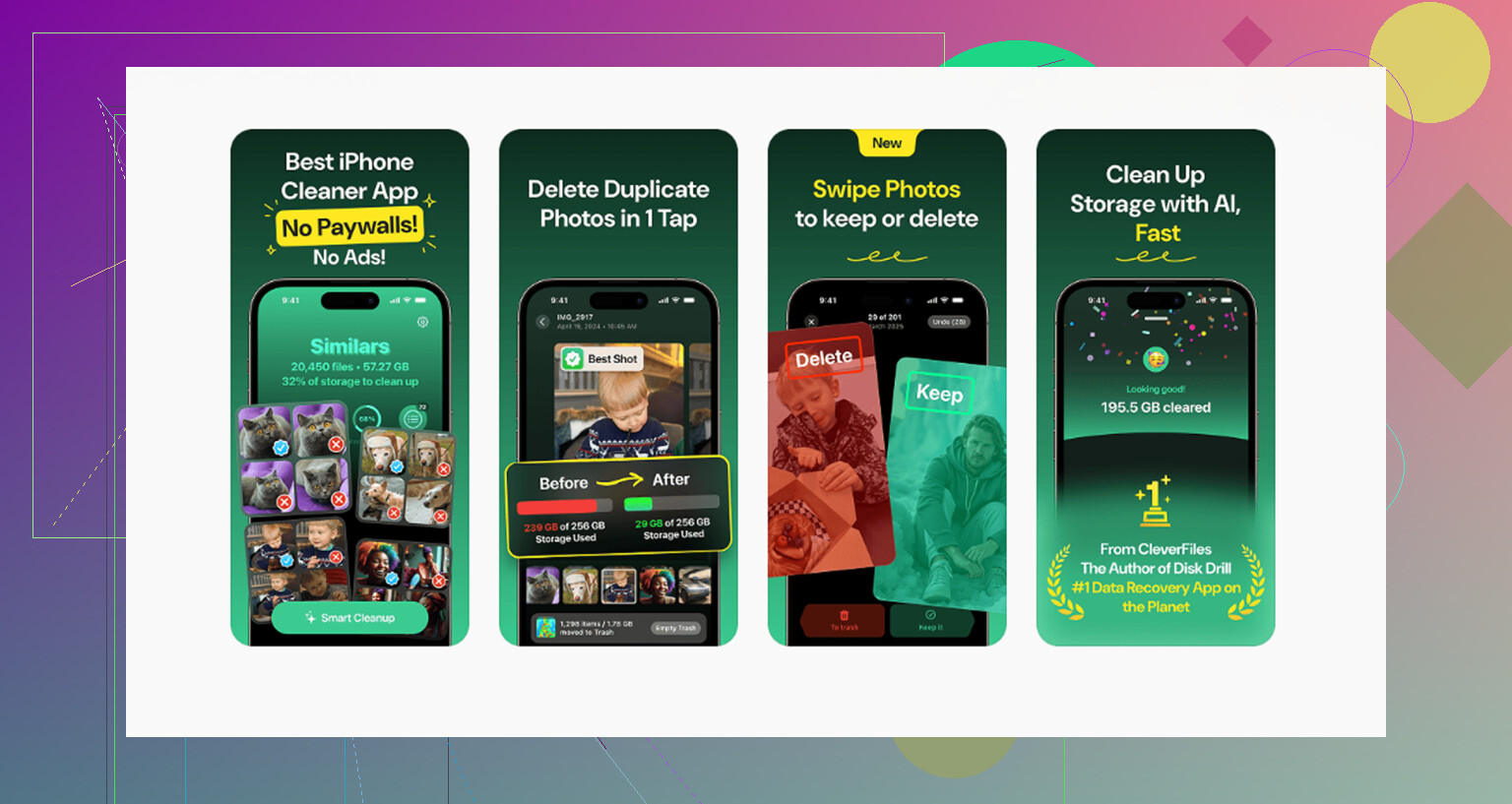
The app I ended up using was Clever Cleaner. Most iPhone cleaner apps are sketchy subscription traps, but this one was free, with no ads, no paywall, and no trial that turns into a charge.
The useful part for me was the “Heavies” tab, since it sorts media by file size. That makes it easy to find some random 4K video taking up a couple gigs. The “Similars” tab is also handy for photo bursts or ten versions of the same shot. It picks what it thinks is the best one and lets you delete the rest quickly. It also shows file sizes, which helps when you’re trying to clear space fast. Everything runs on the phone too, so it’s not uploading your photo library somewhere else.
Once I cleared around 10 to 15GB, the phone finally started acting normal again. The lag stopped, the storage screen updated properly, and the Storage Full alerts went away.
If none of that works, the last option is backing the phone up to a computer and doing a factory reset. That should clear out corrupted system files if the storage is truly stuck, but I’d save that for last. Try the hard restart and a real cleanup first.
15 Likes
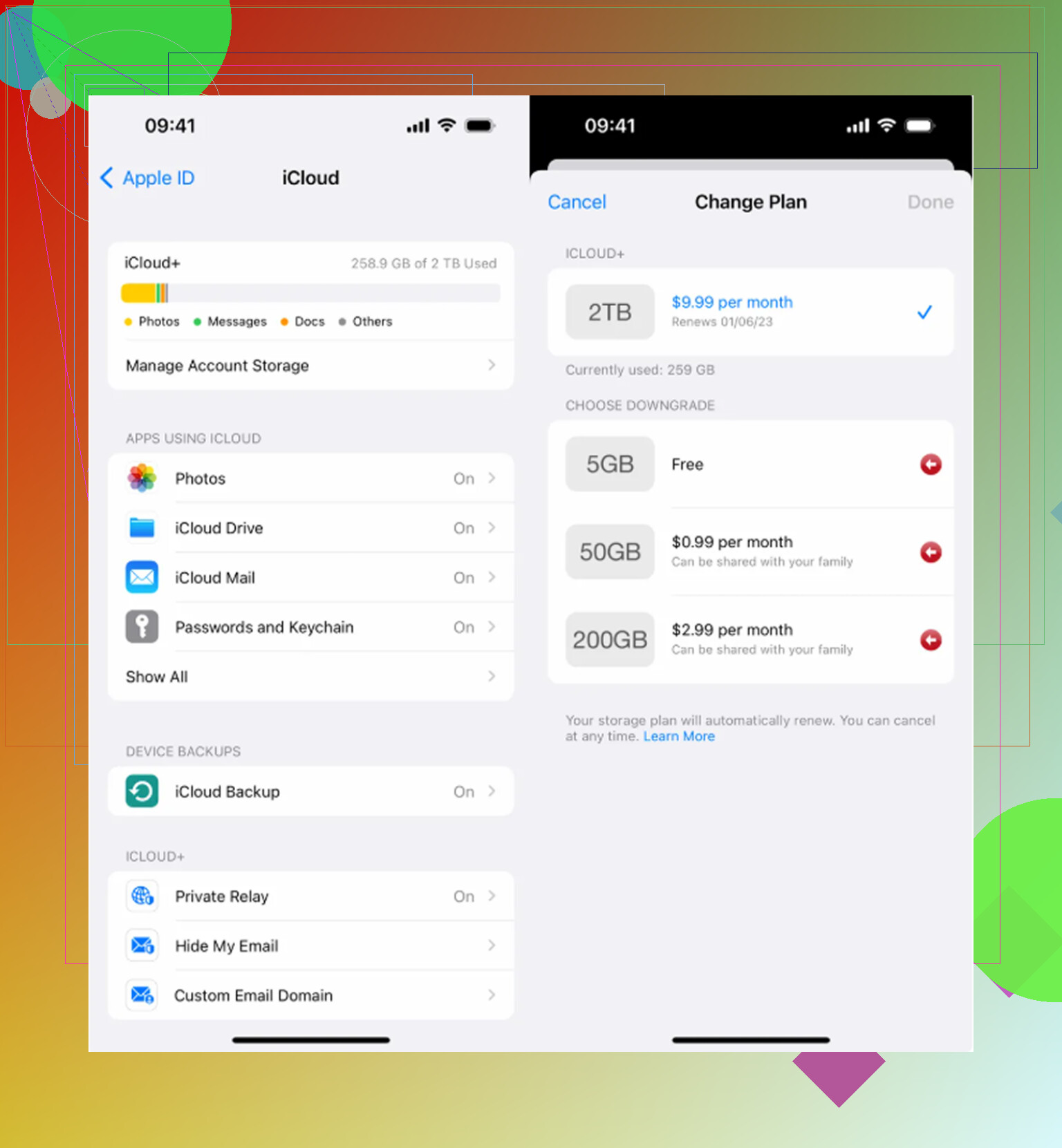
Check whether iCloud Photos is still syncing before deleting more. Go to Settings > your name > iCloud > Photos and look for anything like “Syncing,” “Paused,” or “Not enough storage.” If the library is stuck mid-sync, the phone can look like it deleted everything locally while Photos/iCloud is still sorting out the database in the background.
I agree with the restart suggestion, but I’d be a little careful with the date trick if iCloud Photos is on and the sync status is messy. First plug the phone in, connect to Wi-Fi, turn off Low Power Mode, open Photos, and leave it alone for a while. Annoying, but Photos cleanup is one of those things iOS often does only when the phone is idle and charging.
Another gotcha: if you use “Optimize iPhone Storage,” deleting a lot of older photos may not free as much space as expected because many full-size originals were already in iCloud, not stored fully on the phone. Big local videos, Messages attachments, downloaded music/podcasts, and app documents may be the real storage hogs even if Photos looks guilty in the storage chart. I’d check Settings > General > iPhone Storage and tap Photos to see if it’s actually Photos taking the space, or if System Data/app storage is where the space went after the deletion.
Recently Deleted being empty does not prove Photos has actually handed the space back to iOS yet. It only means the album is empty from the user side. The library still has a database, thumbnails, analysis files, edits, and cached originals that may not shrink the second you delete stuff.
I’d be a little skeptical of doing the date trick too early, especially if iCloud Photos is enabled like @viaggiatoresolare mentioned. A safer first move is to create some breathing room somewhere else. Delete or offload one large app you can reinstall later, remove downloaded Netflix/Spotify/YouTube content, or clear offline maps. If the phone is down to almost no free space, iOS sometimes can’t finish its own cleanup properly because it needs temporary working space.
After you free even a couple GB outside Photos, restart, plug it in, leave it on Wi-Fi, and check Settings > General > iPhone Storage again later rather than refreshing it every minute. If Photos drops but System Data rises for a while, that can just be the cleanup passing through. If nothing changes after a day and Photos is still huge, then I’d start looking at iCloud sync problems or do a computer backup before trying more aggressive fixes.