I just received some video footage from a client and all the files are in MXF format, which I’ve never worked with before. My usual editing software doesn’t seem to recognize them properly. Can someone explain what an MXF file actually is, why it’s used in video production, and what’s the best way to open, convert, or edit these files without losing quality?
If you’ve come across an MXF file and wondered what it is, you’re not alone. It’s a format most people only encounter when dealing with professional video rather than everyday media files.
MXF (Material Exchange Format) is a professional video container format used mainly in broadcasting, filmmaking, and video production. Think of it like a professional-grade version of MP4 or MKV.
A container format like MXF doesn’t just hold video – it can also include:
-
Multiple audio tracks
-
Subtitles
-
Timecode data
-
Metadata (camera info, production notes, etc.)
-
Different video streams
You’ll often see MXF files coming from:
-
Professional cameras (Sony, Canon, Panasonic)
-
TV broadcast workflows
-
Video editing systems
-
Media archives
Advantages of MXF
- Designed for professional workflows
MXF is extremely reliable for production environments. It was built specifically for media exchange between different systems, which is why broadcasters use it. - Rich metadata support
MXF can store detailed technical and production metadata. This is very useful in editing and archiving workflows where organization matters. - Supports high-quality codecs
MXF often contains high-bitrate professional codecs like DNxHD, AVC-Intra, XDCAM, or JPEG2000, which are designed for editing and broadcasting rather than consumer playback. - Good error resilience
MXF was designed with data integrity in mind. Some variants can even recover better from corruption than typical consumer formats. - Flexible structure
It can hold multiple audio channels, different language tracks, and various video versions in one file.
Disadvantages of MXF
- Not very consumer-friendly
MXF was built for professionals, not casual viewing. Many standard media players either don’t support it or struggle with certain MXF variants. - Compatibility can vary
Not all MXF files are equal. Because it’s a container, compatibility depends heavily on the codec inside. One MXF might play fine while another won’t open at all in the same player. - Large file sizes
Because MXF often contains high-quality production video, files tend to be much larger than MP4 files meant for distribution. - Sometimes requires specialized software
You may need professional or advanced players to open some MXF files properly.
Recommended apps for playing MXF files
If you just want to watch an MXF file rather than edit it, a good media player usually solves the problem.
On Mac
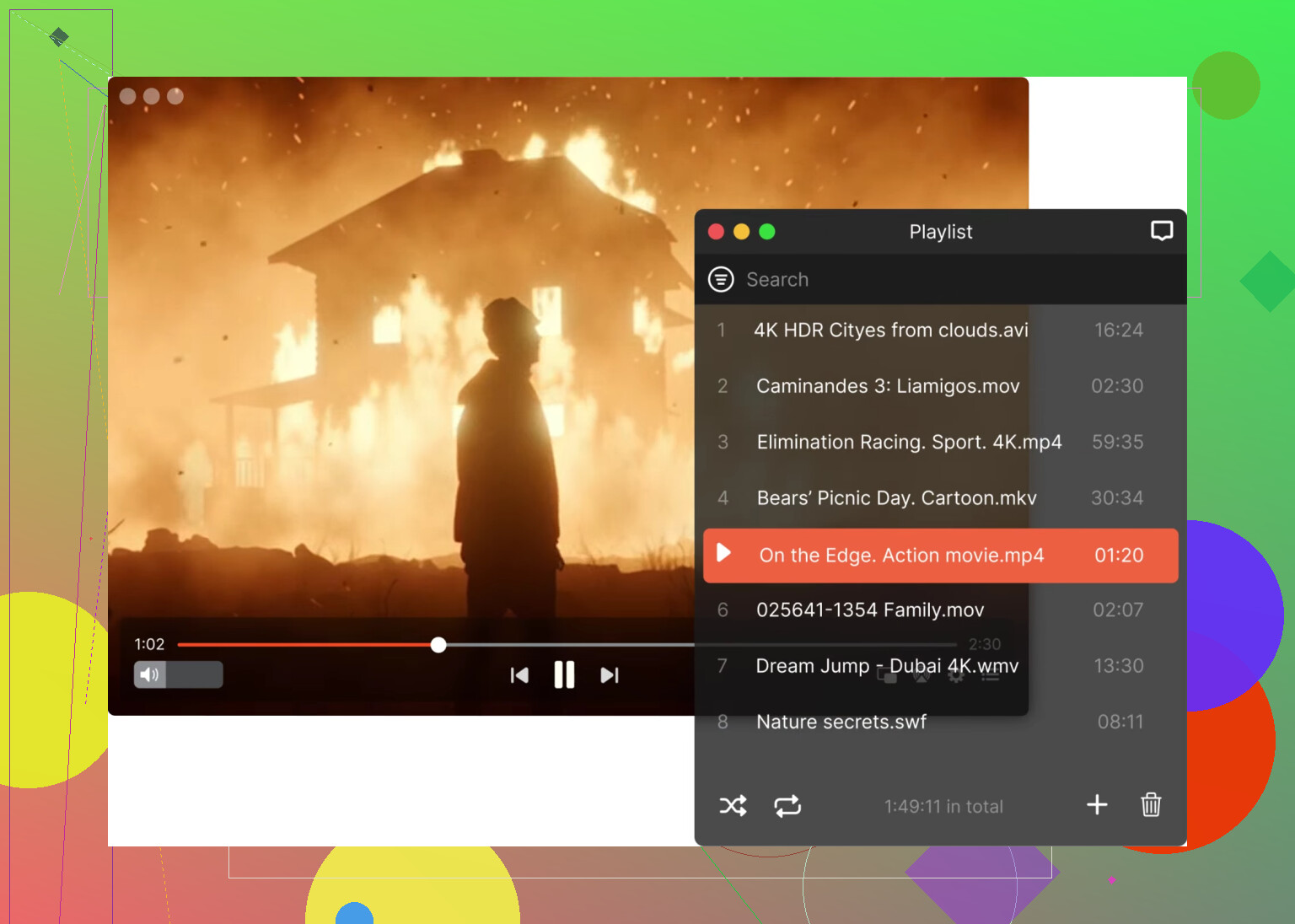
Elmedia Player
Elmedia Player is a versatile macOS media player that supports a wide range of formats including MXF without requiring additional codecs. It’s especially useful if you regularly deal with uncommon or professional formats.
How to open MXF in Elmedia Player:
-
Install and open Elmedia Player.
-
Drag your MXF file into the player window
or
Click File → Open and select your MXF file. -
The file should begin playing automatically.
It also includes playback controls, subtitle support, playlist features, and audio adjustments, which can help if you’re reviewing footage.
Movist Pro
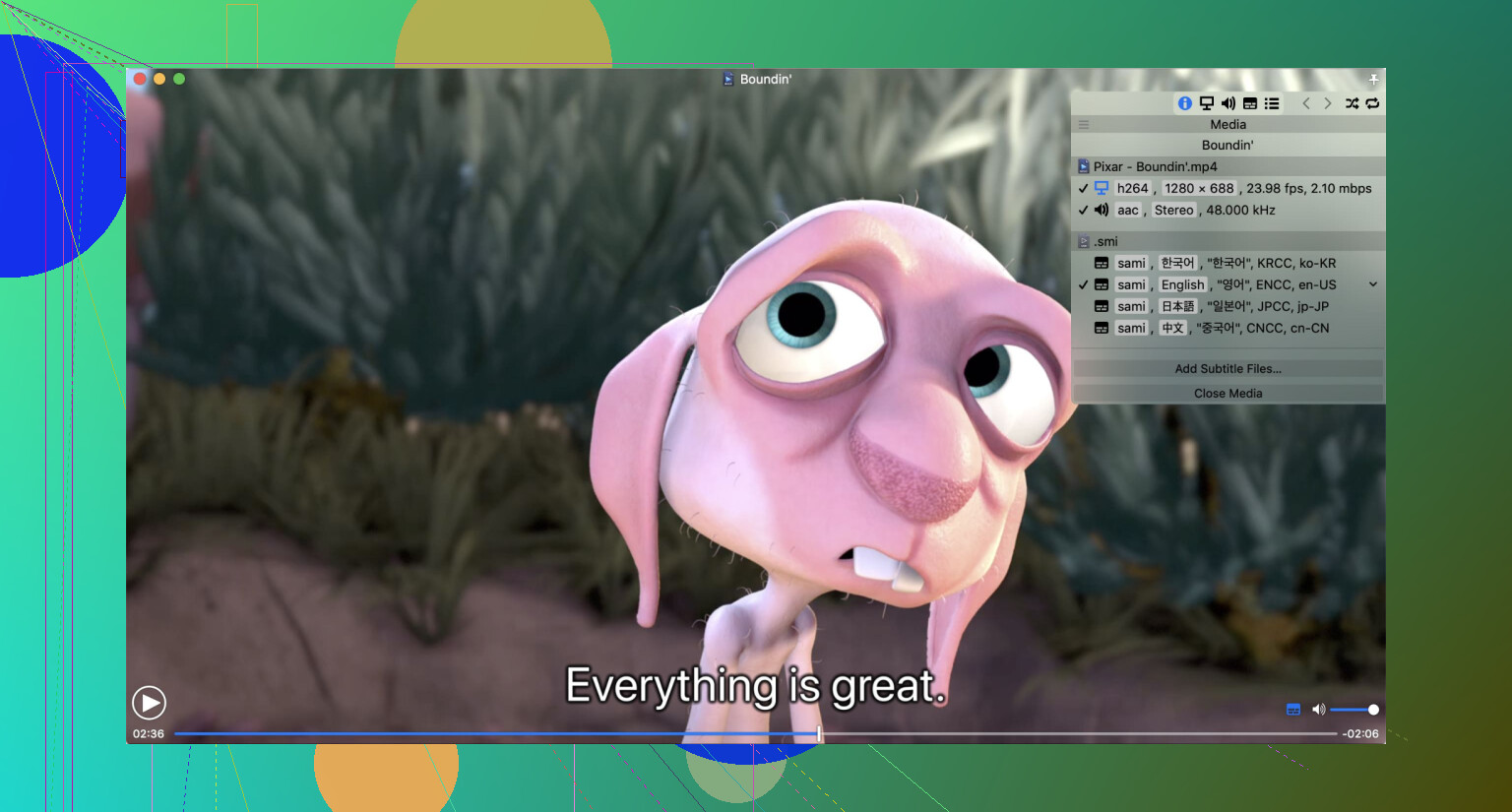
Movist Pro is another macOS player known for strong codec support and good performance with high-quality video formats. It’s popular with users who want more control over playback settings.
How to open MXF in Movist Pro:
-
Launch Movist Pro.
-
Drag your MXF file into the window
or
Use File → Open File. -
Select your MXF file and start playback.
Movist Pro also allows fine control over decoding options, which can help if you run into playback issues with certain files.
On Windows
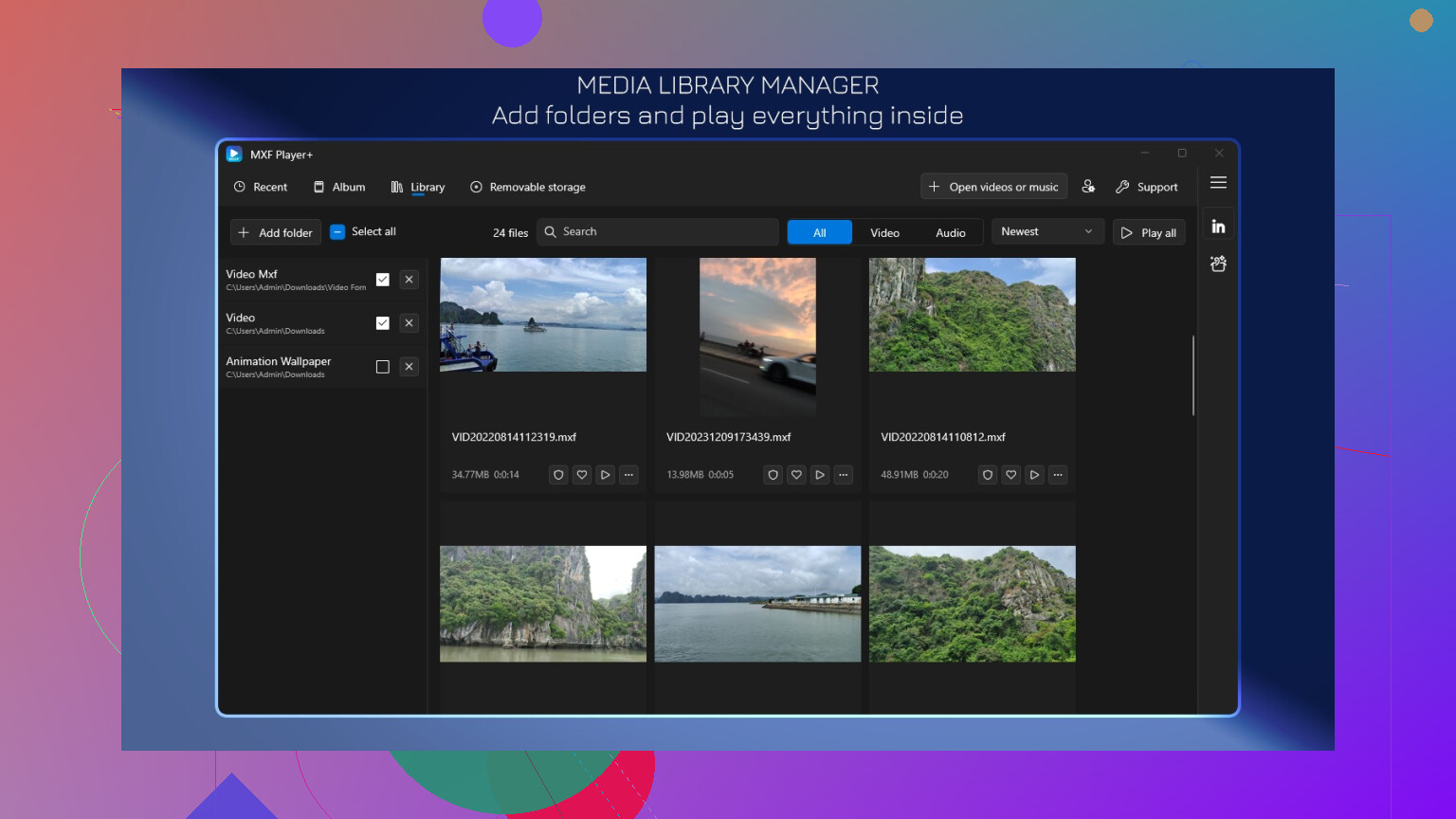
MXF Player+
MXF Player+ is a specialized player built specifically for MXF playback, which can make it a good option if you work with these files frequently.
How to open MXF in MXF Player+:
-
Install and open MXF Player+.
-
Click Open File.
-
Browse to your MXF file.
-
Select it and click Open.
Because it focuses on MXF specifically, it can sometimes handle files that more general players struggle with.
VLC Media Player
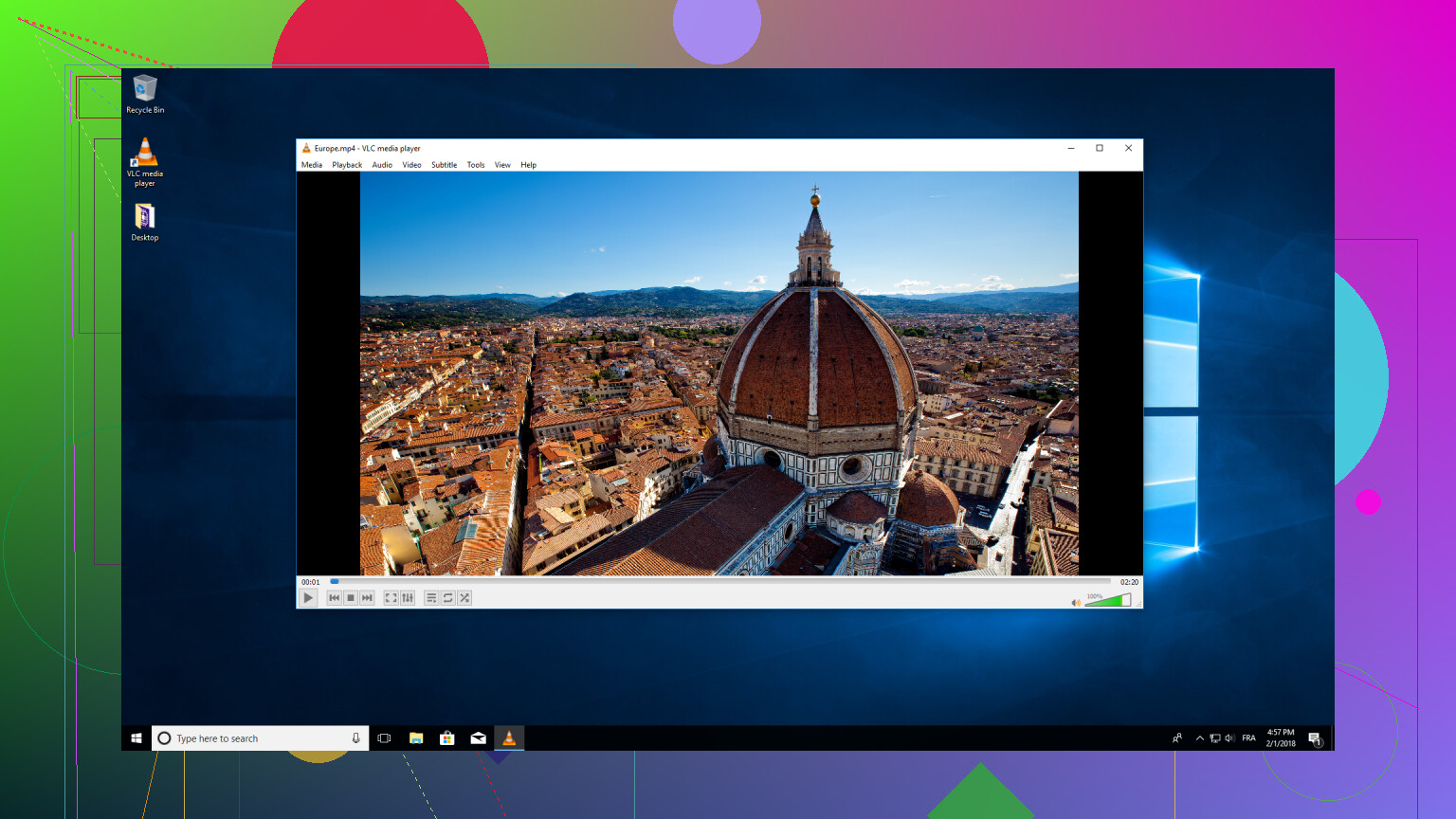
VLC Media Player is often the first thing worth trying because it supports a huge range of formats and codecs out of the box, including many MXF variants.
How to open MXF in VLC:
-
Open VLC Media Player.
-
Click Media → Open File.
-
Select your MXF file.
-
Click Open to start playback.
You can also just drag and drop the file into VLC.
If VLC doesn’t play a specific MXF file, it’s usually because of the internal codec rather than the container itself.
MXF is a professional media container designed for production and broadcast, not everyday viewing. Its strengths are reliability, flexibility, and quality – but that comes with tradeoffs like large files and more limited playback compatibility.
If you just need to view MXF files:
-
Use flexible players like Elmedia or Movist Pro on Mac
-
Try MXF Player+ or VLC on Windows
Once you have a capable player installed, MXF becomes much less intimidating to deal with.
2 Likes
MXF is not broken, your workflow is.
Plain version: MXF is a pro container format used by broadcast and higher end cameras. Think “what the camera or TV facility works with”, not what you hand to a casual client.
What MXF is used for
-
On‑camera recording
Many Sony / Canon / Panasonic pro cameras record to MXF.
Inside you often get codecs like XDCAM, AVC‑Intra, DNxHD, DNxHR.
These are edit‑friendly, higher bitrate than typical MP4 H.264. -
Post and broadcast delivery
Networks often request MXF with a specific codec, frame rate, audio layout.
Example. XDCAM HD422 50 Mbps, 8 or more discrete audio tracks, embedded timecode, captions. -
Archiving
MXF holds metadata, timecode, multiple audio channels, sometimes captions.
That makes long term storage and later conform easier.
Where I partly disagree with @mikeappsreviewer
They focus a lot on playback apps. That helps for a quick view.
For you, the real question is: how do you get this into your NLE cleanly.
Practical steps for your situation
-
Identify what is inside
Use MediaInfo or similar.
Check:
• Codec (DNxHD, XDCAM, AVC‑Intra etc)
• Resolution and frame rate
• Number of audio tracks
• Bit depth and color sampling (8‑bit 4:2:0, 10‑bit 4:2:2, etc)This tells you if your editor should support it or not.
-
Try a different NLE first
Before transcoding everything, test with software that handles MXF natively.
Good with MXF:
• DaVinci Resolve
• Adobe Premiere Pro
• Avid Media Composer
• Final Cut Pro for most camera MXF, not every weird broadcast flavorImport a few clips. If it works, stick with native MXF in that app.
-
If your main editor refuses to open them
Use a proper transcode, not a random “converter” app from the web.
Reliable options:
• FFmpeg
• Adobe Media Encoder
• Resolve free version as a batch transcoderTranscode to an intermediate codec your NLE likes:
• ProRes 422 or 422 HQ
• DNxHR HQX
Keep:
• Same frame rate and resolution
• Full audio channel count
• Timecode if possibleExample FFmpeg pattern (simplified):
ffmpeg -i input.mxf -c:v prores_ks -profile:v 3 -c:a pcm_s16le output.mov -
Watch‑only workflow
If you only need to review takes, not edit, you do not need to transcode.
On macOS, Elmedia Player handles MXF quite well and is lighter than installing a full NLE.
On Windows, VLC is my first try, but it fails on some broadcast MXF variants. When that happens, I convert or move to a different tool. -
Keep the MXF as your “master”
Even if you convert to ProRes or DNx, keep the original MXF.
That file is your closest thing to camera negative, with full metadata and original codec.
Use the transcoded files as “working copies” for editing.
Common “gotchas” you might hit
• Split card structure
Sometimes the client gave you bare MXF clips and not the whole card folder.
That is usually fine, although some apps prefer full folder structure for spanned clips and extra metadata.
• Spanned clips
Long recordings sometimes split across multiple MXF files.
Some NLEs reassemble them correctly only if the card structure is intact.
• Multichannel audio confusion
MXF often has many mono tracks instead of a single stereo pair.
In the NLE, you might need to remap channels or change track types to avoid weird channel layouts.
If you share what NLE you use and a quick MediaInfo report for one clip, people can tell you the best codec and settings to transcode to with minimal quality loss.
MXF is basically the “broadcast people” answer to MP4. @mikeappsreviewer and @espritlibre already nailed most of the theory, so I’ll skip re-explaining containers and codecs line by line and focus on what actually matters for you with this client’s footage.
What MXF is used for in practice
-
Camera originals from pro gear
Your client almost certainly shot on a broadcast / cinema style camera and just dumped the card. Those MXF files are probably the camera masters with:- High bitrate, edit‑friendly codec (XDCAM, AVC‑Intra, DNxHD, etc)
- Proper timecode
- Multiple discrete audio channels
-
Delivery to broadcasters
Networks and some agencies spec “deliver as MXF, codec X, Y audio tracks, Z fps.” This is so their internal servers and playout systems behave consistently. Not relevant if you are only cutting something for web, but it explains why MXF keeps showing up. -
Archival material
MXF is often used as the “long term, don’t touch it” master because it stores more metadata and is less consumer‑oriented than MP4.
Why your editor chokes on it
This is the annoying part:
- MXF = container, not format
- Your NLE might support some MXF flavors and not the exact combo your client used
- Common gotcha: older / consumer‑level editors often fail on 10‑bit 4:2:2 codecs inside MXF
So the issue is not “MXF is weird,” it is “your NLE does not speak this particular dialect of MXF.”
What I’d do in your shoes
-
Check the internals
Use MediaInfo on one file and look for:- Video codec (e.g. “XDCAM HD422,” “AVC‑Intra 100,” “DNxHD 120”)
- Bit depth and chroma (8‑bit 4:2:0 vs 10‑bit 4:2:2)
- Audio track count (you may see 8 mono tracks, not stereo)
That tells you if your editor should be able to handle it.
-
Try a more MXF‑friendly NLE
Before transcoding everything, test in a pro‑leaning editor:- DaVinci Resolve (free is usually enough)
- Premiere Pro
- Avid Media Composer
- Final Cut Pro does ok with most camera MXF but not every broadcast flavor
Drop two or three clips in a new project and see if they import cleanly with correct audio channels.
-
If your usual editor still refuses to play nice
Then you transcode, but do it properly, not through some sketchy “free converter” site. Convert to an intermediate that is easy on pretty much all NLEs:
- Apple ProRes 422 or 422 HQ (mov)
- DNxHR HQX (mov or mxf)
Keep:
- Same frame rate
- Same resolution
- All audio tracks
That way you are not throwing away quality, just changing container + codec to something your editor actually likes.
-
For quick watching / client review
If you just need to see what is in those MXF files without firing up a whole NLE every time:
- On Mac, Elmedia Player is actually one of the least painful ways to preview MXF. It handles weird formats decently and lets you scrub around without installing half of Adobe.
- On Windows, VLC usually works, but like others said, it sometimes chokes on specific broadcast variants.
I slightly disagree with @mikeappsreviewer and @espritlibre on leaning too hard on dedicated “MXF players.” If this is paid work, getting the files into a real NLE is more important than finding the fifteenth different playback app.
One last thing people forget
MXF files often have:
- Spanned clips (one shot split into several MXF files)
- Extra sidecar metadata in folders
If the client only gave you loose MXF files and not the entire card structure, some NLEs will lose things like seamless joins, extra metadata, or original folder‑based logging. Not fatal, just annoying. If possible, ask for the full card copy next time, not just the “video” folder.
Bottom line:
- MXF is a professional container meant for acquisition, broadcast delivery, and archiving.
- Your problem is compatibility, not that the files are “wrong.”
- Either use an editor that handles them natively or transcode once to an intermediate codec, and keep the MXFs as your untouched masters.