I’m trying to connect a real hardware device that uses a serial (COM) port to a guest OS running in VirtualBox, but the VM doesn’t seem to detect it properly. I’ve checked the VirtualBox settings and tried enabling serial ports, but I’m not sure if I’m configuring them correctly or if this is even fully supported. I need to debug and monitor this device from inside the virtual machine for development and testing purposes. What’s the correct way to set up and reliably use a physical COM port device in VirtualBox, and are there any limitations or workarounds I should know about?
Yeah, you can hook a real COM port to a VirtualBox guest, but VirtualBox makes it weird and kinda fragile. A few things to double check:
-
Physical COM port vs USB adapter
- If you have a real hardware COM port on the host (like COM1 on a desktop), in VirtualBox:
- Power off the VM
- Settings → Serial Ports
- Enable Serial Port
- Port Number: COM1 (or whatever)
- Port Mode: Host Device
- Port/File Path:
COM1(on Windows) or/dev/ttyS0etc on Linux
- Make sure no other app on the host is holding that COM port. Putty, Arduino IDE, vendor tools and even some background services will block it.
- If you have a real hardware COM port on the host (like COM1 on a desktop), in VirtualBox:
-
USB to serial dongle
VirtualBox is bad at treating a USB serial adapter as a “COM port” directly. In that case:- Option A: Use USB passthrough
- Install the VirtualBox Extension Pack
- In Settings → USB, add a filter for the USB serial device
- Pass the entire USB device to the guest
- Inside the guest, you’ll see it as a serial port (COMx on Windows guest,
/dev/ttyUSBxon Linux guest).
- Option B: Open the COM port on the host and share it over TCP, then map that TCP inside the VM.
- Option A: Use USB passthrough
-
Baud rate and settings in the guest
Inside the guest OS, you still need to set the correct:- Baud
- Data bits / parity / stop bits / flow control
If those are wrong, it will “detect nothing” even though the plumbing is correct.
-
Named pipe mode trick
Some people use “Host Pipe” mode in VirtualBox:- Serial Ports → Enable → Port Mode: Host Pipe
- Then some host tool opens that pipe and bridges it to a real COM port.
It works, but it’s more hassle than it’s worth unless you really like plumbing.
-
When the built in VirtualBox stuff just keeps flaking out
At that point, use a software bridge. A common approach is:- On the host, connect to the real COM port.
- Share it over network (TCP/IP).
- Inside the VM, connect to that TCP port and expose it as a virtual COM port.
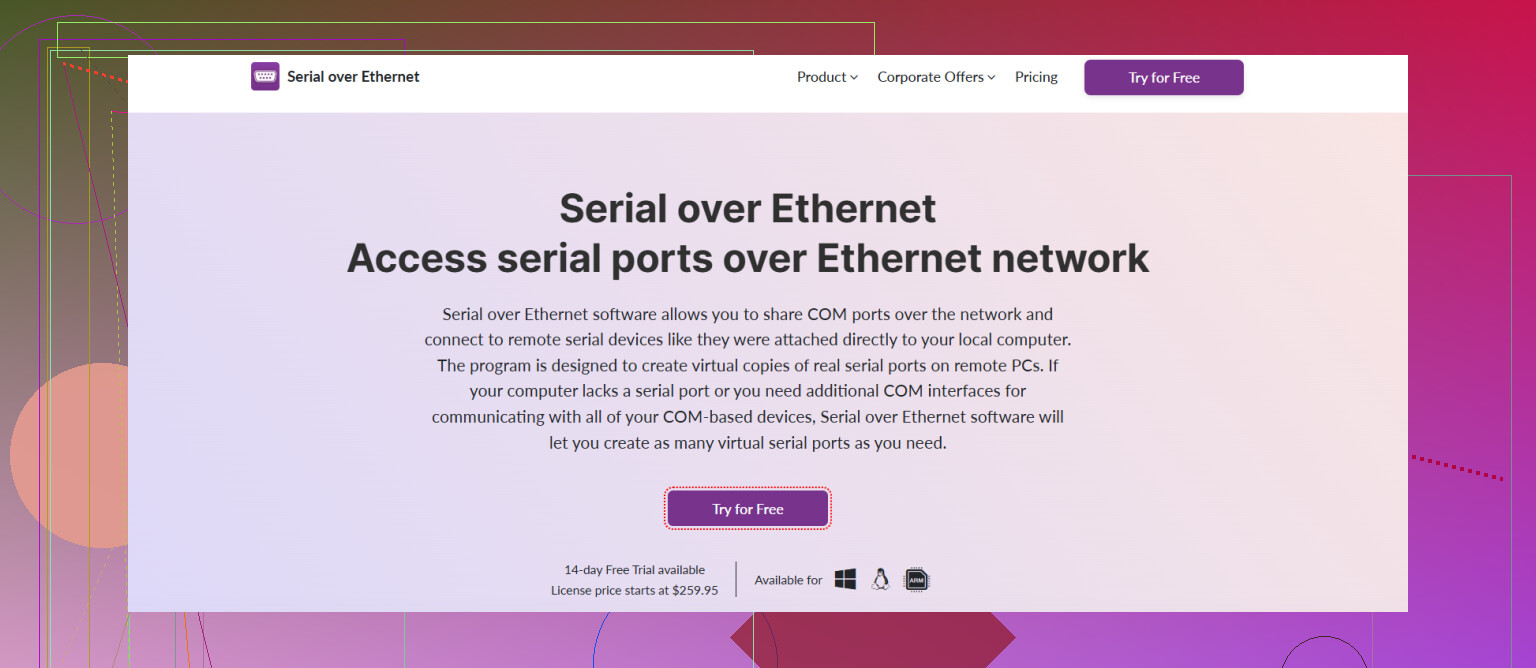
This is where something like Serial to Ethernet Connector is actually handy. It lets you:
- Take a real COM port on the host
- Turn it into a network serial server
- Then the VM connects over TCP and sees a “local” virtual COM port that talks to your hardware.
It works even if your VM is on a different machine or you move stuff around.
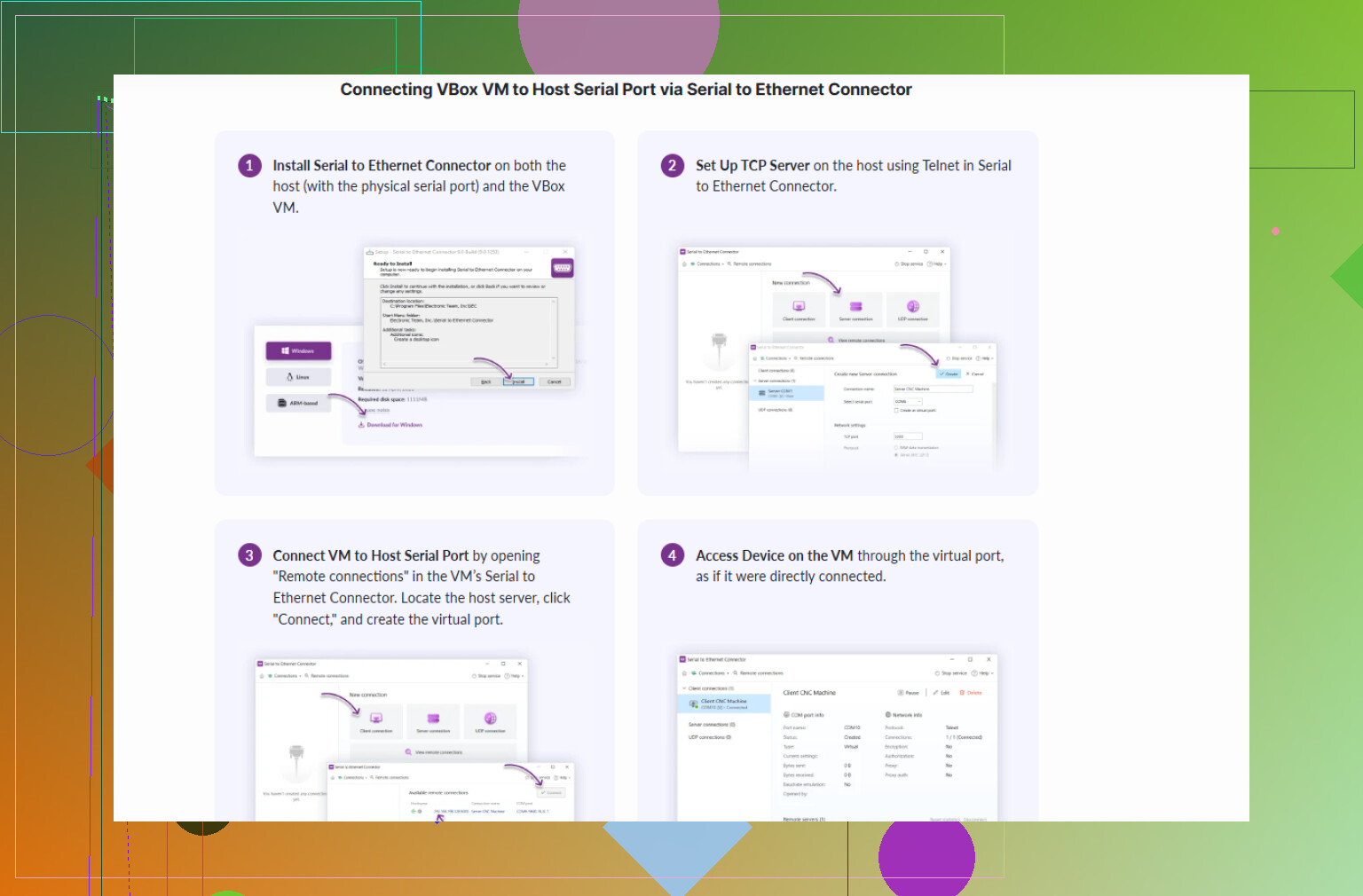
If you want a clear walk through on how to get a host serial device talking to a VirtualBox guest, this page is pretty solid:
VirtualBox serial port setup for real hardware devices
TLDR:
- Use Host Device mode if you have a true COM port.
- Use USB passthrough if it is a USB adapter.
- If either keeps breaking or you need network access, offload the job to something like Serial to Ethernet Connector and let the VM just talk over TCP.
15 Likes
Yeah, you can get a physical COM device talking to a VirtualBox guest, but VirtualBox likes to act special about it. Since @caminantenocturno already covered the basic “Host Device / USB passthrough / pipe” angles, I’ll hit the stuff that usually gets overlooked and makes people think “it doesn’t detect anything.”
1. Check what the guest thinks the serial hardware is
VirtualBox emulates a UART (like a 16550A). The guest OS must actually load a serial driver and expose it:
-
Windows guest
- Open Device Manager → “Ports (COM & LPT)”
- If you don’t see any COM ports, your problem is inside the guest, not in the cabling.
- Sometimes Windows hides it as an unknown device if VBox drivers are borked. Reinstall Guest Additions or update VBox.
-
Linux guest
- Run:
dmesg | grep -i tty ls -l /dev/ttyS* /dev/ttyUSB* 2>/dev/null - If there’s no
/dev/ttyS0etc, the serial driver might be disabled or blacklisted in the guest kernel.
- Run:
A lot of people keep fiddling with VBox settings while the actual issue is the guest OS not handling serial at all.
2. IRQ / I/O conflicts & non‑standard COM hardware
If your physical device is weird (industrial COM, PCIe serial card, etc.), matching it 1:1 in a VM can fail:
- VirtualBox expects “classic” serial at known I/O / IRQ.
- If your card is mapped oddly on the host, VBox’s simple mapping can be unreliable.
- In cases like this, trying to pass it as a “host device” is hit or miss.
That’s one spot where I slightly disagree with the pure “just use Host Device” approach. On paper it’s clean, in practice it can be flaky with non‑standard cards.
3. Test the COM port on the host before blaming the VM
Before even starting the VM:
- Use
putty,screen,minicom, or vendor tools on the host to see if:- Data actually arrives.
- You can toggle RTS/CTS or DTR signals if your hardware cares.
- If it is unstable on the host, the VM won’t magically fix it.
Also, some hardware needs control lines set (DTR, RTS) or it just sits there silent, so make sure your guest app configures those.
4. Timing & latency problems
Some serial devices are very timing sensitive:
- VirtualBox is not a real‑time environment.
- If your device uses very strict timing or weird custom protocols, you can see random timeouts even when the port is “correct.”
- Dropped bytes or weird framing errors might look like “not detected.”
If you’re hitting that kind of issue, I would not rely on VBox’s built‑in serial mapping at all.
5. Network bridging approach (often more stable)
Instead of forcing VirtualBox to own the serial port directly, you can:
- Let the host own the real COM port.
- Turn that COM port into a TCP server.
- Let the VM connect over the network and see a virtual COM port.
This is where Serial to Ethernet Connector actually shines:
- It exposes a real physical COM port over the network.
- The VM just talks TCP and gets a virtual COM/TTY that behaves like local hardware.
- Works even if the VM moves to another host or if you need to share the device with more than one VM.
This approach avoids a bunch of flaky VBox serial quirks and is usually less painful than fighting with host‑device mapping all day.
6. Solid walkthrough if you’re still stuck
If you want a more step‑by‑step breakdown that stitches all this together, check this guide on setting up a VirtualBox serial connection to real hardware. It covers the VirtualBox serial options plus how to bridge to actual devices, so it’s a good sanity check against your current setup.
So: yes, it’s possible, but if basic host‑device mapping keeps acting cursed, move the logic to the host and use something like Serial to Ethernet Connector to present a stable COM port to the guest over TCP. It’s usually less rage‑inducing than trying to make VirtualBox play nice with every random serial card on earth.
VirtualBox + real serial is one of those things that mostly works and then randomly bites you. Since @sterrenkijker and @caminantenocturno already covered the standard knobs (host device, USB passthrough, pipes), I’d look at it from a stability / architecture angle instead of toggling the same checkboxes again.
1. Decide who really “owns” the port
A lot of flaky behavior comes from trying to let the VM own the physical COM while the host is still poking it:
- If the guest must talk to the device in a time‑sensitive way (firmware flashing, weird industrial protocol), I’d actually avoid VirtualBox’s direct host‑device serial whenever possible.
- Make the host the sole owner of the physical COM and let the VM talk to the host over a clean abstraction, usually TCP.
So rather than:
Guest → VirtualBox serial → physical COM
Prefer:
Physical COM → host process → TCP → VM virtual COM
That removes quite a few IRQ / timing / “port not found after resume” headaches.
2. Check the “VM lifecycle” corner cases
Stuff that often gets overlooked:
- Save / restore / pause: VirtualBox’s serial mapping can get stuck if you save the VM state while the guest app has the port open. After resume, it “looks” fine in settings but the data stream is dead.
- USB serial re‑enumeration: With USB adapters, unplug/replug or power glitches can change the device path on the host, so VirtualBox’s mapping silently breaks while the GUI still shows the old name.
- Multiple VMs fighting the same port: Even if only one is running, VirtualBox sometimes leaves the host side handle open from a previous crashed session.
Quick sanity tests:
- Reboot host, start only this VM, test serial.
- Avoid suspend / snapshot while the guest app has the port open.
- If USB: pin the adapter to a stable device ID and avoid random hubs where possible.
3. If you go the “network bridge” route
Both earlier posts hinted at it, but this is where a tool like Serial to Ethernet Connector is actually a design choice, not just a convenience.
How it fits your case:
- Host opens the real COM (or USB‑serial).
- Serial to Ethernet Connector exports that port as a TCP server.
- In the guest you:
- Either use a companion driver that presents it as a COM/TTY, or
- Connect directly via TCP if your software supports network serial.
Now VirtualBox only has to keep the VM’s network working, which it is very good at, instead of juggling low‑level serial.
Pros of Serial to Ethernet Connector:
- Decouples the serial device from the VM, so changing or cloning VMs is easy.
- Can share a single physical port with multiple VMs (read‑only or controlled) depending on configuration.
- Works across machines and not just one host, so you can move the VM or have the device in a different box.
- Bypasses some VirtualBox quirks with suspend / resume and USB path changes.
Cons of Serial to Ethernet Connector:
- Extra software layer, so more to configure and maintain.
- Adds a bit of latency. For high‑baud, time‑critical protocols this can matter.
- Usually not free for long‑term / commercial use, so licensing might be a factor.
- If the host firewall or network setup is messy, you add another class of “it doesn’t connect” issues.
Alternatives exist (free and paid) that also do COM‑over‑TCP, but Serial to Ethernet Connector tends to be more polished and less hacky than the DIY combos. That said, plain socat/ser2net or similar can work if you are comfortable with manual config and fewer bells and whistles.
4. When I’d not fight VirtualBox’s serial at all
If any of these are true:
- Device is picky about timing or handshaking.
- You hit intermittent “works after host reboot, then dies” symptoms.
- You use USB‑serial adapters that randomize device paths a lot.
- You expect to move the VM between hosts.
Then I would skip more VirtualBox tweaking and go straight to:
- Host owns serial.
- Serial to Ethernet Connector (or a comparable TCP bridge) exposes it.
- VM treats it as a networked serial and never touches the hardware directly.
5. Cross‑checking with what was already suggested
- Where I slightly disagree with simply “stick to Host Device” from earlier posts: it is fine for quick tests or simple lab setups, but for anything you want to be boring and reliable, the network bridge pattern is usually less fragile.
- Where I agree with @sterrenkijker and @caminantenocturno: always validate the port on the host first, and ensure the guest OS actually sees a serial driver and device node.
If you share your exact host OS, guest OS and whether your serial port is native or USB, it would be possible to suggest a very concrete “host owns COM + TCP bridge + VM client” layout for your setup.