I accidentally deleted my vacation photos and then realized some files may have been removed from my camera SD card and laptop backup too. I’m trying to find the best photo recovery software to restore deleted pictures before they’re gone for good. If anyone has advice on reliable picture recovery tools or the safest way to recover vacation photos, I’d really appreciate the help.
I messed this up before, more than once. The tool matters less than what you do in the first few minutes. If your photos were deleted, stop using the card or drive now. Pull the SD card. Unplug the SSD. Don’t shoot more frames on it. Don’t copy random files onto it.
Deleted photos usually are not gone right away. The storage only marks the space as free. New data writes over the old bits, and once that happens, you’re done. I’ve seen people lose recoverable shots because they kept clicking around, exporting stuff, or taking “a few more pics” on the same card. Bad move. If you want the best odds, freeze the drive in place and scan it from another machine if you have one.
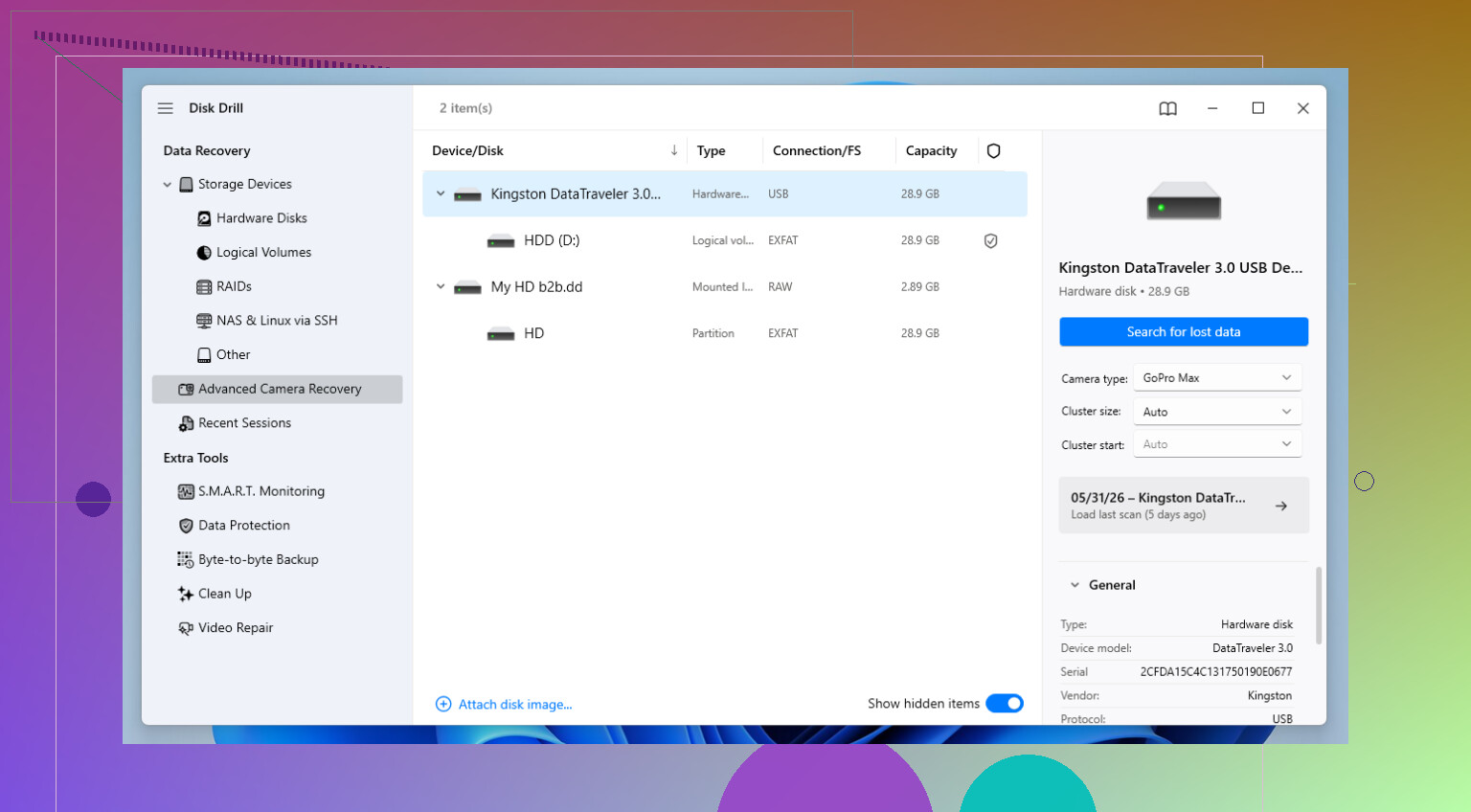
If I had to pick one tool first, I’d start with Disk Drill. I keep going back to it because it tends to find more usable files, not only a long list of junk with broken previews. The interface is easy enough, which matters when you’re already stressed and trying not to make things worse. It also handles a lot of RAW formats, including CR3, NEF, and ARW. What helped me most was its camera-focused recovery mode, especially on cards from mirrorless bodies where files got split up in ugly ways.
Fragmented files are where some recovery apps fall apart. A scan finishes, it shows your photo, you restore it, and then the file won’t open. I’ve had this happen with clips and burst-shot stills. Disk Drill does better than most at rebuilding those broken pieces into something usable.
The weak spot is the free tier. On Windows, recovery is capped at 100 MB. For RAW shooters, that’s not much. Still, it’s enough for a test. You scan, preview, and check whether the important files are intact before paying for anything. I did this on a wedding card once, not fun, but it told me fast whether I had a shot at saving the job.
If you don’t want to spend money up front, I’d look at PhotoRec and Recuva next. Both are useful. Both ask you to give something up.
-
PhotoRec is blunt, but strong. It ignores the damaged file system and reads the drive at the raw level, hunting for file signatures. This is why it still finds images from media your computer barely reads, or doesn’t mount right at all. I’ve used it on cards after corruption errors where normal apps saw almost nothing. The downside is the mess. No clean gallery. No polished workflow. File names and folder structure are usually gone, so you end up staring at a pile of files named like “f12345.jpg” and sorting them by hand. It works, but yeah, it’s a slog.
-
Recuva is the easy one. Windows only, free, quick to run, simple enough for people who don’t want to read a guide first. If you deleted photos a few minutes ago from a healthy drive, it often does fine. I’d use it for the obvious accidents first. Where it starts to miss is corruption, quick formats, and weird camera card behavior. In those cases, I got better results from deeper scanners. So, it’s a good first pass, not the one I’d trust most on a bad day.
One thing I learned the hard way, each loss case is a little different. Card brand matters. File system matters. The camera matters. Even two “deleted file” cases don’t behave the same. What I’d do is run a scan with Disk Drill first and use the preview to confirm which files still open. Then, if the drive is damaged or the scan comes up thin, try PhotoRec and see if it pulls more from the raw data. Recuva is worth a shot too if your case looks simple.
So yeah, pick based on your mess. If you want the least friction and stronger recovery, start with Disk Drill. If you want free and don’t mind sorting chaos later, PhotoRec. If you want the easiest free option on Windows for a recent delete, Recuva. The big thing is speed. Stop writing to the drive first, or the rest barely matters.
13 Likes
I’d split this by device, because SD card recovery and laptop recovery often go diffrenet ways.
For the SD card, R-Studio is worth a look if Disk Drill does not pull clean results. It is less friendly, but stronger when the card has file system damage or partial corruption. I’ve had it recover full folder trees from exFAT cards where simpler tools dumped everything into random file names. If your photos matter more than ease of use, that matters.
For the laptop backup, test Windows File History, OneDrive version history, Time Machine, or any cloud sync trash before you spend money. People skip this and go straight to scanners. Bad habit.
I agree with @mikeappsreviewer on Disk Drill being a strong first pick. I disagree a bit on Recuva for photo jobs. It is fine for basic deletes, but I’ve seen too many restored JPGs open half gray or not open at all. For image recovery, I’d rather spend time on Disk Drill first, then R-Studio, then PhotoRec if things are messy.
Small trick. Recover files to a different drive only. Not back onto the SD card, not onto the same laptop partition. Sounds obvious, people still do it.
If you want a solid roundup, this best photo recovery software for deleted pictures and SD card files video covers the top tools for restoring lost images in a cleaner way than most blog lists.
If this were mine, I’d treat the SD card and the laptop as two seperate recovery jobs and not rely on one app for both.
I mostly agree with @mikeappsreviewer and @viajantedoceu about Disk Drill being the best first try, especially for deleted vacation photos from SD cards. Where I slightly disagree is with jumping straight to the deepest scan every time. On healthy media, a lighter scan first can recover cleaner file names and folder structure. Deep scans are great, but they can turn recovery into a giant pile of generic files.
My order would be:
-
Disk Drill first
Best balance of easy previewing, RAW/JPG support, and not making a total mess of recovered files. For accidental delete cases, it’s probly the most user-friendly option. -
R-Photo if you want a free photo-focused option
Not talked about enough. It’s from the R-Tools people, free for personal use, and better with image recovery than a lot of “free” tools. -
PhotoRec only if the card is corrupted or other tools miss stuff
Powerful, yes. Also kind of chaotic. Expect lost names and folders.
For the laptop backup, before scanning, check cloud trash/version history. Seriously. A lot of “deleted forever” pics are still sitting in OneDrive, Google Photos, Dropbox, File History, or Time Machine.
Also, recover to a different drive only. Not the same SD card, not the same laptop partition. That part matters more than people think.
If you want a decent roundup of the best photo recovery software for deleted pictures and SD card recovery, this article is useful too: best tools to recover deleted photos from SD cards and laptops.
Short version: start with Disk Drill, check previews, then use a second tool only if results are incomplete or corrupted.

I’d be a little more cautious than @viajantedoceu and @sonhadordobosque about throwing multiple scanners at the same media right away. More tools is not always better if you are stressed and clicking fast.
My take:
For the SD card
- If the card still mounts and was just deleted, Disk Drill is a solid first pass.
- Pros: easy preview, good photo/RAW support, simple workflow, usually cleaner results than brute-force carvers.
- Cons: free recovery limit on Windows is small, deep scans can take a while, and it is not the cheapest if you only need one rescue.
For the laptop
- I actually wouldn’t start with recovery software first if this was an SSD laptop. TRIM can wipe deleted data fast, so classic undelete sometimes finds little. In that case, your best hope may be app-level sources like photo catalog caches, exported copies, messaging apps, or old sync folders that got overlooked.
One angle I haven’t seen stressed enough by @mikeappsreviewer is this: check whether your camera created small JPEG previews alongside RAW files. Even if the RAWs are gone, sidecar previews or embedded thumbnails can sometimes be extracted later and save the memory if not the full-quality image.
So my order would be:
- Look for overlooked copies, caches, app imports
- Use Disk Drill on the SD card
- If results are incomplete, move to a heavier tool like R-Studio or PhotoRec
Not flashy advice, but it saves more photos than people think.