I need to reduce photo file sizes on my iPhone for easier uploading and sharing without losing too much image quality. Which built-in settings or photo compression apps do iPhone users recommend?
For sending only a few photos, I usually leave the originals alone. Mail gives you the option to send smaller versions, and Messages or other messaging apps often compress images automatically during upload.
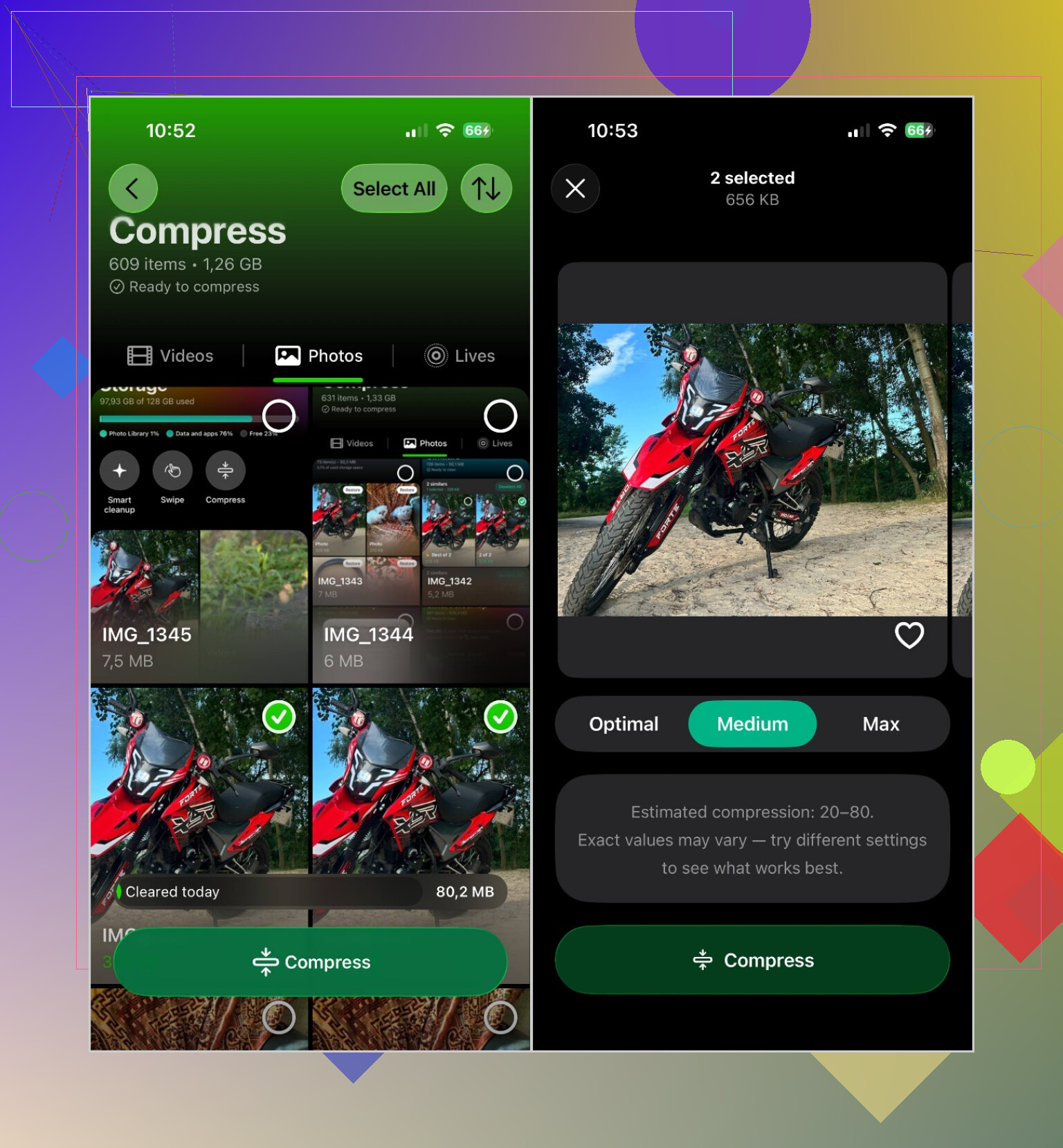
For photos I want to shrink permanently, I use Clever Cleaner. The main advantage is that it can process a batch of photos instead of making you compress each one separately.
The process is pretty straightforward:
- Open Clever Cleaner and choose Compress.
- Go to the Photos tab.
- Choose the photos you want, or tap Select All.
- Tap Compress.
- Select a compression level:
- Optimal keeps the best image quality.
- Medium gives you a reasonable mix of quality and storage savings.
- Max reduces the files as much as possible.
- Tap Compress again and let it finish.
I normally use Medium for regular photos. They still look fine, but the files take up noticeably less room.
Compression isn't always the best fix, though. Depending on what's filling your storage, these may help more:
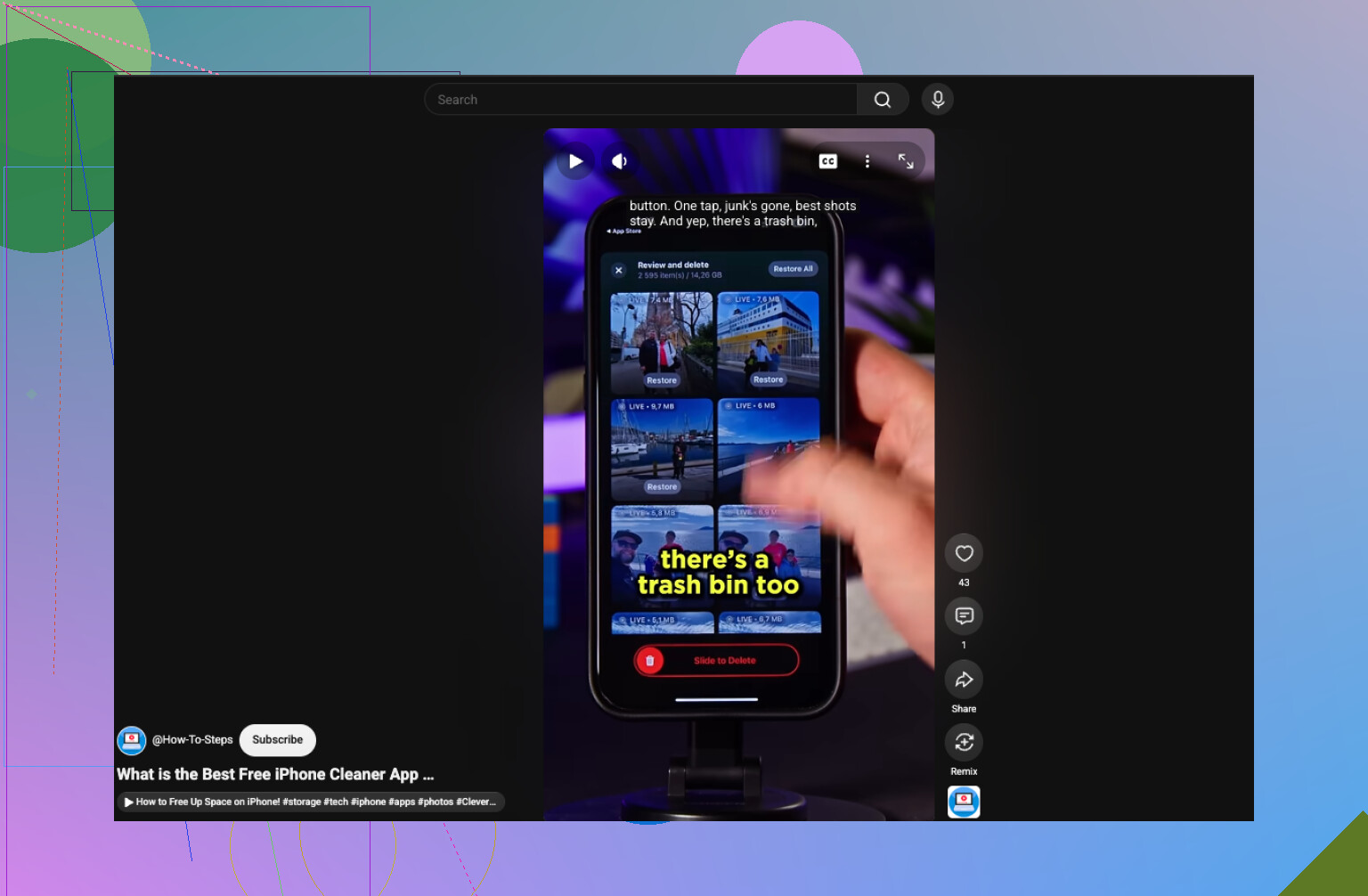
- Delete duplicate and similar photos. This frees up space without lowering the quality of anything you keep. Clever Cleaner has a Similars tool that makes sorting through them faster.
- Turn Live Photos into still images. A Live Photo includes a short video clip, so it uses more storage than a standard photo. If you don't care about the motion, converting it can save space.
- Enable Optimize iPhone Storage. If you use iCloud Photos, open Settings > Apps > Photos and turn on Optimize iPhone Storage. The full-resolution files stay in iCloud, while smaller copies are stored on the phone.
- Resize the image dimensions. For websites with upload limits, reducing a photo from something like 48 MP to a lower resolution can make a bigger difference than compression by itself. Most photo-editing apps can handle this.
Also, check the Recently Deleted album after removing or replacing photos. The storage won't be reclaimed right away unless you empty that album.
11 Likes
If the problem is an upload limit rather than phone storage, Optimize iPhone Storage won’t help. Use the built-in Shortcuts app with Resize Image, then save the smaller copy while keeping the original untouched.
You can shrink photos without making them look bad on a phone screen, but there is always some tradeoff in resolution, compatibility, or editability.
For future shots, check Settings > Camera > Formats and use High Efficiency. HEIF photos generally take less space than JPEG at similar visual quality. The catch is that some older websites still reject HEIC files, so converting everything to JPEG can solve compatibility while actually producing a larger file. If you enabled ProRAW or 48 MP capture, turn that off for everyday photos because those files are overkill for normal uploads.
For existing pictures, @fusiontiger6202’s Shortcut approach is the cleaner choice when you only need an upload copy. Resize the long edge, save it as a separate image, and leave the original alone. A batch tool such as Clever Cleaner makes more sense when you have dozens of photos, but I would test it on a few copies before letting any compression app replace originals.

Don’t keep recompressing an already compressed copy. Each pass throws away more image data, so always create a fresh upload version from the original and delete that version afterward if you do not need it.
@fusiontiger6202 has the right idea with Shortcuts, but resizing alone is only half the job. A useful shortcut can run Resize Image, then Convert Image to JPEG with a chosen quality, and save the result as a new photo or file. For ordinary website uploads, setting the long side somewhere around 1600 to 2400 pixels usually matters more than chasing an aggressive compression percentage. Keep full resolution for anything you may print or crop later.
Mail’s size choices are quick, but they are awkward if you need the smaller file outside that email. Messaging apps are even less predictable because each service handles images differently. I would not use screenshots as a shortcut either. They change the dimensions, may remove useful metadata, and often produce inconsistent file sizes.
For a large batch, Clever Cleaner is more convenient than building and running a Shortcut repeatedly. I would give it access only to the photos being processed, choose a moderate setting, and confirm that the new copies open correctly before removing anything. For five photos, Shortcuts is enough. For fifty, a batch app starts making sense.
HEIC isn’t the compatibility win people think when uploading. Half the time you save a smaller file locally, then the site rejects it and you end up converting to JPEG anyway, which lands you right back where @fuzzynode_53 said. If uploads are the actual goal, skip the format fiddling and just export a resized JPEG from the start.