My drive started showing file system errors after a sudden shutdown, and Windows keeps prompting me to scan and repair it. I’m worried about losing files, so I need advice on the best disk repair tool or safe steps to fix file system errors without making things worse.
“Disk repair” can mean a few different things, so the right tool depends on what’s actually wrong.
If you’re trying to get files back from a RAW or damaged drive, that’s one type of job:
If the issue is a missing partition, broken partition table, or boot sector problem, that’s a different situation. And if you just want to know whether the drive is dying, you want a health-monitoring tool, not a repair tool.
These are the ones I’d look at first:
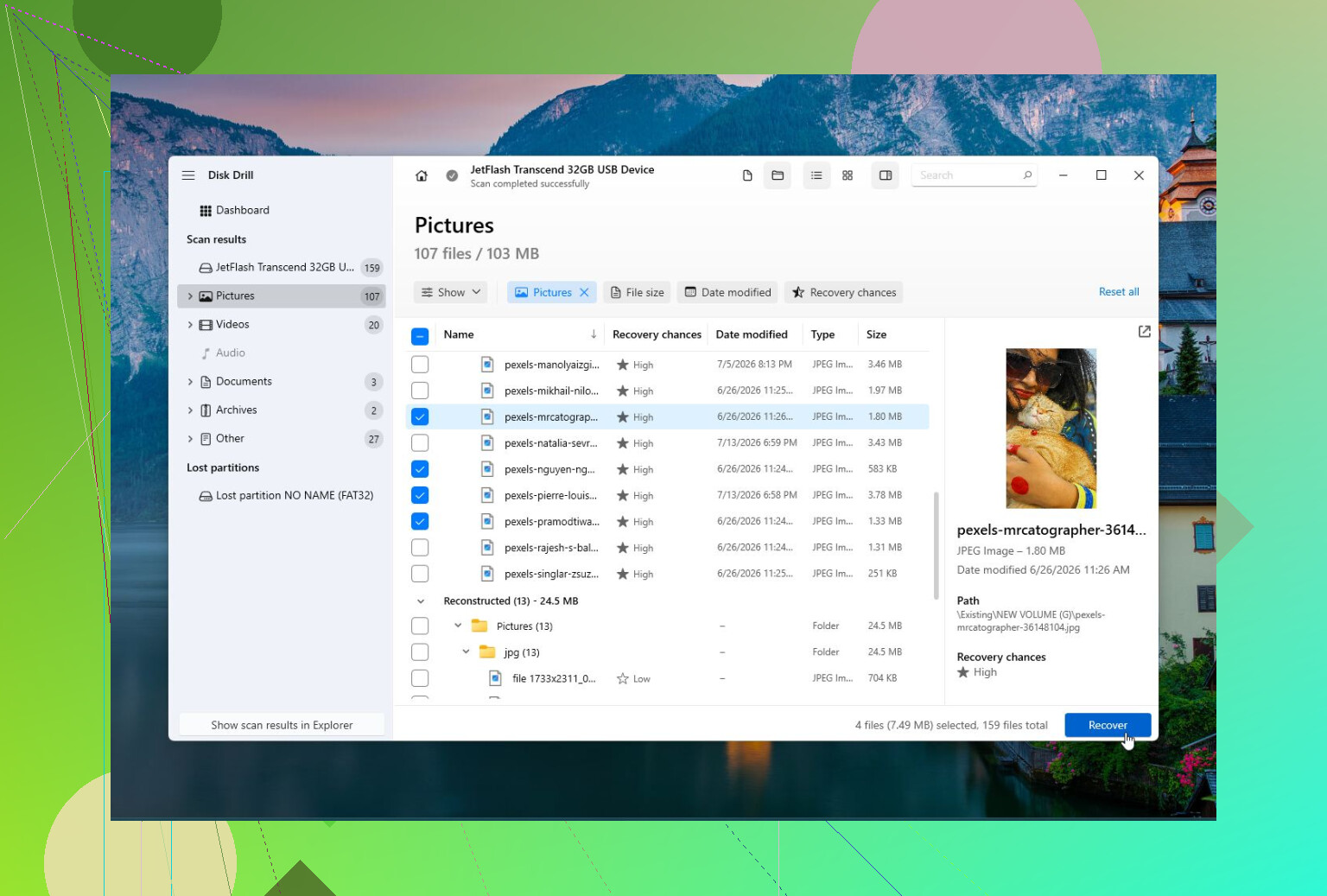
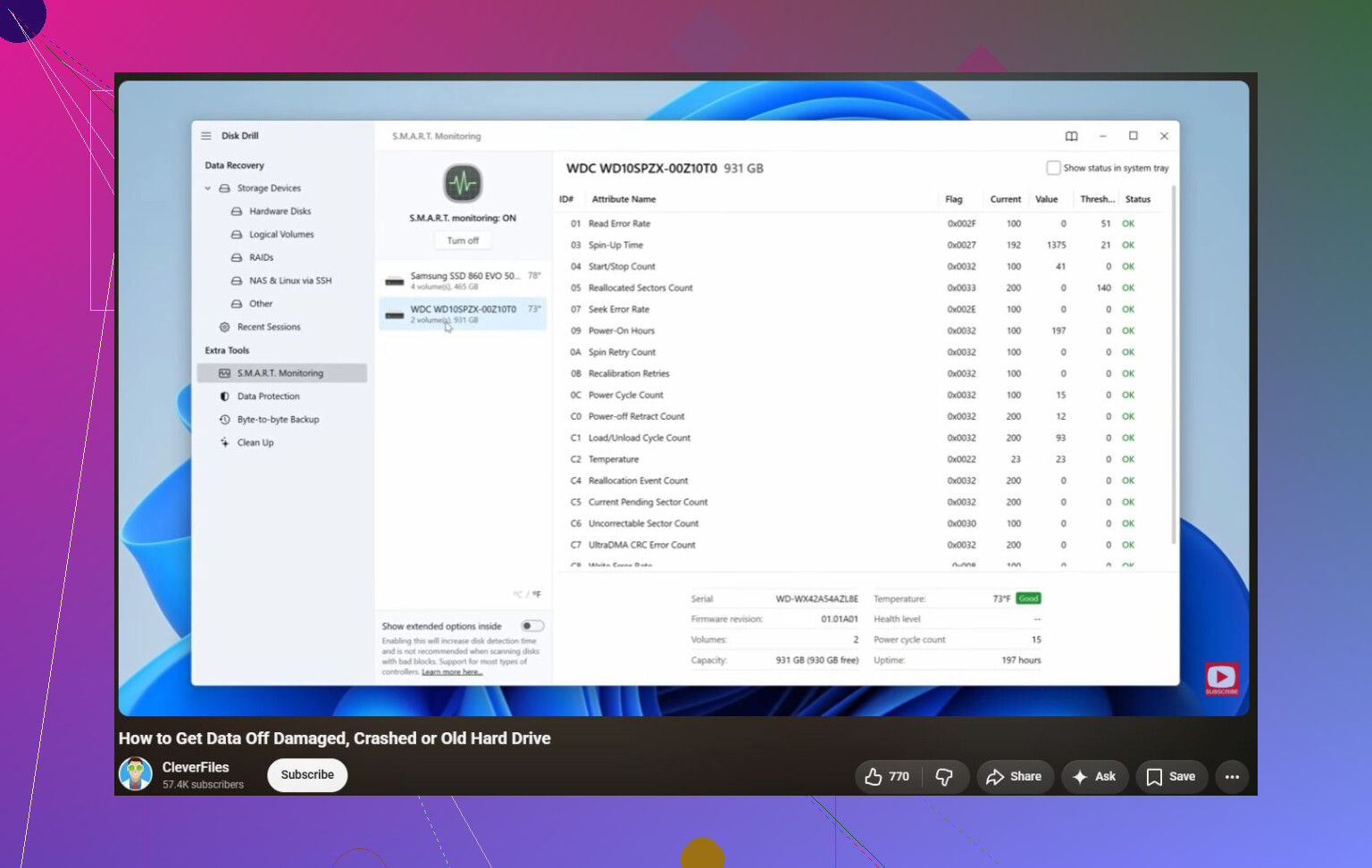
Disk Drill is the better pick when the files matter most. If Windows says the drive needs to be formatted, the drive shows as RAW, or something was deleted or formatted by mistake, start by trying to recover the data instead of “fixing” the disk. It can work with corrupted or inaccessible drives, make a disk image of a failing drive, and check S.M.A.R.T. health. It’s also pretty easy to use if you’re not comfortable with more technical tools.
Good:
- Easy for beginners.
- Strong recovery for RAW, corrupted, and formatted drives.
- Includes disk imaging and S.M.A.R.T. monitoring.
- Supports most common file systems.
Not so good:
- It is not meant for repairing partition tables or boot sectors.
TestDisk is what I’d use for partition and boot issues. If a partition vanished, the drive suddenly shows as unallocated, or the partition table got damaged, TestDisk is still one of the better free options. It can rebuild partition tables and fix boot sectors, but it’s not exactly friendly. The text-based interface is fine if you know what you’re doing, but it can be confusing if you don’t.
Good:
- Free and open source.
- Very good for recovering lost partitions.
- Can repair boot sectors and partition tables.
- Runs on Windows, macOS, and Linux.
Not so good:
- Text-based interface.
- Easy to choose the wrong thing if you’re not familiar with partitions.
- Not the best choice for recovering specific individual files.
CrystalDiskInfo is more of a health check tool than a repair tool. It won’t recover files or fix partitions, but it’s useful for seeing what shape the drive is in. It reads S.M.A.R.T. data, shows temperature, and can give you an early warning when a drive is starting to fail. I’d run this first if you’re not sure whether you’re dealing with a software problem or bad hardware.
Good:
- Free.
- Simple to use.
- Useful for checking drive health.
- Can warn you before total drive failure.
Not so good:
- No file recovery.
- No partition or file system repair.
The main thing is to stop experimenting if the drive is acting physically bad. Clicking sounds, random disconnects, freezing during reads, or a growing bad sector count usually means the drive is failing. In that case, get the important files off first and plan to replace it. Software can fix logical problems, but it can’t repair worn-out hardware.
https://www.youtube.com/watch?v=_e4D_2bu8LE

1 Like
Whether the drive is an SSD or a spinning hard drive matters here, because repeated “repair” runs on a failing HDD can make things worse. I wouldn’t start with a repair tool at all if the files matter. Copy the important stuff off first, or image the drive if it’s acting flaky, then run the built-in Windows check from Properties or chkdsk /scan. Save chkdsk /f for after you have a backup, since it can “fix” the file system by removing damaged entries. Disk Drill is reasonable if you need to recover files before touching the disk, but for a normal dirty file system after a power loss, Windows’ own tool is usually the first repair step, not some big third-party fixer.
Don’t run chkdsk /r as your first “repair” just because Windows keeps nagging you. That option does a surface scan and can take forever on a large drive, and if the drive is already weak it can keep hammering the same bad areas. For a post-shutdown file system dirty flag, I’d start much smaller.
If the drive is readable, copy your important folders somewhere else first. If copying hangs on one file, skip it and keep moving. After that, open an admin Command Prompt and run:
chkdsk X: /scan
Replace X: with the drive letter. If it reports errors that need fixing, then run:
chkdsk X: /f
For the Windows system drive, it may ask to schedule it at reboot. That’s normal.
Disk Drill makes sense if files are missing, the drive turns RAW, or Windows wants to format it before opening it. I wouldn’t use recovery software as a “repair” tool for a drive that still mounts normally. Recover first if data is at risk, repair second. And if the SMART status is bad, stop trying to fix the file system and replace the drive, because Windows can clean up NTFS metadata but it can’t make failing hardware healthy again.
Make a normal copy of the must-have files to another physical disk before clicking the Windows repair prompt. That prompt doesn’t tell you whether it’s just NTFS cleanup or a drive starting to fail, and once a repair changes the index, recovery can get messier. For this case, the best repair tool is still Windows’ own chkdsk /f after backup; use Disk Drill only if files are missing or the volume stops opening.