My APFS drive suddenly stopped mounting on my Mac and I keep getting the com.apple.diskmanagement.disenter error. I need help figuring out what caused it, whether my data is at risk, and what steps I can take to mount the drive safely without making the problem worse.
I ran into the same “disenter error” mess on macOS, and it felt less like a drive failure and more like macOS refusing the mount at the system layer. The Mac saw the hardware. The file system service didn’t finish the job, so the disk sat there useless.
What kept happening on my end
The thing I saw most often was fsck getting stuck in the background. If you unplug a drive without ejecting it first, macOS usually starts a file system check the next time you connect it. On paper, fine. In practice, I’ve watched it hang on big ExFAT drives and larger APFS volumes for ages. While it’s stuck, the disk stays locked and won’t mount.
The Terminal fix I tried first
Open Terminal and run:
sudo pkill -f fsck
You’ll need your admin password. After I did this, the drive mounted right away more than once. A couple times it came back read-only, which was fine by me since I only needed to pull files off before doing anything else.
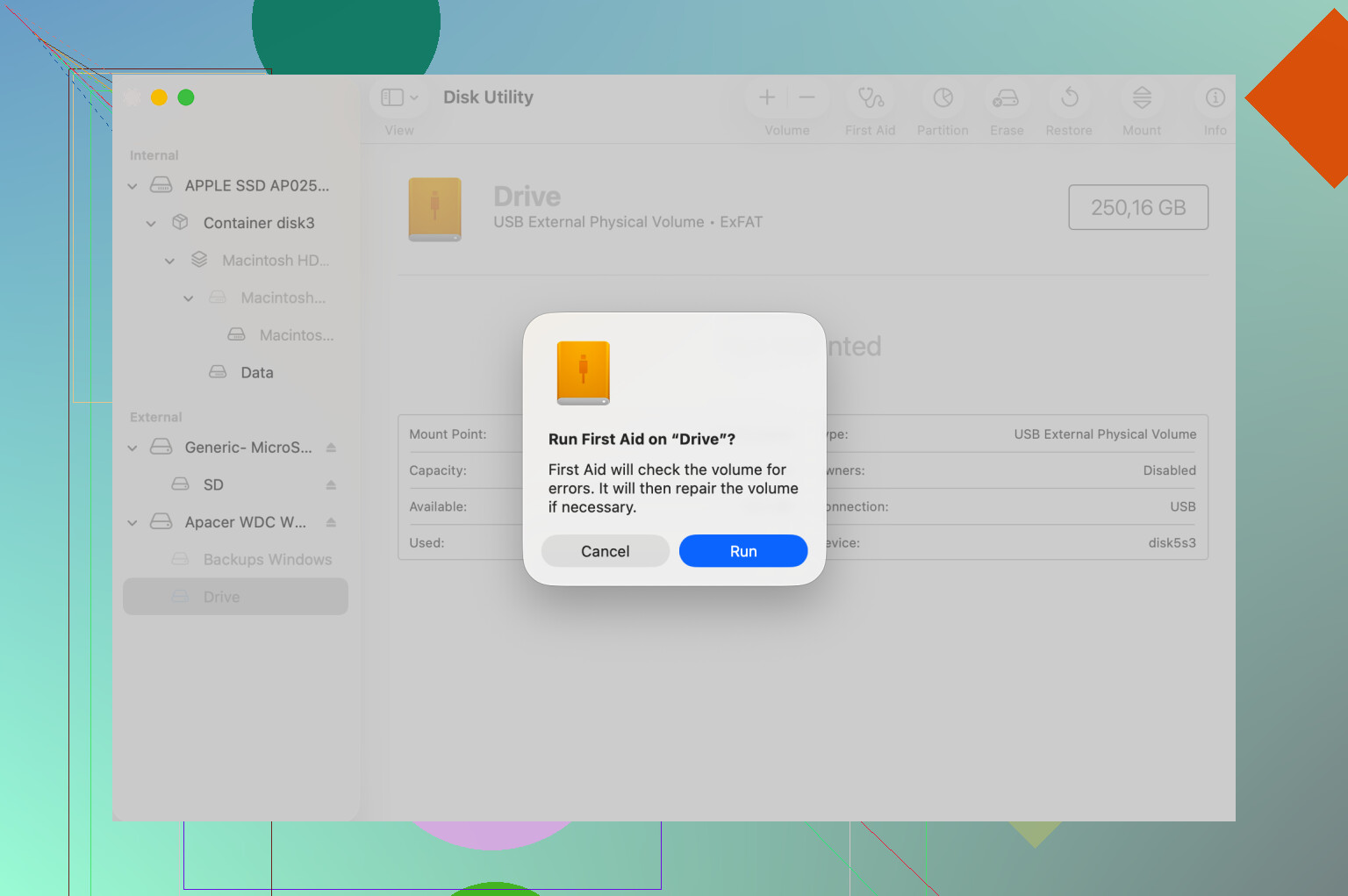
Disk Utility, but in the right order
This part gets missed a lot. Don’t only click First Aid on the dimmed volume and call it done.
In Disk Utility:
View > Show All Devices
Then run First Aid in this order:
1. The physical disk
2. The container
3. The volume
I had one case where the first pass failed, the second complained about the map, and the third finally cleared it. So if it errors once, I wouldn’t stop there. A repeat pass sometimes changes the result.
When First Aid gives up
If Disk Utility throws exit code 8, or says the volume can’t be repaired, I’d stop hammering on it. I learned this the hard way. Repeated mount attempts on a damaged file system are a bad bet if the data matters.
At that point I’d switch to recovery before doing anything destructive. Disk Drill helped in one case where macOS refused to mount the drive at all. It scanned the raw sectors and showed enough of the folder structure for me to copy files to another disk first. That’s the part I cared about. Save the data, wipe later.
One odd macOS behavior
I also saw a strange system-side fix on newer macOS builds. Logging out of your account and signing back in sometimes reset whatever DiskManagement process was wedged. Booting into Safe Mode did the same once on my machine. If you’re close to reformatting, I’d try those first since they take less time and don’t touch your files.
16 Likes
If the error is com.apple.diskmanagement.disenter, I’d look at three causes first.
- APFS metadata damage. The container or volume superblock gets dirty after a bad unplug, crash, or power loss.
- macOS policy blocks the mount. I’ve seen this after OS updates, especially when the disk was encrypted or owned by another Mac.
- Hardware path issues. Bad USB-C hubs, weak cables, and enclosures cause partial reads. Disk shows up, mount fails.
I slightly disagree with @mikeappsreviewer on one part. Killing fsck helps in some cases, but if your APFS metadata is already shaky, forcing stuff mid-check is risky. If the files matter, start with inspection, not force.
What I’d do:
Run:
diskutil list
Find the APFS container and volume IDs. Then run:
diskutil apfs list
Look for:
- FileVault locked status
- Fusion mismatch
- Physical Store errors
- Snapshot weirdness
- Role mismatch on the volume
Then try a manual mount in Terminal:
sudo diskutil mount readOnly /dev/diskXsY
Read-only is safer first. If it mounts, copy data off fast.
If it does not mount, check system logs:
log show --last 10m --predicate ‘process == ‘diskmanagementd’ || process == ‘apfsd’’
Those logs often show the real reason. I’ve seen ‘wrong fs type’, ‘invalid spaceman oid’, and container checkpoint errors there.
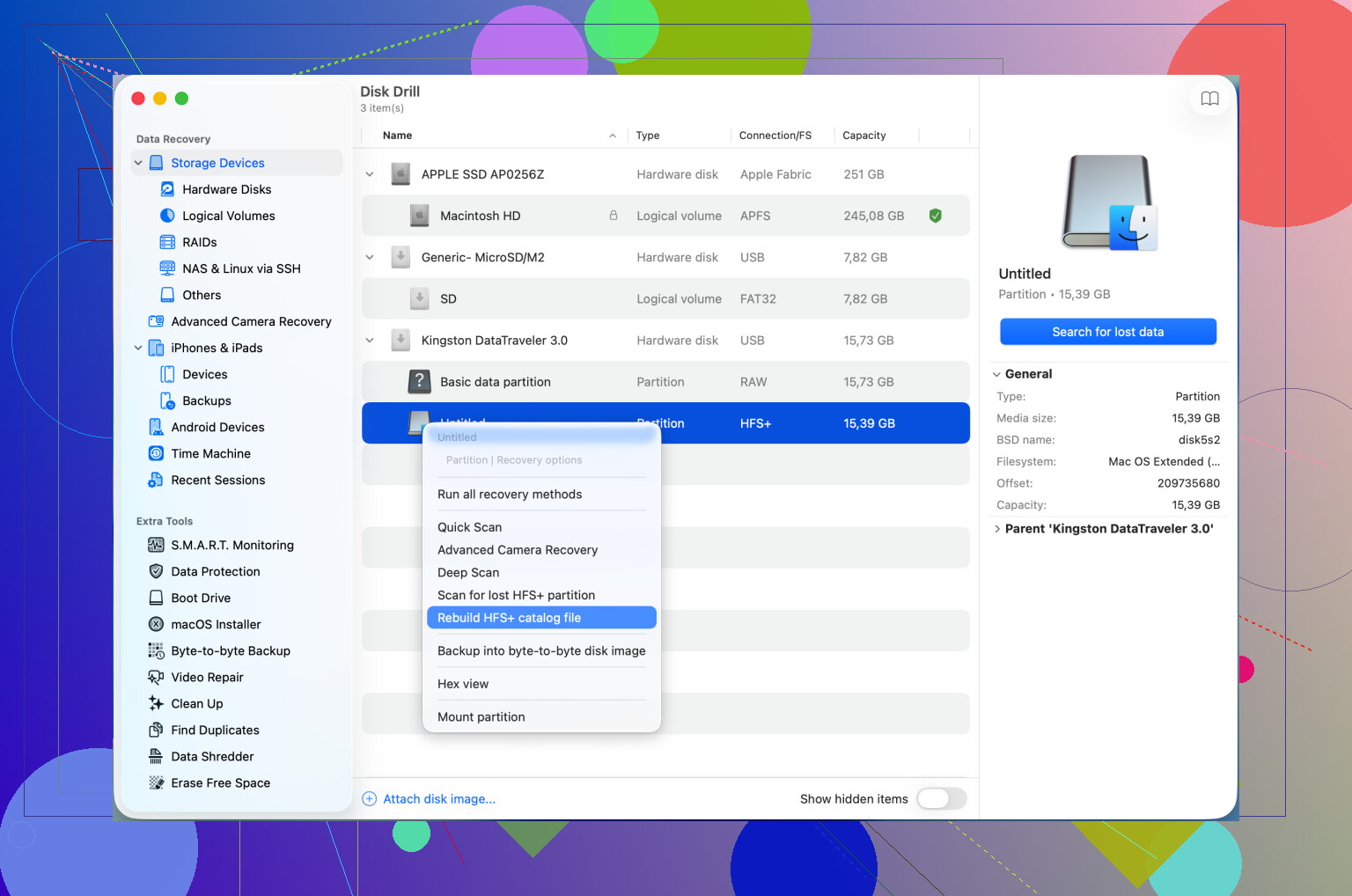
If Disk Utility fails and your data matters, switch to recovery before erase. Disk Drill is worth trying for APFS data recovery because it scans the disk without needing a normal mount. If you also deal with older Mac formats, this guide on repairing an HFS catalog and fixing disenter mount errors is relevant too.
Last thing. Test the drive on another Mac and on a direct port, no hub. I’ve had two ‘dead’ APFS drives come back from doing only taht.
I’d treat com.apple.diskmanagement.disenter less like “the drive is dead” and more like “macOS hit something it doesn’t like during mount.” Sometimes that’s APFS corruption, sometimes permissions/encryption weirdness, and sometimes the enclosure lies just enough to waste your afternoon.
A thing I don’t see mentioned enough by @mikeappsreviewer or @hoshikuzu: check whether the disk is even reporting sane SMART / bridge info. In Terminal:
diskutil info /dev/diskX
system_profiler SPUSBDataType
system_profiler SPThunderboltDataType
If the enclosure shows flaky link speed, missing serial, or keeps reconnecting, stop troubleshooting APFS first. The file system may be fine-ish, the USB bridge may be the clown here.
Also, if this is an external APFS encrypted volume, try unlocking before mounting:
diskutil apfs unlockVolume /dev/diskXsY
I’ve seen disenter errors where the real problem was the unlock step silently failing.
If your data matters, do not run random write-heavy fixes yet. Best move is to clone/image the disk first if it’s unstable. Then work from the clone. That’s boring advice, but boring is how you keep files. If the volume won’t mount and First Aid is going nowhere, Disk Drill is one of the more practical options for an unmountable APFS drive because it can scan without a normal mount and let you recover files before erase/rebuild.
For picking software, I’d frame it like this: best data recovery software for an unmountable drive with APFS support. If you want a basic walkthrough, this is relevant: how to recover files from an unmountable Mac drive.
One more semi-annoying reality: if the drive mounts on another Mac instantly, your current macOS install may be the problem, not the disk. Seen it. Hated it.
I’d add one angle the replies from @hoshikuzu, @espritlibre, and @mikeappsreviewer only touched indirectly: APFS snapshot and seal issues, especially if this used to be a system disk or was cloned from one. I have seen com.apple.diskmanagement.disenter happen when the volume itself is readable, but macOS refuses a normal mount because the snapshot tree or volume role metadata is inconsistent.
A couple of checks that are low-risk and different from the usual First Aid loop:
tmutil listlocalsnapshots /
diskutil apfs listSnapshots /dev/diskXsY
mount
If the affected volume is external and has tons of snapshots, that can complicate mounting. Also check whether Finder is the problem and not the filesystem by trying:
sudo mkdir /Volumes/testmount
sudo mount_apfs -o rdonly /dev/diskXsY /Volumes/testmount
That bypasses some of the higher-level DiskManagement behavior. If this works, your data is probably less at risk than the error makes it sound.
One mild disagreement with the “just kill fsck” idea: if the disk is clicking, disconnecting, or throwing I/O errors, I would not interrupt anything. That is when you image first or stop.
If the drive is important, check raw health clues too:
ioreg -p IOUSB -l | grep -i -E 'Product|Vendor|Serial'
log show --last 30m | grep -i 'I/O error'
Repeated I/O errors usually mean the enclosure or disk path is the real problem.
If you cannot get a stable read-only mount, Disk Drill is a reasonable next move.
Pros
- good APFS support
- can scan unmountable volumes
- easier preview/export workflow than many tools
Cons
- deep scans can take forever
- preview names/folders are not always perfect on damaged APFS
- paid recovery if you need full extraction
So, cause is usually one of three buckets: APFS metadata inconsistency, encryption/snapshot/role weirdness, or flaky hardware path. Your data is not automatically gone just because macOS refuses the mount. If anything, the main mistake is trying too many write actions before copying files out.