My external hard drive suddenly shows my music folder as empty, and years of MP3s and playlists seem to be gone. The drive still powers on, but I’m not sure if the files were deleted, hidden, or corrupted. Has anyone dealt with missing music files on an external hard drive and found a way to recover them?
I ran into almost the same mess with an external drive. Plugged it in, opened it, and a bunch of folders had vanished. My first thought was, great, I nuked my own files. Turned out the drive had file system damage, and most of the data was still sitting there. So I would not treat missing folders like a death sentence yet.
First thing, stop poking at the drive.
Do not format it. Do not move new files onto it. Do not run repair stuff right away. If your data still exists on the disk, every extra write raises the chance of making recovery harder.
A few quick checks helped me narrow it down before I touched recovery software:
- Turn on Hidden items in File Explorer.
- Look at used space on the drive. If your folders are gone but it still shows something like 800 GB used, I took that as a decent sign.
- Swap the USB port or cable if the drive is acting off.
- If it disconnects, crawls, or throws file system errors, stop opening folders again and again. I did that at first and it was a bad move. More reads, more stress.
If you do not have a backup, I would skip straight to data recovery before trying to repair the file system. That was the safest path in my case.
The tool I used was Disk Drill. Setup was simple enough:
- Install it on your internal drive, not on the broken external one.
- Plug in the external drive and open the program.
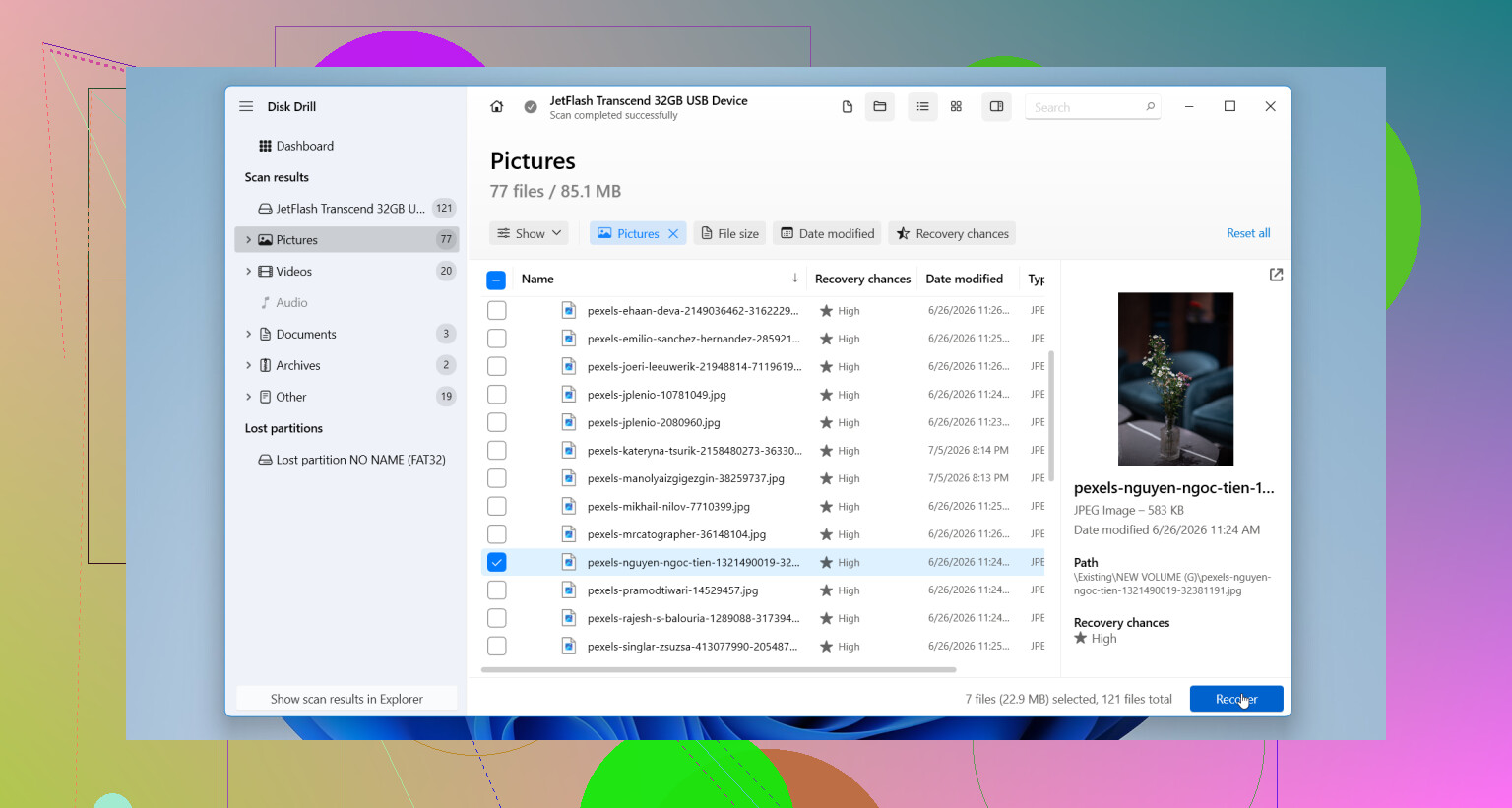
- Pick the drive and hit Search for lost data.
- If the drive looks unstable, make a disk image first and scan the image instead. I wish more people did this. Repeated scans on a weak drive are rough on it.
- Let the scan finish. Preview some files. Recover them to a different drive, never back onto the same one.
I would only think about repair or reformatting after the important files are copied somewhere safe.
There are also cases where I would stop the DIY route and hand it off to a recovery shop. For me, these are the red flags:
- Clicking, grinding, or beeping noises.
- Disconnecting every few seconds.
- Not showing up on any computer.
- Scans freezing all the time because the drive keeps dropping offline.
- Files matter too much for trial and error.
Those signs point more toward hardware failure than file system corruption. Software is not going to fix a dying mechanism.
If you get your stuff back, I would retire the drive. I know some people keep using them after one scare. I don’t. Once a drive starts losing files, going unreadable, or corrupting itself for no clear reason, my trust is gone. You can check its health with SMART diagnostics, but even if the report looks fine, I would only use it for throwaway storage, if at all.
That’s what I did. Mine still mounted after recovery, but I replaced it anyway. Now I keep a second backup on another drive because I learned this one the annoyng way. New hardware cost less than repeating the panic.
18 Likes
Yep, this happens more than people think. Empty folder does not always mean erased files.
I agree with @mikeappsreviewer on one big point, stop using the drive. I differ a bit on repair tools though. I would not even tempt fate with CHKDSK early on if the music matters. CHKDSK likes to “fix” things, and sometimes your folder structure gets mangled in the process. Great for the drive, bad for your collection.
A few things to check first:
- Open Disk Management and see if the partition still shows the right size.
- Compare used space versus free space. If space is still occupied, your MP3s are often still there.
- Try the drive on another PC. I’ve seen Windows profile glitches show folders as empty.
- If your playlists were in iTunes or MusicBee, check whether only the library database broke while the audio files stayed put.
If the folder is empty and you have no backup, I’d go recovery first. Disk Drill is one of the better options for external hard drive music recovery because it tends to find both deleted files and lost partitions. Recover to a different drive. Not the same one. People do this, then wonder why results get worse. Kinda brutal, but true.
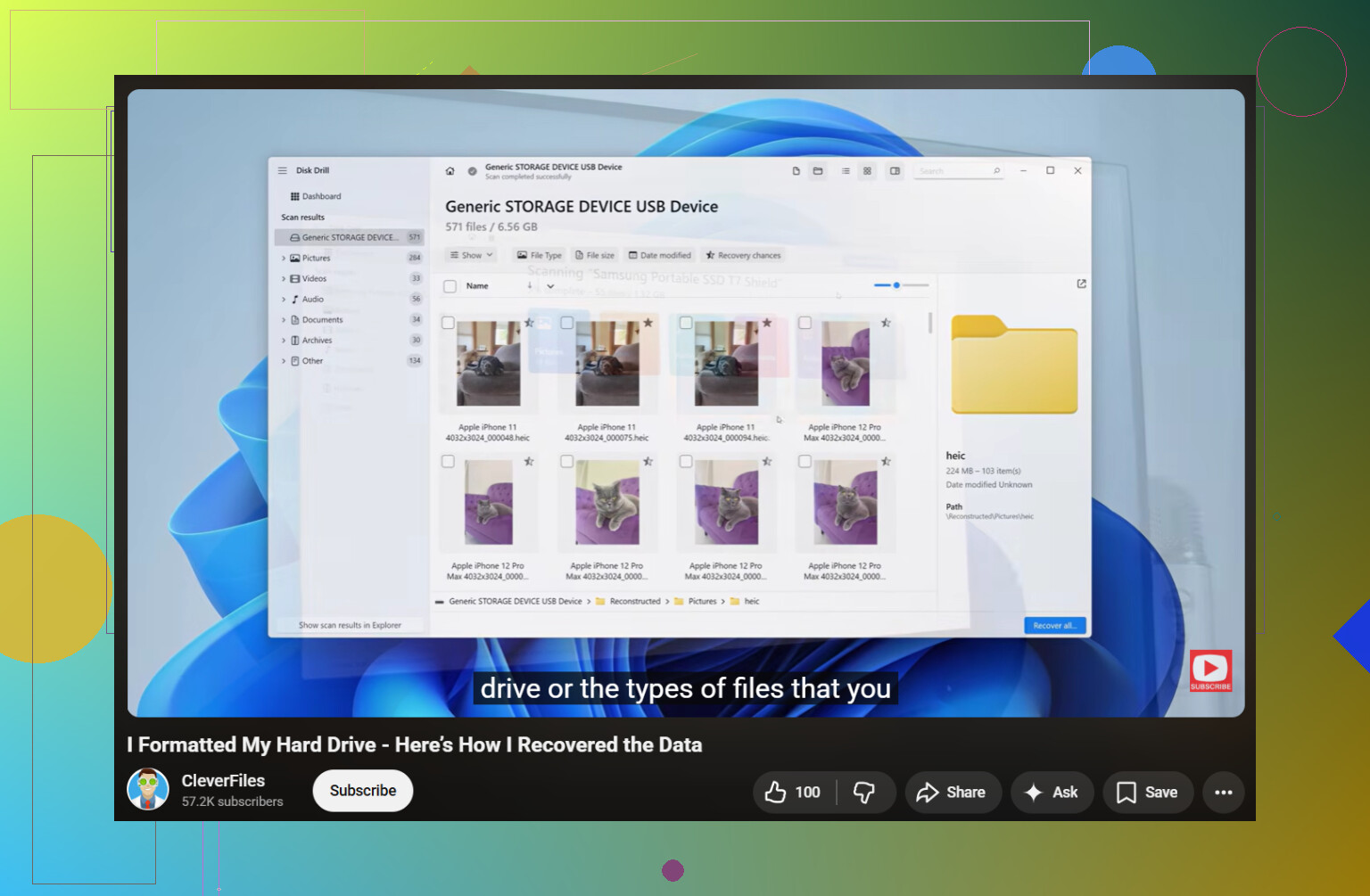
If you want a simple guide, this helps with recovering files after a drive was formatted or went weird:
watch this formatted hard drive file recovery walkthrough
One more thing. If your drive has years of music and no backup, retire it after recovery. Drives love giving one warning, then faceplanting later. Learned this the dumb way too.
Yep, happened to me with an old WD drive. Folder looked totally empty, but the space on the drive was still being used, which told me the files were probly still there somewhere and Windows just wasn’t showing them right.
I mostly agree with @mikeappsreviewer and @yozora, but one thing I’d add before jumping into repair or deep scans is to check whether the folder permissions got weird. Right click the music folder, Properties, Security, and make sure your account still has access. I’ve seen drives come back from another PC and suddenly act like the owner changed, so the folder looks blank even though the data is still there. Also check the drive in another file manager, not just File Explorer. Sometimes Explorer lies. Seriously.
Another angle: if your playlists disappeared too, the audio files and the playlist files may be two seperate problems. M3U, iTunes XML, MusicBee database, all that stuff can break independently from the MP3s. So don’t assume everything vanished in the same way.
If the drive is stable enough to read, I’d copy off any visible files first, then use Disk Drill for external hard drive data recovery and recover to a different disk. If the filenames matter, try to recover sooner rather than later, because once file system metadata is more damaged, you may just get a giant pile of unnamed audio files. That part suuuucks.
Also worth reading: best hard drive recovery software discussions on Reddit
If you get the collection back, don’t trust that drive again. Empty folders are often the warning shot, not the main event.
Yep. One thing I’d add to what @yozora, @sonhadordobosque, and @mikeappsreviewer already covered: check whether the folder contents are being filtered out by Windows indexing or a broken library view, especially if you access that music through a saved shortcut, Quick Access, or a media app folder mapping. I’ve seen “empty” folders that were really just pointing to a dead location.
I slightly disagree on one part people often repeat: trying another PC is useful, but I would avoid too many plug-unplug cycles if the drive is acting flaky. If it’s a failing enclosure or weak USB bridge, every reconnect can make things worse. Sometimes pulling the drive out of the enclosure and connecting it another way helps, but only if you know what you’re doing.
For recovery, Disk Drill is a reasonable pick.
Pros:
- easy to use
- good at finding deleted audio and lost folder structures
- preview helps confirm files before recovery
Cons:
- deep scans can take forever
- results depend heavily on drive health
- free recovery limits can be annoying depending on platform
If the music is truly valuable, I’d clone the drive first, then scan the clone. That’s the part many people skip. Recovery software is safer on a copy than on a questionable original. If Disk Drill doesn’t show filenames or folders properly, that usually means metadata damage, and then you’re racing the condition of the disk more than the software.
Big clue: if your MP3 tags survive but filenames don’t, you can still rebuild a lot later with music library tools. Annoying, but not hopeless.